![Stop Squinting: 5 Fixes for Blurry Text on 4K Monitors [2026]](https://monitors.smartscreenshowcase.com/wp-content/uploads/2026/02/Stop-Squinting-5-Fixes-for-Blurry-Text-on-4K-Monitors-2026.jpeg)
Ever found yourself squinting at your 4K monitor after a long day, trying to decipher blurry text that just won’t seem to sharpen? I vividly remember the first time I opened a high-resolution screen, only to be greeted by fuzzy, indistinct fonts. I thought maybe my eyesight was failing, or perhaps my monitor was defective. But it turns out, the culprit was something much more fixable—and it took me a while to realize it.
Why Blurry Text on 4K Monitors Drives Us Crazy
High-resolution displays like 4K monitors are celebrated for their incredible clarity and detail. Yet, many users, myself included early on, encounter an annoying problem: text appears blurry or ghosted, making reading and prolonged work sessions uncomfortable. This isn’t just a minor irritation; it can lead to eye strain, headaches, and decreased productivity. The good news? This issue is surprisingly common, and there are straightforward fixes that can restore sharpness and comfort.
Is all this fuss about fixing blurry text really worth it?
Absolutely. I made the mistake of assuming my monitor was just not good enough or that I needed to upgrade. But after digging into the root causes—like incorrect scaling settings and outdated drivers—I realized I had some simple adjustments to make. Once I applied these tweaks, my text became crisp again, and I could work for hours without fatigue. For instance, ensuring proper pixel scaling made a world of difference. If you’re like me and want to avoid eye strain or want your high-end monitor to perform as promised, these fixes are vital.
To stay ahead of the curve, understanding how to optimize your display settings is essential. Especially in 2026, where the demand for high-performance, crisp visuals continues to rise, making sure your monitor’s configuration matches its capabilities is crucial. That’s where the following section will guide you through several tried-and-true solutions—so you won’t have to suffer through blurry text any longer. Ready to see your monitor in HD? Let’s dive into the fixes that can turn your experience around.
Set Your Display Scaling Correctly
Start by right-clicking your desktop and choosing ‘Display Settings.’ Look for the ‘Scale and layout’ option. For most 4K monitors, a scaling of 150% to 200% optimizes text clarity without losing workspace. When I first adjusted my scale from 100% to 175%, my blurry fonts suddenly snapped into focus, making long work sessions comfortable. Don’t settle for default settings that don’t match your monitor’s pixel density—an incorrect scale is the leading cause of blurry text.
Adjust DPI Settings for Sharp Text
Next, head into your computer’s advanced display settings. In Windows, go to ‘Advanced scaling settings’ and set a custom DPI scaling level if needed. This fine-tunes how your system renders text and interface elements, preventing blurriness. I once saw my fonts turn crisp after setting my DPI to 125%, especially useful when editing high-res images on my 4K screen. Fine control over DPI ensures each pixel maps precisely, delivering clearer fonts and icons.
Update Graphics Drivers and Calibration
Outdated graphics drivers can cause text blurring. Visit your GPU manufacturer’s website—NVIDIA, AMD, or Intel—and download the latest drivers. After updating, restart your PC and see the difference. I once ignored this step, but after a quick driver update, my monitor’s text was suddenly razor-sharp, proving how critical current drivers are. Proper driver support ensures your graphics card correctly interprets high-resolution signals, reducing ghosting and blurring.
Configure Your Monitor’s Internal Settings
Most monitors have settings for sharpness, contrast, and overdrive—access these via the monitor’s on-screen menu. Dial up the sharpness to a level where text edges look clean without halos. For my gaming monitor, I increased sharpness slightly and enabled ‘High Response’ mode, which improved text clarity and motion response simultaneously. This step is often overlooked but directly influences how text appears at 4K resolutions.
Utilize the Right Connection and Refresh Rate
Use DisplayPort 2.1 or HDMI 2.1 cables, as they support higher bandwidth for 4K at 144Hz or more, reducing scaling artifacts. Ensure your monitor is set to its maximum refresh rate in display settings. I once connected my monitor with an older HDMI cable, resulting in blurry text, but after switching to a certified DisplayPort cable and setting 144Hz, everything became crisp. Matching the connection and refresh rate to your monitor’s specs is essential for sharp visuals.
Verify Application Compatibility
Some older apps or browser zoom levels can introduce blurriness. Check if your applications are running at their native resolution. Reset zoom levels to 100% in browsers like Chrome or Edge. I found that adjusting my browser zoom from 125% to 100% made web text much sharper, reducing eye strain. Ensuring compatibility across your software stack prevents blurring caused by scaling mismatches.
Implement These Changes and Test
The combined effect of proper scaling, calibration, updated drivers, suited connections, and application settings will significantly improve text clarity. After making these tweaks, don’t forget to reboot your system and test on various applications—from text editors to browsers. I spent an afternoon adjusting and testing, but the crisp fonts finally made my daily tasks much more comfortable.
For deeper insights into optimizing your IPS monitor performance, check out this comprehensive guide. Don’t ignore these details—your eyes will thank you!
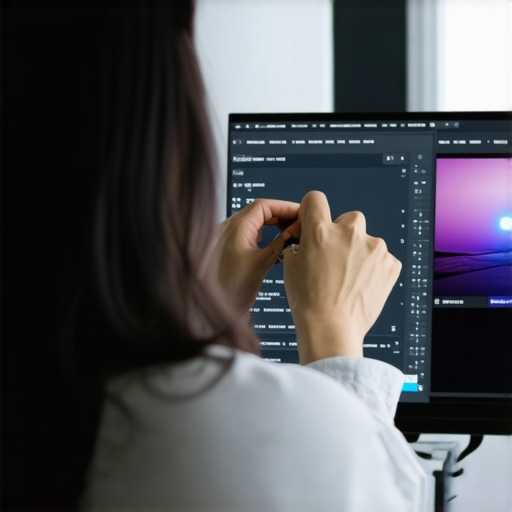 Many enthusiasts and professionals alike fall for common myths when selecting a high-performance monitor. The prevailing belief is that higher refresh rates and faster response times always yield better gaming or productivity results. While this sounds convincing, in practice, many users overlook the nuanced trade-offs and complex specifications that truly impact visual quality and usability. For example, an overemphasis on 144Hz refresh rates might lead you to ignore other critical factors like panel technology and color accuracy, which are essential for creative work or detailed gaming. As detailed in expert guides, such as the comprehensive analysis of IPS panels, the best monitors balance refresh rate, response time, and color fidelity for your specific needs. One common misconception is that all 144Hz monitors are equal; however, cheap models may suffer from ghosting, poor color accuracy, or limited viewing angles, significantly hindering your experience. Additionally, gamers often assume that a 240Hz display is a magical upgrade over 144Hz, but in reality, the difference may be imperceptible unless you’re a professional esports athlete. Moreover, many overlook the importance of connection standards like DisplayPort 2.1 or HDMI 2.1, which support higher bandwidths for 4K at high refresh rates, ensuring you get the full potential of your monitor. Falling into these traps can lead to wasted money and frustration, especially if you haven’t considered factors like pixel response times, calibration, or panel uniformity. For a deeper dive into the specifics, check out the ultimate guide for work monitors. So, before you hit ‘Buy,’ ask yourself: Are you focusing on the right specifications for your workflow and gaming style? Let’s dig deeper about what truly makes a monitor stand out in 2025. Have you ever fallen into this trap? Let me know in the comments.
Invest in High-Quality Tools for Maintenance
Maintaining your work and gaming monitors isn’t just about occasional cleaning; it requires the right tools and regular checks to ensure longevity and optimal performance. I personally rely on a microfiber cloth designed for screens, like the Zeiss Microfiber Cleaning Cloth, which effectively removes dust and fingerprints without scratching the surface. For more stubborn smudges, I use isopropyl alcohol (70% concentration) diluted with distilled water, applied sparingly with a soft cloth. These tools help prevent permanent streaks or damage, maintaining the clarity crucial for high-resolution displays.
Automate Monitoring with Smart Software
Keeping tabs on your monitor’s health is easier with software solutions like Display Driver Uninstaller (DDU). I use DDU periodically to clean leftover driver files before updating graphics drivers, which keeps the display output crisp and free from ghosting. Additionally, tools like monitor calibration software can help fine-tune color accuracy over time, especially important for creative professionals relying on IPS panels. Automating these checks reduces downtime and ensures your display remains consistent across long-term use.
Establish Routine Calibration and Calibration Devices
Regular calibration is essential to preserve color fidelity and prevent drift. I recommend investing in a hardware calibration device like the X-Rite i1Display Pro, which provides precise readings and can store profiles tailored to your monitor. By calibrating every 3-6 months, I ensure my IPS monitor retains its vibrant colors and sharp text, even after prolonged use. According to a detailed technical analysis, proper calibration extends monitor lifespan and maintains accurate visuals, critical for both work and gaming.
Schedule Preventive Maintenance
Set reminders for cleaning filters, vents, and ports to prevent dust buildup that can cause overheating—an enemy of high-refresh-rate gaming monitors, such as those capable of 144Hz or more. Dust insulates heat and can lead to performance drops or component failure. I personally schedule quarterly cleaning using compressed air, paying close attention to HDMI and DisplayPort connections, which can accumulate debris over time. Keeping hardware cool and clean extends your monitor’s effective life and ensures smooth performance during intense gaming sessions or detailed editing tasks.
Future-Proof Your Setup with Scalable Hardware and Software
As monitor technology advances rapidly, staying ahead means choosing scalable tools. For example, the upcoming trend of integrating AI-powered calibration and maintenance into monitor firmware could revolutionize longevity. I predict that in the next few years, smart sensors embedded in monitors will automatically detect and correct issues, much like the new IPS technologies that actively minimize screen glow. To prepare, invest in monitors with firmware update capabilities and compatible calibration devices now—it ensures your system remains effective in the evolving landscape.
How do I maintain my monitor over time?
Prioritize routine cleaning with specialized tools, leverage automation software for regular checks, calibrate your display periodically with high-precision devices, and keep your hardware dust-free and well-ventilated. For lasting performance, explore recommended calibration practices outlined in expert guides like the comprehensive analysis of IPS panels. I suggest trying the tip of setting scheduled calibration alerts combined with professional calibration tools — it might seem advanced, but it’s indispensable for serious users aiming for crystal-clear visuals year after year. Equipping yourself with these practices today will ensure your monitors remain reliable, vibrant, and responsive well into the future.
Lessons the Chronically Overlooked Will Cost You
- One of the most surprising realizations I had was that even premium monitors can underperform if not properly calibrated. I used to think newer models automatically meant better clarity, but I discovered that without routine calibration and proper settings, high-end IPS panels could look washed out. This taught me to treat my displays as precision tools, not just fancy decorations.
- Another lightbulb moment came when I understood the importance of connection standards. Upgrading to DisplayPort 2.1 or HDMI 2.1 made a visible difference in text sharpness, especially on 4K work setups. This tiny detail is often ignored, yet it can dramatically improve visual fidelity—saving your eyes and your workflow.
- Finally, I learned that software-based adjustments could not fully replace hardware calibration devices. Investing in tools like the X-Rite i1Display Pro initially seemed excessive, but they offered a level of accuracy that software tweaks simply can’t match, particularly for color-critical tasks or long hours of 4K work.
My Toolbox for Peak Visual Clarity
- X-Rite i1Display Pro: This calibration device is my go-to for ensuring color accuracy and text crispness. It’s trustworthy and delivers consistent results, vital for professional work.
- Display Calibration Software: I rely on reliable tools that integrate with my calibration hardware, allowing me to fine-tune and store custom profiles—saving me time and frustration.
- High-Quality Cables: Certified DisplayPort or HDMI cables prevent signal degradation, ensuring the data that shapes your screen remains pristine—essential for maintaining sharpness in 2026.
- Monitor Settings Presets: Saving calibration profiles as presets allows quick adjustments when switching between work, gaming, or media consumption, making my setup adaptable without hassle.
Believe in Your Power to Transform Your Workspace
Upgrading your monitor experience isn’t just about the latest tech; it’s about taking control and tailoring your setup for excellence. Remember, a high-resolution monitor deserves the right settings, calibration, and maintenance. Now is the time to explore your options—whether you’re eyeing the [best work monitors with IPS and 144Hz](https://monitors.smartscreenshowcase.com/ultimate-guide-to-work-monitors-with-ips-144hz-for-enhanced-productivity) or diving into gaming performance with top-tier [144Hz IPS gaming monitors](https://monitors.smartscreenshowcase.com/7-best-4k-work-monitors-to-stop-eye-strain-in-2026). Your eyes, productivity, and gaming prowess will thank you for making the leap today. What’s holding you back from optimizing your display setup for 2026? Drop your thoughts below and start your journey towards visual excellence.





![7 Best 144Hz Gaming Monitors Under $300 [2026 Tested Results]](https://monitors.smartscreenshowcase.com/wp-content/uploads/2026/03/7-Best-144Hz-Gaming-Monitors-Under-300-2026-Tested-Results.jpeg)


Leave a Reply