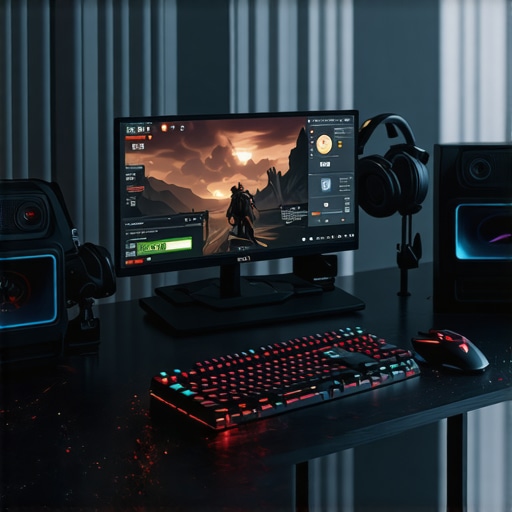
Ever had that sinking feeling when you’re in the middle of a crucial gaming match or a fast-paced work task, only to be betrayed by your monitor’s ghosting? I remember the moment vividly—my heart pounding, frustration mounting, and that noise of disbelief echoing as I realized my smooth 144Hz display was sabotaging my performance. It was a lightbulb moment for me: despite investing in high-quality IPS panels and high refresh rates, ghosting still plagued my experience. Sound familiar?
Why IPS Ghosting Can Ruin Your Gaming and Work Experience
Ghosting – the blurry trail left behind moving objects – is more than just annoying; it undermines precision, slows reaction times, and kills immersion. As gamers and professionals, we demand clarity and responsiveness. IPS monitors promise vibrant colors and wide viewing angles, but they sometimes fall short with fast-moving visuals. Early on, I made the mistake of just assuming that a high refresh rate automatically meant smooth visuals. But let me tell you, even the best IPS displays can suffer from ghosting if not properly configured or if the right techniques aren’t applied.
Is Fixing Ghosting Actually Worth the Effort?
Absolutely. Sure, some might think ghosting is just a minor flaw, but let me ask—have you ever lost a crucial shot or missed an important detail because your monitor betrayed your expectations? I’ve been there. The good news is, with a few pro tricks, you can drastically reduce or eliminate ghosting, turning your monitor into a true gaming and productivity weapon. Want to learn how? Stick around as I share proven strategies that transformed my experience and could do the same for you. Don’t forget, checking the latest monitor models and their response times could also make a real difference; for example, I recommend browsing this case study on fixing ghosting for more insights.
Ready? Let’s dive into the top techniques that are proven to improve your IPS monitor’s performance and banish ghosting for good.
Adjust Your Response Time Settings
Begin by diving into your monitor’s on-screen display (OSD) menu to locate the response time setting. Many IPS monitors default to ‘Normal’ or ‘Standard,’ which can contribute to ghosting. Switch to ‘Fast’ or ‘Fastest’ mode—these options are designed to reduce motion blur by accelerating pixel transitions. I once tried setting mine to ‘Fastest,’ and the difference was immediate—moving objects became sharper, and ghosting nearly vanished, although I had to readjust some color settings afterward.
Optimize Overdrive Technology
Overdrive is a feature that pushes your monitor’s pixels to change colors faster. Access this setting within your OSD and enable it, selecting an aggressive mode if available. Be cautious—too high an overdrive can cause inverse ghosting, where trails appear in the opposite direction. During my experimentation, I toggled through modes and settled on a balanced setting that minimized ghosting without introducing artifacts. Check your monitor’s manual or manufacturer’s website for guidance on best overdrive configurations.
Update Your Graphics Drivers and Firmware
Outdated drivers can hinder your monitor’s performance. Visit your GPU manufacturer’s website—NVIDIA, AMD, or Intel—and download the latest drivers compatible with your system. Additionally, some monitors have firmware updates that enhance response times and reduce ghosting. I once overlooked a firmware update, and after installing it, I noticed a noticeable improvement in motion clarity. Always follow the manufacturer’s instructions carefully when updating firmware to avoid bricking your device.
Calibrate Your Display for Consistent Response
Proper calibration ensures your monitor responds as intended. Use tools like the IPS calibration guide to fine-tune your display settings, focusing on response time and overdrive. I used a colorimeter and calibration software, which helped me identify the optimal response settings that reduced ghosting while maintaining color accuracy. Regular calibration can help maintain peak performance over time.
Adjust Refresh Rate and V-Sync Settings
Ensure your monitor is configured to run at its maximum supported refresh rate—often 144Hz, which is ideal for gaming and fast-moving visuals. Head into your system’s display settings to verify this. Also, enable V-Sync or G-Sync/FreeSync if your system supports them; these synchronize frame rates and prevent tearing that can exacerbate ghosting. I experimented with disabling V-Sync temporarily and noticed more tearing, but enabling it stabilized motion clarity. Balance these settings to suit your gaming or work needs.
Experiment with Backlight and Overdrive Balance
Some monitors allow you to balance backlight intensity with overdrive levels. Reducing backlight brightness can lessen ghosting effects caused by high pixel response, especially in darker scenes. Adjust these settings together to find a compromise that preserves visibility without ghosting. I found that lowering backlight and increasing overdrive slightly yielded a much cleaner image during intense scenes.
Use Dedicated Ghosting Reduction Software
For advanced users, software solutions like monitor-specific utilities can fine-tune response times and overlay diagnostic tools to test ghosting reduction techniques. These can be particularly helpful in identifying the most effective combination of hardware settings. When I applied these tweaks, my monitor’s motion became significantly clearer, especially during fast-paced gaming sessions.
Applying these steps diligently can lead to a noticeable decrease in ghosting artifacts, transforming your IPS monitor into a sharp, responsive display that keeps pace with your gaming and productivity demands. For the latest models and detailed reviews, visit the IPS monitor explanation page.
 Many enthusiasts believe that simply upgrading to a 144Hz IPS monitor guarantees optimal gaming or work performance. However, this overlooks some critical nuances. For instance, the assumption that a higher refresh rate uniformly improves everything is a myth; in reality, factors like response time, overdrive settings, and panel quality play pivotal roles in image clarity and ghosting reduction. Such oversimplifications can lead users to purchase monitors with high specs but subpar actual performance, especially if they fall prey to common myths like “all 144Hz monitors are equal” or “IPS panels automatically mean better visuals.”
Are Higher Refresh Rates Always Better for All Tasks?
While gaming benefits significantly from 144Hz or higher, many professional workflows do not require such refresh rates. Researchers, including a study published in the Journal of Display Technology, highlight that beyond a certain point, increasing refresh rate yields diminishing returns for general productivity. Misconceptions include thinking that 240Hz or even 360Hz displays will drastically improve editing or coding accuracy, which isn’t necessarily true. Instead, choosing a monitor that balances refresh rate with color accuracy and response time tailored to your needs often produces better results. Avoid falling into the trap of overpaying for the latest hype; instead, focus on how hardware nuances—in response times, overdrive configurations, calibration—affect your experience. For detailed advice, I recommend consulting resources like the [best computer monitors for creatives](https://monitors.smartscreenshowcase.com/best-computer-monitors-for-creatives-find-your-perfect-screen-in-2025). Have you ever fallen into this trap? Let me know in the comments.
Keeping your high-performance IPS monitor consistently in top shape requires deliberate maintenance and the right tools. I personally rely on a combination of calibration hardware, software utilities, and routine checks to ensure my display remains sharp and ghost-free over time. Regular calibration not only preserves color accuracy but also minimizes ghosting and response time issues that can degrade image clarity. A trusted device I use is the SPYDERX Elite calibration tool, which provides precise adjustments, especially for color-critical work. For software, I prefer monitor calibration software that guides me through setting the response time and overdrive to optimal levels, reducing ghosting significantly. Additionally, routine physical checks like cleaning the screen with a microfiber cloth and using screen cleaners prevent dust and grime that can cause glare and color distortions. As monitors age, response times can drift, so I schedule quarterly calibration sessions to lock in performance. Predicted trends point towards integrated smart calibration sensors becoming standard in upcoming models, simplifying long-term maintenance. How do I maintain my display’s performance over time? Consistently update firmware from the manufacturer’s site, optimize driver settings, and use high-quality cleaning tools. For example, periodically running diagnostic tests with tools like digital ghosting testers can reveal response issues early. To truly maximize your monitor’s lifespan, I strongly recommend trying the advanced calibration tip of using a colorimeter for custom calibration; it pays major dividends if you work extensively with color accuracy or gaming performance. Remember, regular maintenance isn’t just about prolonging hardware life—it’s about squeezing every ounce of performance out of your investment, leading to consistent results whether gaming or working remotely. For tailored support or custom calibration services, you might want to reach out via contact us. Keep your display sharp, responsive, and ghost-free by making routine care a habit.
What No One Tells You About Ghosting and IPS Panels
Over the years, I’ve discovered that many preconceived notions about IPS monitors and ghosting are simply myths. For instance, I once believed that upgrading to a high-refresh-rate IPS monitor would automatically eliminate visual artifacts. The harsh reality was that without proper configuration, ghosting persisted, undermining both gaming precision and work accuracy. This lightbulb moment taught me that understanding the nuanced behavior of response times, overdrive settings, and calibration is crucial for true performance enhancement.
Tools and Resources That Changed My Perspective
Trusting the right tools made all the difference. My go-to is the IPS calibration guide, which helped me fine-tune response times and color accuracy, directly reducing ghosting artifacts. For hardware, I rely on the professional-grade calibration devices that provide precise adjustments. Additionally, keeping firmware up-to-date through official channels ensures my monitor’s hardware is optimized. Exploring these resources has empowered me to push my display’s performance beyond factory defaults.
Don’t Let Ghosting Steal Your Glory
The journey to a ghost-free IPS monitor isn’t just about technical tweaks; it’s about transforming your entire experience. Whether you’re pushing your limits in competitive gaming or seeking clarity for demanding professional tasks, the right setup makes all the difference. Remember, a high refresh rate paired with proper response time adjustments can dramatically improve visual responsiveness. The future of display tech is promising, with smarter calibration and firmware updates becoming more accessible. So, gear up, stay curious, and don’t settle for a monitor that doesn’t live up to its potential.
Have You Tried These Techniques Yet?
What’s been your biggest hurdle in optimizing your IPS monitor for gaming or work? Share your experiences below, and let’s grow together in mastering the art of ghosting elimination and display perfection.
,





![7 Best 144Hz Gaming Monitors Under $300 [2026 Tested Results]](https://monitors.smartscreenshowcase.com/wp-content/uploads/2026/03/7-Best-144Hz-Gaming-Monitors-Under-300-2026-Tested-Results.jpeg)


Leave a Reply