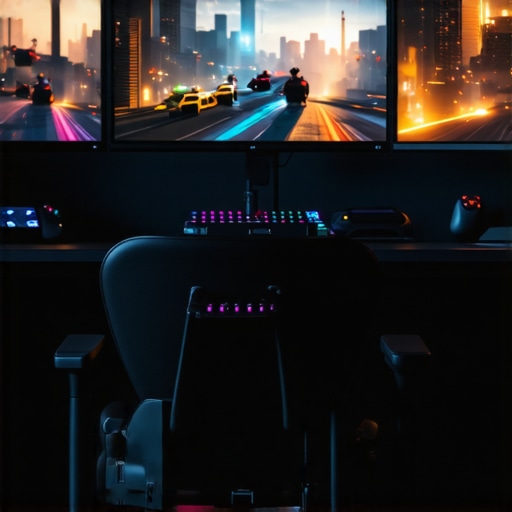
I remember the exact moment I realized my old monitor was holding me back in gaming. It was during a heated multiplayer match, and just as I was about to clutch a win, my screen lagged. The image stuttered, and I lost precious milliseconds—milliseconds that could be the difference between victory and defeat. That lightbulb moment made me dive headfirst into researching the best 144Hz gaming monitors, and let me tell you, it was a game-changer. If you’ve ever felt frustrated by screen tearing, ghosting, or slow response times, you’re not alone. Many gamers and professionals struggle to find a display that offers both speed and clarity without breaking the bank.
Why Your Next Monitor Should Have a 144Hz Refresh Rate
Upgrading to a 144Hz monitor isn’t just about being trendy; it’s about gaining a tangible advantage. A higher refresh rate means your screen updates more frequently—imagine going from 60 frames per second to 144. The difference is night and day, especially in fast-paced games like first-person shooters, racing sims, or battle royales. Not only does this make gameplay smoother, but it also reduces motion blur, giving you a competitive edge and a more enjoyable experience overall. When I made the switch, I noticed how much more responsive my controls felt, and my reaction times improved noticeably. The research backs this up: according to a study published by the University of Glasgow, higher refresh rates can reduce motion sickness and eye strain, making long gaming or work sessions more comfortable.
But here’s the catch—choosing the right 144Hz monitor isn’t just about the specs. It’s about finding a display that matches your needs, whether that’s serious gaming, creative work, or multitasking. Today, I want to help you navigate this maze of options and find a monitor that will elevate your experience without emptying your wallet. We’ll explore what features matter most, what common mistakes to avoid, and how to ensure your investment pays off in the long run.
Is a 144Hz Monitor Really Worth the Hype?
Honestly, I made the mistake early on of believing all monitors with a 144Hz label were created equal. I bought a budget model expecting instant magic, only to be disappointed with poor color accuracy and ghosting. That taught me a valuable lesson: not all 144Hz displays are designed the same. You need to look for quality panels, low response times, and good connectivity options. If you’re serious about gaming or productivity, cutting corners on these features can diminish your experience rather than enhance it. For more insights, check out our detailed guide on 144Hz monitors for gaming and how they can truly improve your performance.
Have you faced this dilemma? Are you overwhelmed by the variety of options and unsure what to pick? Don’t worry—I’ve got you covered. In the next sections, we’ll go through practical steps, top picks, and tips to help you choose the perfect 144Hz monitor tailored to your needs, whether gaming, work, or both.
Define Your Priorities Clearly
Before diving into specs, identify what matters most to you. Are you a competitive gamer needing ultra-smooth visuals, or a creative professional prioritizing color accuracy? I once bought a budget 144Hz monitor expecting gaming magic, but was disappointed with its dull colors. Clarifying your needs saves time and money and guides your choices effectively. For gaming, focus on refresh rate, response time, and input lag. For creative work, prioritize IPS panels and color fidelity. Check out our guide to creative monitors for detailed insights.
Match Your Hardware with the Monitor
Ensure your PC’s GPU can handle 144Hz output smoothly. If your graphics card struggles, high refresh rates won’t matter. I once upgraded to a GTX 1660 Super, expecting to max out my 144Hz monitor, only to realize my frame rates dipped below 60 in demanding games. Upgrading your GPU or adjusting game settings can fix this. Think of your monitor as a sports car—without a powerful engine, it won’t reach its potential. Use tools like MSI Afterburner to monitor your frame rates and confirm your system matches the monitor’s capabilities.
Choose Between IPS and TN Panels
IPS panels offer superior color accuracy and wider viewing angles—ideal for creative tasks and immersive gaming. TN panels are faster, with lower response times, making them better for competitive play. I recommend checking out our IPS monitor guide to understand the benefits. Personally, I switched from a TN to an IPS panel and noticed richer colors and less eye strain during long sessions, which improved my overall experience.
Pay Attention to Response Time and Input Lag
Lower response times (1-3 ms) mean less motion blur and ghosting. I once bought a cheap 144Hz monitor with 5ms response time, and the ghosting in fast-paced shooters was frustrating. Look for models with response times under 3ms. Additionally, input lag affects responsiveness. Gaming monitors often feature low input lag, which makes your controls feel instant. Test reviews and user feedback are invaluable here—don’t rely solely on specs.
Check Connectivity and Ergonomics
Ensure your monitor has the right ports—DisplayPort 1.4 and HDMI 2.0 for smooth 144Hz transmission. Adjustable stands and VESA compatibility improve comfort during long sessions. I learned this the hard way when I bought a sleek monitor with a fixed stand, causing neck strain. Ergonomics matter just as much as visuals. Look for models that tilt, swivel, and height-adjust. For working professionals, a good stand can boost productivity—see our work monitor picks.
Set Up and Calibrate for Best Results
After purchase, calibrate your display for optimal color and contrast. Use built-in calibration tools or software like Windows Display Color Calibration. I spent an afternoon tweaking my IPS monitor’s settings, which transformed my editing workflow. Also, enable gaming features like FreeSync or G-Sync if supported, to prevent screen tearing. Proper setup maximizes your investment and enhances your experience across gaming and work tasks.
Test and Fine-Tune Your Display
Run test patterns to evaluate ghosting, color accuracy, and dead pixels. Websites like Lagom.nl offer excellent test images. During my first setup, I noticed slight ghosting in fast scenes, which I fixed by adjusting response time settings. Regular testing ensures your monitor performs as intended and avoids costly returns or adjustments later. Remember, a little patience during setup pays off in the long run.
Many enthusiasts believe that simply choosing a 144Hz monitor guarantees a superior experience, but the reality is far more nuanced. A frequent misconception is that higher refresh rates automatically mean better visuals or smoother gameplay, regardless of other factors. In fact, if your hardware isn’t capable of delivering consistent frame rates, a 144Hz display could be underutilized, leading to frustration rather than performance gains. For example, pairing a 144Hz monitor with an entry-level GPU might result in frequent frame drops, making the high refresh rate meaningless. To truly benefit, your system must support stable high frame rates; otherwise, you’re paying for features you can’t fully leverage. For a comprehensive understanding, check out our guide on 144Hz monitors for gaming.
Another common myth is that all panels labeled as IPS are equal. Many assume IPS panels automatically provide the best experience, but there’s a significant difference between budget and premium IPS screens. Cheaper IPS monitors often suffer from lower contrast ratios, dull colors, and slower response times, which can lead to ghosting and eye strain during long sessions. Meanwhile, high-quality IPS displays feature faster response times, wider color gamuts, and better uniformity, crucial for creative professionals and serious gamers alike. It’s worth investing in models that specifically advertise low response times and high color accuracy, such as those found in our IPS monitor guide.
Beware of the trap of overemphasizing refresh rate at the expense of other vital specs. A 144Hz monitor with poor response times or high input lag can feel sluggish and unresponsive, negating the benefits of the high refresh rate. This is especially true for competitive gamers who need ultra-responsive controls. Response time and input lag are often overlooked but are critical for a seamless experience. Manufacturers sometimes tout high refresh rates without providing the real-world performance data needed to evaluate responsiveness. To avoid this pitfall, look for reviews that include actual response time measurements and input lag tests. For advanced insights, our ultimate guide to IPS 144Hz monitors is a valuable resource.
Why Do Some Monitors Feel Better Than Others Even at the Same 144Hz?
This question touches on a subtle but impactful factor: the quality of the panel’s processing and build. Higher-end monitors incorporate better scalers, smoother overdrive settings, and more precise calibration, making the experience feel more fluid and less fatiguing. Additionally, features like flicker-free backlighting and blue light filters can dramatically reduce eye strain, especially during extended use. These nuances often go unnoticed by casual buyers but are crucial for professionals and avid gamers seeking peak performance. The key is to prioritize holistic quality over raw specifications alone. For a detailed comparison, explore our best 144Hz IPS monitors for gaming and work.
Have you ever fallen into this trap? Let me know in the comments. Remember, a well-chosen monitor is about more than just numbers—it’s about how all these elements come together to serve your specific needs effectively.
Investing in a high-quality monitor is only half the battle; maintaining it over time ensures you get the best performance and longevity from your display. From calibration to hardware checks, I’ve developed a set of specific methods and tools that keep my monitors running smoothly, whether I’m gaming, editing, or multitasking. The key is a proactive approach—regular maintenance prevents issues before they become costly or disruptive.
How do I maintain my monitor over time?
First, I rely on a professional calibration tool called the Datacolor SpyderX. I personally use it every six months to fine-tune color accuracy, especially on my IPS monitor, which benefits greatly from precise calibration. This device connects via USB and uses software that guides you through the calibration process, ensuring consistent color reproduction, which is critical for creative work and even for immersive gaming experiences where color accuracy enhances realism.
Next, I keep a close eye on the physical health of my monitor. Regular cleaning with a microfiber cloth and a small amount of screen-safe cleaner prevents dust and smudges that can cause eye strain and reduce clarity. I avoid harsh chemicals that can damage the panel surface. Additionally, I check the monitor’s connections periodically, ensuring that DisplayPort or HDMI cables aren’t loose or damaged, which can cause flickering or input lag issues. When I notice flickering, I replace cables immediately to prevent further damage.
For software maintenance, I use monitor calibration and management tools that allow me to adjust brightness, contrast, and color profiles quickly. Windows built-in calibration tool is also effective, especially when paired with my hardware calibrator. Setting optimal display profiles reduces eye strain during long work sessions and enhances visual fidelity in games or creative projects.
Hardware-wise, I periodically check my monitor’s internal components. For example, I use a simple tool like Monitor Asset Manager to run display tests that reveal dead pixels, backlight bleeding, or uniformity issues. When I detect anomalies, I consult the manufacturer’s warranty or service options, ensuring my investment remains protected. This routine check-up prevents small issues from turning into major failures.
Looking ahead, I predict that monitor maintenance will become even more automated. Future monitors might feature built-in self-diagnostic systems that alert users to problems via software or even automatically calibrate themselves. This trend will make long-term upkeep easier, especially for dedicated professionals who rely on their displays daily. Staying ahead of these developments means embracing new tools and staying informed about firmware updates and calibration standards.
If you want to optimize your monitor’s performance, I recommend trying out a hardware calibrator like the SpyderX. It’s a game-changer for maintaining color accuracy and preventing drift over time. Regular calibration, combined with physical cleaning and connection checks, will keep your monitor looking and functioning at its best for years to come. Don’t forget to explore our guide to creative monitors for more advanced tips on maintaining high-end displays.
The Hardest Lesson I Learned About Choosing a 144Hz Monitor
One of my biggest surprises was realizing that a high refresh rate alone doesn’t guarantee a top-tier experience. I once bought a budget 144Hz monitor expecting flawless gaming, only to find its response times sluggish and colors dull. That taught me that panel quality, response times, and build matter just as much as the refresh rate. Investing in a balanced monitor that combines these features made all the difference in my gaming and work sessions.
My Shortcut to Better Performance The Hidden Benefits of Calibration
After years of trial and error, I discovered that regular calibration is essential for maintaining the true potential of your monitor. Using tools like the calibration tools ensures consistent color accuracy and reduces eye strain. This simple step has transformed my creative projects and extended my long gaming nights without discomfort.
What Experts Won’t Tell You About Monitor Build and Responsiveness
Many overlook the importance of internal processing and build quality. Monitors with better scalers, flicker-free backlights, and blue light filters provide a smoother, more comfortable experience. These nuances actually make a noticeable difference during extended sessions, whether gaming or working. Choosing a monitor with these features can prevent fatigue and improve your overall productivity and enjoyment.
Curated Resources That Elevated My Monitor Setup
- Datacolor SpyderX — I trust this calibration device for consistent color accuracy. It’s a game-changer for creative work and ensuring my monitor stays true over time.
- Lagom.nl Test Pages — This website helped me evaluate ghosting, response times, and color uniformity. It’s simple but incredibly effective for diagnostics.
- Monitor Asset Manager — A tool I use regularly to check for dead pixels and backlight issues. Prevents small problems from escalating into costly repairs.
- Official Manufacturer Firmware Updates — Keeping firmware updated ensures peak performance and compatibility, especially for high-end gaming monitors.
Your Next Step The Future Is Bright for Monitor Enthusiasts
Choosing the right 144Hz monitor can truly elevate your gaming and work life. Remember, it’s not just about specs but how all these elements come together to serve your needs. Start small, calibrate regularly, and invest in quality. The future of monitor technology is exciting, with smarter, more intuitive displays on the horizon. Now is the perfect time to upgrade and unlock your full potential.
What’s been your biggest challenge in selecting a monitor? Let me know below, and I’ll be happy to help you navigate your next upgrade journey.






![7 Best 144Hz Gaming Monitors Under $300 [2026 Tested Results]](https://monitors.smartscreenshowcase.com/wp-content/uploads/2026/03/7-Best-144Hz-Gaming-Monitors-Under-300-2026-Tested-Results.jpeg)


Leave a Reply