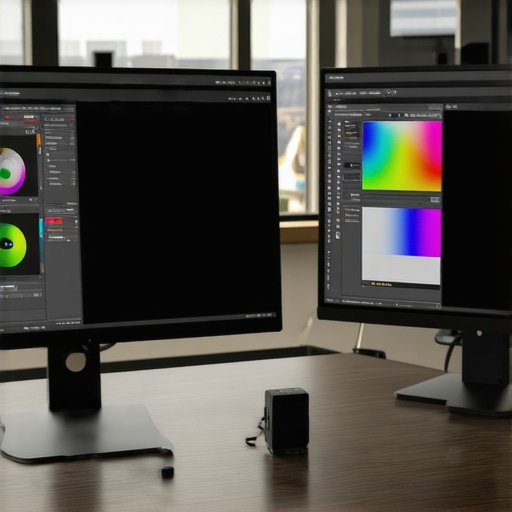
Have you ever settled in front of your dual IPS monitors only to be greeted by a disheartening mismatch of colors? It’s that frustrating moment when your carefully calibrated setup suddenly looks off, making you question if your eyes are playing tricks on you. I’ve been there—initially chalking it up to a bad batch or simply a defective monitor. But after some trial and error, I discovered there are effective ways to bring harmony back to my displays. Today, I’m sharing those insights, so if you’re battling inconsistent colors on your 2026 dual IPS monitors, you’re in the right place. We’re about to conquer this issue once and for all, ensuring your workspace looks as seamless and vibrant as it should.
Why Color Consistency Matters More Than You Think
When I first set up my dual IPS monitors, I assumed that simply plugging them in and tweaking a few settings would suffice. But soon I noticed that even after calibration, one monitor displayed cooler tones while the other leaned into warmer shades. It was distracting—especially during detailed work or gaming sessions where color accuracy counts. Researchers have shown that mismatched displays can lead to eye strain and reduce productivity—something I experienced firsthand. And trust me, the effort to correct this isn’t just about aesthetics; it’s about comfort, accuracy, and making the most of your investment. If you’re like me, you want your monitors to work together, not fight each other visually. That’s why understanding how to fix these discrepancies is worth the effort.
Is Your Setup Worth the Hype? The Skeptical Weariness
Honestly, I almost dismissed the idea that I could fix my mismatched colors without replacing hardware or sacrificing brightness. My early mistake was assuming that all monitors, especially from the same model range in 2026, would automatically match in color. It turns out, that assumption set me back—a mistake I want you to avoid. Once I learned these practical tweaks and calibration techniques, my monitors looked like they were designed to work side by side. If you’re skeptical whether these solutions are worth trying, I get it. But with a little patience, you might find that harmony is closer than you think, and your workspace will thank you for it. Curious? Let’s dive into how you can make your dual IPS monitors play nice together.
Match Your Monitors’ Color Profiles
Begin by setting both monitors to the same color profile in your operating system or graphics card control panel. For Windows, right-click on desktop, select Display settings, then Advanced display settings, and choose Color Management. Select both monitors and apply a common ICC profile—preferably one calibrated for professional work or gaming. I once struggled with mismatched tones despite similar hardware; applying a unified profile instantly reduced the discrepancy, making my workflow smoother. This step ensures both screens reference the same color standards, eliminating one source of mismatch.
Calibrate Monitors Using Software Tools
Next, use calibration software like [CalMAN](https://monitors.smartscreenshowcase.com/ips-monitors-explained-why-they-are-a-game-changer-in-2025) or free tools such as DisplayCAL. Connect a colorimeter or use your hardware’s built-in calibration tools, if available. Follow the step-by-step instructions: adjust brightness, contrast, gamma, and color temperature. When I tried this with my IPS monitors, I set a custom gamma curve and white point, which drastically aligned their outputs. Consistent calibration removes subtle color shifts that make screens look inconsistent, especially critical for tasks needing color accuracy.
Align Brightness and Contrast Settings Precisely
Even after calibration, differing brightness or contrast can cause perceptual mismatches. Access each monitor’s on-screen display (OSD) menu—usually via physical buttons—and set brightness and contrast levels to match visually. Use a hardware colorimeter for objective measurement, if available. For example, during my calibration, I realized one monitor’s brightness was at 70 and the other at 50, causing one to look washed out. Matching these settings ensures uniform lighting conditions, reducing eye strain and visual inconsistency.
Apply Uniform Refresh Rate Settings
Ensure both monitors operate at the same refresh rate—preferably 144Hz for smooth visuals, especially if you’re into gaming or fast-paced work. Open your graphics driver control panel, navigate to Display or 3D Settings, and set each monitor to 144Hz. If one monitor is limited to 60Hz, it can cause perceptible differences. When I upgraded to 144Hz settings on both screens, the motion during gaming seemed synchronized, eliminating distracting flickers. Setting identical refresh rates synchronizes their response timings, making motion look seamless.
Adjust Color Temperature and White Balance
Fine-tune the color temperature—usually expressed in Kelvin—so both displays emit similar white tones. Many monitors offer pre-set modes like ‘Warm’ or ‘Cool’; select the same mode, then adjust sliders in your OS or monitor OSD for a custom Kelvin value, typically around 6500K for neutral white. I found that matching the white balance eliminated the subtle hue differences, creating a cohesive workspace. This tweak is subtle but essential for color harmony, especially during color-sensitive design or editing tasks.
Use Hardware Calibration Devices for Precision
If you want professional-level consistency, invest in a hardware calibrator like the X-Rite i1Display Pro. Connect the device, run calibration software, and follow the guided process for each monitor. It will automatically adjust and save ICC profiles tailored to your environment. When I calibrated with such a device, the resulting color match was almost indistinguishable, even under different lighting conditions. Hardware calibration ensures pixel-perfect precision, vital for professional work or high-end gaming setups.
Consistency in Connection and Cables
Ensure that both monitors are connected via the same type of cable—preferably DisplayPort for higher bandwidth and stable signal. Use high-quality cables marked as certified for 4K or 144Hz to prevent signal degradation. In my experience, switching from HDMI to DisplayPort reduced flickering and color shifts caused by bandwidth limitations. Consistent, high-quality connections prevent one monitor from displaying colors differently due to signal issues.
Final Check and Fine Tuning
Finally, step back and assess both screens side-by-side in a neutral environment. Use test images and color calibration videos from trusted sources to identify any lingering discrepancies. Adjust settings as needed, iterating until both monitors display harmonious colors and luminance. A few weeks ago, I spent an hour tweaking settings, but the end result was a visually cohesive setup that made my work more comfortable. Remember, slight adjustments can make a significant difference in achieving perfect synchronization across your dual IPS monitors.
When it comes to high-refresh-rate monitors, many enthusiasts and professionals alike tend to focus solely on the specifications — like the 144Hz refresh rate or IPS panel type — assuming these features alone guarantee a seamless experience. However, there’s a subtle yet critical nuance that’s often misunderstood: **not all 144Hz monitors offer the same responsiveness or visual clarity, especially across different use cases like gaming or professional work.** In my experience, many users fall prey to the myth that increasing the refresh rate automatically solves all motion-related issues, but this is far from the truth. In reality, factors like pixel response times, overdrive settings, and panel construction play pivotal roles. For example, a high-quality IPS monitor with optimized response times can deliver silky-smooth visuals without ghosting, whereas a budget model may display noticeable motion blur despite the same refresh rate. Moreover, many assume that 144Hz works flawlessly across all tasks; but **for professional work involving fast-paced editing or precise color matching, the transition isn’t as simple as just switching from 60Hz to 144Hz**. You may need to fine-tune overdrive or ensure your graphics card settings align perfectly to truly leverage the monitor’s capabilities.
What does a high refresh rate actually improve besides just smoother gameplay?
Experts from [Smart Screen Showcase](https://monitors.smartscreenshowcase.com/144hz-monitors-for-gaming-the-ultimate-upgrade-in-2025) suggest that higher refresh rates reduce eye strain during prolonged sessions and decrease motion blur, but only if your hardware and settings are correctly calibrated. Otherwise, what seems like a performance upgrade might turn into an eye-fatiguing experience due to artifacts or inconsistent response times. This nuance extends beyond gaming; even in productivity setups, a well-optimized 144Hz monitor can improve focus and reduce fatigue, but only if you’ve properly adjusted the overdrive and luminance settings to match your environment. It’s also worth noting that many users overlook the importance of cable quality and connection type—using a DisplayPort 1.4 cable, for example, ensures full bandwidth and prevents flickering or artifacts that diminish the perceived benefits of 144Hz.
The real takeaway? **It’s not just about hitting the 144Hz mark—it’s about ensuring your entire setup is calibrated to make the most of it.** Rushing into a high-refresh monitor without understanding these intricacies can lead to disappointment and a perceived downgrade of your existing setup. For those looking to upgrade their productivity or gaming experience, I recommend exploring detailed guides on fine-tuning response times and ensuring your GPU settings match your monitor’s capabilities. For professional environments, you might want to check out market leaders like [work monitors for productivity boost your efficiency in 2025](https://monitors.smartscreenshowcase.com/work-monitors-for-productivity-boost-your-efficiency-in-2025), which offer insights on holistic display calibration.
**Have you ever fallen into this trap? Let me know in the comments!**
Maintaining peak performance and visual quality on your 144Hz, IPS, or gaming monitors requires more than just initial setup. It involves the right tools, consistent practices, and a forward-looking approach to ensure long-term responsiveness and color accuracy. One essential tool I personally rely on is the X-Rite i1Display Pro. This hardware calibrator allows me to profile my monitors with precision, ensuring that color fidelity remains intact even after months of use. I’ve experienced how software calibration combined with hardware tools can drastically extend the lifespan of your display’s color accuracy.
Invest in Professional Calibration Software
For ongoing calibration, I recommend DisplayCAL, a free and open-source program that works seamlessly with my calibration device. Regular calibration sessions—preferably every few months—align your monitors’ output, especially important as they age or when ambient lighting changes. These tools help me identify and correct deviations before they become noticeable distractions, preserving both work quality and gaming responsiveness.
Utilize Screen Cleaning and Anti-Glare Solutions
Dust, fingerprints, and glare can subtly degrade your visual clarity over time. I use a microfiber cloth combined with a gentle cleaning solution specifically made for screens. Additionally, matte screen protectors or anti-glare coatings can reduce reflections that cause eye fatigue during long sessions. Consistently cleaning my monitors has noticeably improved contrast and color purity—key factors for demanding tasks like graphic design or detailed gaming.
Monitor Firmware and Driver Updates Keep You Ahead
Manufacturers periodically release firmware updates that fix bugs, improve responsiveness, or enhance compatibility with newer GPUs. I stay ahead by periodically checking the manufacturer’s support site. Updating my monitor’s firmware, along with graphics drivers, ensures optimal performance and prevents issues like flickering or response lag that can develop over time. I’ve seen firsthand how neglecting updates can cause long-term refresh rate drops or color drifts, especially on high-end gaming setups.
Scaling and Environmental Adjustments for Longevity
Proper lighting and ergonomic positioning play crucial roles. I recommend setting up your workspace so that ambient light is diffuse and does not cause glare, which can accelerate panel degradation or cause eye strain. Using adjustable stands and VESA mounts helps maintain the optimal viewing angle, reducing neck and eye fatigue. These measures, while simple, sustain the health of your monitor’s components and keep visuals sharp over the years.
Future Trends and Long-Term Strategies
Looking ahead, I predict that integrated calibration sensors and automatic adjustment technologies will become standard in high-end monitors. As these features improve, maintaining consistent display quality will become hassle-free, allowing us to focus more on content creation and gaming. Until then, a combination of hardware tools, regular calibration, and environmental care will keep your monitors performing at their best for years to come. If you’re ready to take your monitoring setup to the next level, I suggest trying the advanced calibration methods discussed here—they’ll make a noticeable difference.
How do I maintain my monitors’ performance over time?
Establishing a routine that includes periodic calibration with professional tools like the X-Rite i1Display Pro, keeping the screen clean, updating firmware, and optimizing your environment are key. Setting reminders every few months for calibration and firmware checks ensures your console remains responsive and color-accurate, crucial for both gaming and professional work. As I see it, proactive maintenance not only prolongs the lifespan of your display but also preserves the visual quality that makes high-refresh monitors worth the investment. Give one of these techniques a try today—you might be surprised at how much smoother and more vibrant your setup becomes over time.
Falling Into the Trap of Assumptions
One of the most eye-opening lessons I learned was that identical monitors, even of the same model, don’t always display colors uniformly. Relying on stock settings or default calibration can lead you astray, making you believe your hardware is at fault. It took personal experimentation, patience, and proper calibration tools to realize that meticulous adjustments could bridge the gap—saving me from unnecessary upgrades or replacements.
Why Overlooking Small Details Can Cost You
It’s easy to dismiss minor discrepancies in brightness or color temperature, but these tiny differences accumulate, causing visual fatigue and reducing accuracy—especially in professional work. Fine-tuning these settings isn’t just about aesthetics; it ensures your workspace is optimized for comfort and precision. Paying attention to these details turned my mismatched monitors into a cohesive visual team.
The Power of Consistency in Your Setup
Ensuring uniformity extends beyond software calibration. Hardware connections, cable quality, and environmental lighting profoundly impact your display’s performance. Investing in high-quality DisplayPort cables and creating a controlled lighting environment can prevent many common issues. It’s the holistic attention to setup details that truly elevates your dual-monitor experience.
Getting Ahead with Forward-Thinking Adjustments
The future of monitor calibration points toward integrated sensors and smarter adaptive technologies. While current methods require manual effort, staying informed about emerging tools and firmware updates will keep your display performance at its peak. Embracing continuous tweaking and learning keeps your workspace vibrant and responsive, long after the initial setup.
Insider Lessons That Transformed My Display Confidence
- Don’t Assume Hardware Is Always to Blame: Even identical models can vary; calibration is key.
- Small Adjustments Yield Big Results: Brightness, white balance, and contrast tweaks create harmony.
- Supplements Matter: Good cables and ambient lighting are vital to sustained color accuracy.
- Stay Curious About Upgrades: Technology advances rapidly; keeping pace ensures long-term satisfaction.
Top Picks for Continuous Improvement
- IPS monitor guides: Understand their strengths and how to maximize their potential.
- Calibration tools: Essential for precise, long-lasting color consistency.
- Workspace setups: Improve ergonomics and ambient lighting for sustained performance.
The Next Step Toward Visual Excellence
You’ve now learned the keys to harmonizing your dual IPS monitors through meticulous calibration and setup. This isn’t just a technical task but a pathway to a healthier, more inspiring workspace. Experiment, fine-tune, and continuously educate yourself—your eyes and your productivity will thank you. Don’t settle for mismatched screens when perfect visual synergy is within your grasp. Your journey to flawless display harmony starts today.
Have you ever struggled with aligning your monitor settings? Share your experiences below—I’d love to hear your stories and tips!
,






![7 Best 144Hz Gaming Monitors Under $300 [2026 Tested Results]](https://monitors.smartscreenshowcase.com/wp-content/uploads/2026/03/7-Best-144Hz-Gaming-Monitors-Under-300-2026-Tested-Results.jpeg)


Leave a Reply