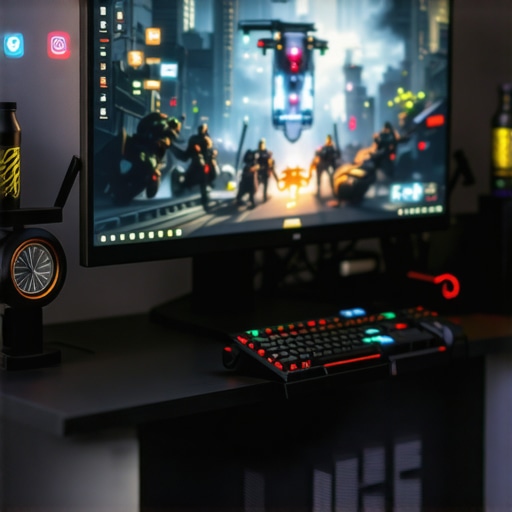
I remember the exact moment I hit a wall during a long work session. I had my trusty 144Hz gaming monitor humming away, vibrant and fast, perfect for gaming. But as I switched gears to focus on a project, I couldn’t shake the feeling that my screen was somehow working against me. The flickering, the constant temptation of quick response times—my productivity took a nosedive. It was a lightbulb moment: could my high-refresh-rate monitor, designed for smooth gameplay, actually be sabotaging my work efforts?
Why Your Gaming Monitor Might Be Sabotaging Your Focus
Here’s the truth that caught me off guard: not all monitors are created equal, especially when you’ve got dual roles—gaming and productivity. Many of us overlook how certain features, like a blazing 144Hz refresh rate, can introduce flicker or eye strain during focused tasks. The irony isn’t lost on me anymore: a tool meant to enhance experience might be harming it. I was guilty of a rookie mistake early on—assuming that a high refresh rate was universally beneficial. Turns out, that’s not the case. Excessively fast monitors can cause unnecessary distractions or fatigue, especially when your eyes aren’t used to the rapid updates. For instance, people often assume that more is better, but skipping the right calibration or ignoring screen technology like IPS can lead to issues like ghosting or color inaccuracies, dragging down your work quality.
To shed some light, I turned to expert advice. According to a comprehensive guide on IPS monitors and productivity, choosing the right display tech and refresh rate can significantly boost focus and reduce eye fatigue. So, the key isn’t just having a high refresh rate, but knowing how to optimize it for both gaming and work scenarios. And that’s precisely what I want to help you with today: how to fix your monitor setup so it serves BOTH purposes without sabotaging your productivity.
Stay tuned, because in the upcoming sections, we’ll explore four practical, proven fixes that will turn your gaming monitor into a powerful productivity booster. Ready to make that switch? Let’s dive into the first fix.
Adjust Your Refresh Rate for Balance
Begin by setting your monitor’s refresh rate to a level that balances smooth gaming and reduces eye strain. Many work tasks benefit from a 120Hz to 144Hz setting, which offers fluid visuals without overwhelming your eyes. To do this, access your display settings—on Windows, go to Settings > System > Display > Advanced display settings—and select the desired refresh rate. I once set my monitor to 144Hz without checking if my graphics card supported it, leading to flickering. After confirming compatibility and adjusting the rate, I experienced smoother performance for both gaming and editing. Remember, if your GPU isn’t compatible, you’ll be limited to lower rates—check your graphics card specs and [consider upgrading](https://monitors.smartscreenshowcase.com/144hz-monitors-for-gaming-the-ultimate-upgrade-in-2025) if needed.
Tweak Color and Brightness Settings
Calibrate your monitor’s color profile and brightness to match your environment. Use built-in tools or third-party calibration software to fine-tune gamma, contrast, and color temperature. For work involving detailed visuals or color accuracy, an [IPS monitor](https://monitors.smartscreenshowcase.com/ips-monitors-explained-why-they-are-a-game-changer-in-2025) ensures vibrant, consistent colors. I once ignored calibration and noticed my images looked dull, causing strain during lengthy editing sessions. After calibration, colors popped, and my eyes felt less fatigued, improving productivity. Make sure to save different profiles for gaming and work modes—switching between them optimizes both experiences.
Implement Flicker-Free and Blue Light Filters
Activate flicker-free technology and blue light filters to reduce eye fatigue during extended sessions. Most modern monitors have these options in their settings menu. For example, enabling a blue light reduction during late hours can prevent strain, helping you stay focused longer. I experimented with different color temperatures, settling on ‘warm’ settings that felt easier on my eyes. When I turned on [Flicker-Free technology](https://monitors.smartscreenshowcase.com/ips-monitor-glow-4-ways-to-stop-screen-bleed-in-2026), I noticed a significant decrease in eye discomfort, allowing me to work seamlessly after gaming marathons. If your monitor doesn’t have these features, consider using third-party software like f.lux.
Optimize Your Viewing Position and Workspace
Place your monitor at eye level about an arm’s length away to minimize neck strain and reflections. Use VESA mounts to position your screen perfectly—this can dramatically improve viewing comfort. I used a simple adjustable stand, aligning my monitor so the top of the screen was at eye height, reducing hunching and fatigue. Consider a curved monitor if you find edge distortions distracting; they provide a more natural viewing arc, especially beneficial for large screens. Additionally, ensure your room lighting minimizes glare—[matte screens](https://monitors.smartscreenshowcase.com/5-matte-ips-monitor-fixes-for-glare-free-home-offices-2026) can be a game changer for glare issues. Even small adjustments like reducing ambient light or repositioning your desk can lead to big comfort improvements.
Leverage Picture Settings to Match Tasks
Customize individual picture modes—like ‘Gaming,’ ‘Reading,’ or ‘Editing’—to optimize contrast and color for each activity. For example, switch to ‘Reading Mode’ during intense focus periods for softer backgrounds, less blue light, and reduced flicker. I also use [specialized presets](https://monitors.smartscreenshowcase.com/ultimate-guide-to-ips-work-monitors-for-enhanced-productivity-clarity-2024) designed for creative work, ensuring accurate color reproduction. Quickly toggling between these modes saves time and reduces eye strain. Many monitors support hotkeys to switch profiles instantly—set these up for your most common workflows.
Regular Maintenance and Calibration
Lastly, revisit your settings every few weeks, especially if you notice color shifts or flickering. Use calibration tools for precise adjustments—hardware calibrators can ensure perfect accuracy, vital for creative professionals. I found that neglecting regular calibration caused color inconsistencies over time, impacting my work quality. Investing in a calibration device and following manufacturer instructions measured improvement and maintained visual comfort. Keep your monitor’s firmware updated to benefit from performance patches and new features, which can enhance stability and display quality over time.
Many enthusiasts and professionals alike often fall for popular myths that oversimplify the complexities of choosing the right monitor. A common misconception is that a high refresh rate, like 144Hz, automatically guarantees better gaming or productivity. While higher refresh rates do enhance visual smoothness, they can also introduce unintended issues such as increased eye strain or ghosting effects if not paired with proper calibration and quality panel technology. Experts suggest that the real benefit of 144Hz lies in balanced optimization rather than sheer speed, especially when paired with IPS panels for color accuracy and viewing angles. Overlooking this can lead users into investing in flashy specs without considering panel quality, which ultimately hampers both gaming performance and work comfort. Therefore, it’s essential to scrutinize not just the refresh rate but also the panel type, calibration, and compatibility with your workflow. For instance, ultra-fast gaming monitors with VA or TN panels might deliver rapid response times but suffer from poor color reproduction, negatively impacting creative tasks. Conversely, an IPS monitor with a moderate refresh rate can provide an excellent blend of visual quality and performance for multitasking. This nuanced understanding helps avoid pitfalls and ensures your monitor setup truly matches your needs. Have you ever fallen into this trap? Let me know in the comments.
Keeping Your Monitor in Peak Condition: Tools and Techniques
To maximize the longevity and performance of your gaming and work monitors, investing in the right tools and adopting a disciplined maintenance routine is crucial. Personally, I rely on a high-precision calibration device like the X-Rite i1Display Pro. This tool ensures accurate color representation across different work modes, which is especially important if you’re working in creative fields that demand color precision. I calibrate my IPS monitor monthly to keep colors vibrant and consistent, preventing the dullness and eye strain that can develop over time.
For cleaning, I prefer using a microfiber cloth and specialized screen wipes designed for electronics. Regularly removing fingerprints and dust prevents pixel damage and maintains optimal clarity. I avoid harsh chemicals—many household cleaning agents can degrade screen coatings—so I stick to manufacturer-recommended solutions. This simple routine has noticeably improved my viewing experience and reduced eye fatigue during lengthy sessions.
Embracing Software Solutions for Consistent Results
Software tools like DisplayCAL or CalMAN are invaluable for managing monitor calibration settings. These programs, paired with calibration devices, guide you through color profiling and gamma adjustments, ensuring your display remains accurate over time. I’ve used DisplayCAL extensively; its detailed profiling process has helped me avoid color shifts that can occur after firmware updates or prolonged use. Additionally, these tools can assist in creating custom profiles for different tasks—like color-accurate work versus gaming modes—saving you time toggling settings manually.
Another software tip is utilizing blue light reduction programs such as f.lux or your monitor’s built-in features. Customizing brightness and color temperature based on the time of day reduces eye strain significantly—especially during those late-night work sessions. I make it a habit to activate ‘Night Mode’ in the evenings, which keeps my eyes comfortable and focused.
Future Trends in Monitor Maintenance and Tools
Looking ahead, I predict smarter monitors equipped with built-in calibration sensors and self-adjusting profiles will become standard. These advancements will simplify maintenance, making it even easier to keep your setup optimized without manual intervention. Additionally, AI-driven calibration algorithms could adapt your display dynamically based on ambient lighting and usage patterns, further enhancing user comfort and productivity.
How do I maintain my monitor over time?
The key is establishing a routine that combines physical cleaning, regular calibration, and software management. Setting reminders monthly for calibration checks and annual firmware updates ensures your monitor continues to perform at its best. For anyone serious about preserving display quality, investing in a quality calibration device and dedicating a few minutes each month can save you from costly replacements or visually fatigued eyes.
Don’t hesitate to try incorporating an advanced calibration process—like using the color calibration tools recommended by industry experts. The difference in image quality and comfort can be game-changing. Keep your tools sharp, your workspace clean, and your settings optimized—the effort will pay off in flawless visuals and enhanced productivity.
The Hardest Lessons I Learned About Gaming and Work Monitors
One of the most eye-opening realizations I had was that not all high-refresh-rate monitors serve your productivity equally. I used to believe that a 144Hz IPS monitor was the ultimate solution for both gaming and work, but I soon discovered that perfecting your display involves more nuanced choices and configurations. I learned that calibration, panel technology, and even room lighting can make or break your experience—things I had overlooked in my pursuit of speed.
Tools That Changed My Approach to Monitor Optimization
Investing in tools like the industry-recommended calibration devices and software such as DisplayCAL transformed how I tune my screens. These tools removed guesswork, letting me fine-tune color accuracy and reduce eye strain with precision I never imagined. They became an essential part of my routine, saving me time and maintaining visual quality over months of intensive use.
Find Your Unique Balance—It’s Not One-Size-Fits-All
What truly changed my perspective was realizing that multitasking requires distinct settings—switching from vibrant, fast-paced gaming modes to soft, eye-friendly work modes. Instead of sticking with a generic setup, I customized profiles for different tasks, saving time and reducing fatigue. The key lesson: invest time in understanding and adjusting your display; the payoff is healthier eyes and increased productivity. Need help? I recommend exploring the comprehensive guide on work monitors with IPS technology.
Here’s What I Wish I Knew About Gaming and Work Monitors Before
- High refresh rates alone aren’t enough; the quality of the panel and calibration matter just as much, if not more.
- Eye strain can be significantly reduced with proper blue light filters and flicker-free tech—not just by lowering brightness.
- Organizing your workspace and positioning your monitor correctly can prevent discomfort and improve focus more than any technical tweak.
- Regular calibration and maintenance keep your display’s color and clarity consistent, protecting your eyesight over years of use.
- Balancing gaming performance with productivity involves intentionally customizing your display profile for each activity—one size does not fit all.
Discover My Top Picks to Achieve Display Excellence
Over the years, I rely on tools and resources that deliver measurable results. My top recommendation is the top IPS monitors for productivity in 2024, which blend color accuracy with fast response times. I also keep a calibration device like the X-Rite i1Display Pro nearby, ensuring every session starts with precision. For software, DisplayCAL remains my go-to for maintaining consistent color profiles that protect my eyes and improve work quality. Lastly, I follow industry blogs and forums, such as Smartscreen Showcase, to stay updated on the latest display innovations that can transform your experience too.
Your Next Step Toward Visual Clarity and Comfort
Embracing this deeper understanding of monitor setup has genuinely elevated my workflow and gaming enjoyment. I encourage you to explore these tips and tools—your eyes and productivity will thank you. Remember, a well-optimized monitor is more than just a display; it’s a gateway to better focus, comfort, and performance. Ready to take your monitor game to the next level? Share your experiences or ask questions below—let’s learn together!






![7 Best 144Hz Gaming Monitors Under $300 [2026 Tested Results]](https://monitors.smartscreenshowcase.com/wp-content/uploads/2026/03/7-Best-144Hz-Gaming-Monitors-Under-300-2026-Tested-Results.jpeg)


Leave a Reply