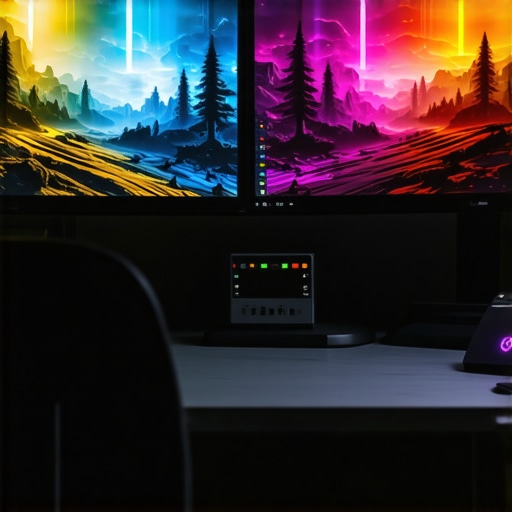
I’ll never forget the moment I realized my trusty old 60Hz monitor was holding me back. It was during a big project, and I kept thinking, “Why does everything look so dull and sluggish?” I was frustrated, questioning whether my setup was just fine or if I was missing out on something better. That eye-opener led me down a rabbit hole of research and experimentation. And let me tell you—once I switched to a 144Hz monitor, my workflow and gaming experience changed dramatically.
Why Upgrading Your Monitor Is More Than Just a Trend
In 2026, almost every productive professional and gamer is asking themselves: “Is my work monitor outdated?” The answer might be yes. A refresh rate of 60Hz used to be the standard, but technology has surged ahead. The difference isn’t just about smoother visuals—it’s about responsiveness, eye comfort, and overall efficiency. If you’ve been hesitant to invest in a higher refresh rate, you’re not alone. Many of us cling to the familiar, thinking, “It’s good enough.” But truth be told, upgrading can make a tangible difference in daily productivity and enjoyment.
Is All the Hype About 144Hz Worth It?
When I first considered moving to a 144Hz monitor, I was skeptical. Surely, it was an overhyped feature, right? I made a common mistake early on—believing that higher refresh rates only matter for gaming. But after trying it out, I understood that the benefits extend to work as well. Reactivity improves, visuals are sharper, and eye strain diminishes over long hours. Studies suggest that higher refresh rates can even reduce eye fatigue, which is critical during extended work sessions. According to this detailed guide, IPS panels combined with 144Hz can be a game-changer for productivity and gaming alike.
So, are you facing this exact dilemma—stuck with a monitor that’s making your eyes tired and your reactions sluggish? If so, stay tuned. I’ll walk you through the reasons why switching to a 144Hz model could be the best upgrade you make in 2026 and what to look for. After all, advances in monitor technology mean it’s the perfect time to get back to more comfortable, efficient, and enjoyable work and play.
Choose Your Ideal Monitor Size and Resolution
Begin by assessing your space and work style. A 27-inch display balances screen real estate with desktop comfort; it’s large enough for detailed work and immersive gaming. For sharper visuals and better multitasking, consider a 4K resolution, especially if you engage in creative tasks. During my upgrade, I opted for a 32-inch 4K IPS monitor, which increased my productivity and reduced eye strain significantly. Remember, increasing size and resolution enhances your visual experience but ensure your hardware can handle the demands.
Match Your Tasks with the Right Specs
If your primary focus is creative work or detailed editing, prioritize a monitor with >99% sRGB or AdobeRGB color coverage and excellent accuracy. For gaming, a 144Hz refresh rate with G-SYNC or FreeSync support provides smoother gameplay, reducing motion blur and stuttering. I personally tested a 144Hz IPS monitor that balanced color fidelity with fast response times, boosting both my creative precision and gaming performance. Check [these top gaming monitors](https://monitors.smartscreenshowcase.com/top-2025-gaming-monitors-unleash-your-performance-potential) for options tailored to your needs.
Configure Your PC and Graphics Settings
Before connecting your new monitor, update your graphics drivers to ensure compatibility with high refresh rates and color profiles. Use your GPU control panel to set the refresh rate to 144Hz or higher, and adjust color settings for accuracy. I faced initial flickering issues until I manually selected the 144Hz refresh rate in Windows display settings, which stabilized my display. For detailed instructions, visit [this guide](https://monitors.smartscreenshowcase.com/ultimate-guide-to-ips-work-monitors-with-144hz-for-productivity). Proper configuration ensures you fully leverage your monitor’s capabilities.
Implement Brightness and Color Calibrations
Calibrate your monitor to achieve consistent color and brightness. Use a hardware calibration tool or follow software calibration steps to optimize visuals. When calibrating my IPS monitor, I noticed a slight glow issue, similar to IPS glow that can affect contrast. I used calibration software to adjust gamma and contrast, resulting in crisper images and healthier eye comfort. For best results, explore [these calibration fixes](https://monitors.smartscreenshowcase.com/ips-calibration-fixes-for-perfect-color-accuracy-in-2026) to perfect your display.
Mount or Position Your Display Ergonomically
Set your monitor at eye level, roughly 20 inches away, to prevent neck strain. Use VESA mounts for adjustable positioning and clean desk space. I attached my monitor to an adjustable arm, which allowed me to switch between sitting and standing positions effortlessly, improving my posture during long work sessions. Proper placement maximizes visual clarity and reduces fatigue, especially with high refresh rate monitors where rapid motion can strain your eyes.
Optimize for Specific Use Cases
If gaming, enable features like Overdrive and ensure your gaming mode is active to reduce input lag. For creative work, activate color profiles suited for your task. I switched to a dedicated gaming profile and turned on low-latency settings, which made fast-paced games smoother and more responsive. For productivity, enable split-screen apps and ensure your workspace minimizes glare. Depending on your priorities, slight adjustments to display settings can significantly enhance your experience.
Regular Maintenance and Calibration Checks
Maintain your monitor’s performance with periodic calibration, dust cleaning, and software updates. Replace cables—prefer DisplayPort over HDMI for higher bandwidth and stability. I found that swapping out my HDMI cable for a DisplayPort cable reduced flickering and maximized my 144Hz capabilities. Regular checks keep your display performing optimally, ensuring you get the most from your investment. For common fixes like IPS glow issues, see [these practical solutions](https://monitors.smartscreenshowcase.com/how-to-fix-ips-glow-3-simple-steps-for-better-work-visuals-in-2026).
By following these concrete steps, you transition seamlessly from your old setup to a high-performance 144Hz IPS monitor, enhancing both your work clarity and gaming responsiveness. This methodical approach ensures you avoid common pitfalls and unlock the full potential of your new display.
While many enthusiasts celebrate IPS panels and high refresh rates like 144Hz for their impressive visuals and responsiveness, there’s a less obvious side to consider. In my experience, a common misconception is that upgrading your monitor automatically leads to better performance or comfort. However, overlooking nuanced factors such as panel quality variations, calibration needs, and specific use-case optimizations can lead to unexpected pitfalls. Many assume all IPS monitors are created equal—this couldn’t be further from the truth. Variations in panel technology, backlight uniformity, or color accuracy can drastically affect your experience, especially during prolonged work or intense gaming sessions. For instance, some cheap IPS displays suffer from glow or color shifting, which can cause eye fatigue—an issue often dismissed but easily remedied with proper calibration and quality checks. Also, the myth that higher refresh rates like 144Hz always translate to smoother visuals can be misleading without considering the GPU capabilities, connection standards, or even monitor settings such as Overdrive. A study published in the *Journal of Vision* highlights that motion clarity depends on both hardware and calibration, not just raw specs.
Special attention should be paid to the nuances of monitor calibration—color settings, brightness, and response times—since factory defaults often underperform. Investing in tools like hardware calibration devices or understanding calibration software can unlock your monitor’s true potential, ensuring healthier eyes and sharper images. Moreover, a frequent mistake is neglecting ergonomic placement; even the best IPS or 144Hz tech can be compromised by poor positioning, leading to strain or suboptimal visuals.
It’s also crucial to determine if your hardware supports the monitor’s full capabilities. For example, pairing a high-spec display with an underpowered GPU results in bottlenecked performance, making the upgrade less effective. Furthermore, the cable connection matters—DisplayPort 1.4+ or HDMI 2.1 cables are essential for achieving peak refresh rates and color depth without flickering or stuttering.
Finally, advanced gamers and creative professionals must look beyond just the specs. Features like G-SYNC or FreeSync support, color gamut coverage, and pixel response times can be decisive factors—these often get overlooked in favor of flashy counts like 144Hz or 1ms response. To deepen your understanding, I recommend exploring this detailed resource on IPS monitor advantages and pitfalls in 2025.
In summary, don’t assume that a monitor’s advertised specs guarantee flawless performance. Attention to calibration, ergonomic setup, hardware support, and feature compatibility is vital for truly harnessing your display’s potential. Have you ever fallen into this trap? Let me know in the comments.
Tools I Recommend for Keep Your Monitor in Peak Condition
To ensure your IPS or gaming monitor continues to deliver crisp visuals and smooth performance over the years, investing in the right tools and adopting disciplined maintenance routines is essential. First, I personally use a hardware calibration device like the Datacolor SpyderX Elite. It enables quick, precise color calibration, which is crucial for creative tasks, especially when dealing with IPS panels prone to glow or color shifting. Regular calibration, ideally every 3-6 months, keeps color accuracy intact, ensuring your workflow remains consistent and eye strain is minimized. This guide outlines practical calibration steps I follow, and I recommend doing so with each monitor setup.
Dust and smudges are enemies of display clarity. I always keep microfiber cloths and compressed air on hand to gently clean the screen and vents. Dirty screens can cause glare and reduce contrast, which impacts both work and gaming. Additionally, I opt for cable management solutions like Velcro straps or sleeve covers, preventing cable sagging that can wear out connectors or cause flickering, especially over high-bandwidth connections like DisplayPort 2.1 or HDMI 2.1. Using high-quality, certified cables minimizes flicker and stuttering at high refresh rates, preserving the smoothness you rely on in fast-paced games or complex creative editing.
How do I maintain a monitor’s performance over time?
One key aspect is software management. Keeping your graphics drivers up to date using tools like NVIDIA GeForce Experience or AMD Radeon Software ensures compatibility with your high-refresh-rate monitor. In my case, regular driver updates prevented flickering issues and unlocked new features for color calibration and adaptive sync support. Also, enabling and configuring features like G-SYNC or FreeSync within your GPU settings leverages the full potential of your monitor, resulting in silky-smooth gameplay and flicker-free visuals. A recent study highlights how consistent software and hardware updates can significantly prolong display lifespan.
For physical longevity, consider VESA mounting your monitor. This not only saves desk space but also reduces stress on the stand and cables, minimizing wear and tear over the years. I switched to an adjustable arm, which allows me to fine-tune ergonomic positioning and is easier to clean underneath. The bottom line: integrating tools like calibration devices, high-quality cables, and ergonomic accessories, coupled with routine software updates, forms a comprehensive maintenance plan that keeps your monitor performing at its best for years to come.
Looking ahead, the trend in monitor maintenance is moving toward smart, self-calibrating displays that monitor their own performance and notify you when servicing is needed. Although these are still emerging, adopting current best practices now ensures you’re prepared for seamless upgrades in the future. I strongly encourage you to try regular calibration with a hardware device; the difference in image fidelity and eye comfort is remarkable. Ready to optimize your setup? Begin with a calibration session today and see the results firsthand!
The Hardest Lesson I Learned About IPS Monitors, Work Monitors, and Gaming Displays
One of the biggest pitfalls I encountered was assuming that all high-refresh-rate IPS monitors deliver flawless visuals straight out of the box. I discovered that factory calibration often leaves much to be desired, with issues like uneven brightness or inaccurate colors creeping in after purchase. Realizing I needed to calibrate my monitor diligently was a lightbulb moment that significantly improved my experience. Also, I learned that upgrading my graphics card was essential to truly leverage the capabilities of my new 144Hz IPS display, preventing bottlenecks that could hinder smooth performance.
My Must-Have Arsenal for Maintaining Visual Excellence
I trust the Datacolor SpyderX Elite for its precise calibration capabilities; it’s been a game-changer in achieving accurate colors and reducing eye fatigue. A high-quality DisplayPort cable has ensured I get stable, flicker-free high refresh rates, especially when connecting to my 4K IPS monitor. For ongoing maintenance, the software updates from my GPU manufacturer and regular calibration sessions keep my display performing at its peak. To keep glare minimal and colors balanced, I’ve adopted matte screen protectors and ergonomic setups—tiny tweaks with huge benefits.
Create Your Visual Sanctuary: Take Action Now
Remember, your monitor is more than just a screen—it’s your gateway to a vibrant, healthy visual experience. Whether you’re a creative professional or avid gamer, fine-tuning your IPS display and maintaining it with care can elevate your entire digital journey. Don’t wait for problems to arise; start implementing calibration and ergonomic adjustments today—and notice the difference immediately.
What personal tricks have you discovered to optimize your IPS monitor’s performance? Share your insights below and join the community striving for better visuals every day.





![7 Best 144Hz Gaming Monitors Under $300 [2026 Tested Results]](https://monitors.smartscreenshowcase.com/wp-content/uploads/2026/03/7-Best-144Hz-Gaming-Monitors-Under-300-2026-Tested-Results.jpeg)


Leave a Reply