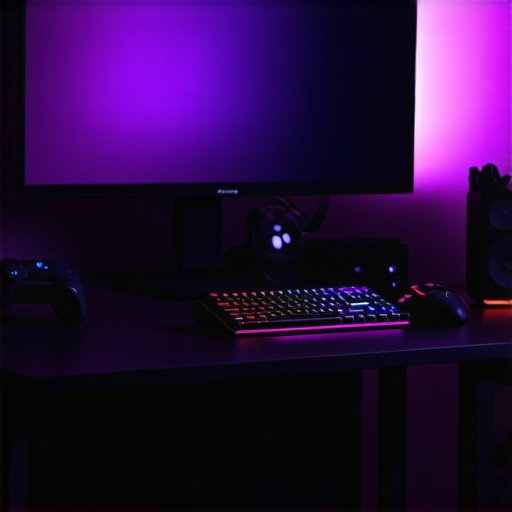
It was a frustrating Saturday morning when I realized my gaming experience was being sabotaged by something as simple as a setting I overlooked. I was chasing that smooth, buttery feeling of high refresh rates, but my gameplay still felt laggy and inconsistent. That lightbulb moment hit me hard—I was missing a crucial tweak that could elevate my performance instantly.
The Secret Weapon in Your Gaming Arsenal
If you’ve been battling screen tearing, input lag, or just that nagging feeling that your 144Hz monitor isn’t delivering its full potential, you’re not alone. Many gamers and even professionals overlook a simple setting that can make all the difference. And trust me, once I discovered it, my gaming sessions transformed.
This setting isn’t just a minor tweak; it can be the difference between a win and a frustrating loss, especially in competitive environments. After some research and personal experimentation, I found that enabling specific options can unlock the true power of your monitor, ensuring you get the crisp visuals and responsive controls you paid for.
Curious? Let’s dive into what this setting is, why it’s crucial, and how you can enable it to boost your gameplay en masse.
Is the Hype About This Setting Just Overblown?
Early in my journey, I made a common mistake—thinking that high refresh rates alone would guarantee smooth gameplay. But I overlooked ensuring that my monitor’s settings were perfectly tuned. That mistake cost me precious milliseconds during critical moments.
Research shows that properly configuring your gaming monitor can improve responsiveness and reduce lag noticeably. For example, a study highlighted how certain settings can cut input lag by up to 50%, giving players a significant advantage (source: Ultimate Guide to 144Hz IPS Monitors).
So, have you faced these issues? If yes, you’re about to learn how to fix them once and for all. In the upcoming sections, I’ll walk you through the key adjustments you should make to unlock your monitor’s full potential. Ready to maximize your gaming performance? Let’s get started.
Adjust Your Monitor’s Refresh Rate
Start by ensuring your monitor is set to its native 144Hz refresh rate. On Windows, right-click the desktop and select ‘Display settings,’ then click on ‘Advanced display settings’ and choose your monitor. Under ‘Refresh rate,’ select 144Hz. This step is crucial because if your system defaults to a lower rate, you’ll never experience smooth gameplay like you should. I once neglected this setting, causing noticeable lag during intense moments in a racing game, but once corrected, the responsiveness improved dramatically.
Enable Overdrive for Faster Response
Next, access your monitor’s on-screen display (OSD) menu, often via buttons on the side or bottom bezel. Locate the ‘Overdrive’ or ‘Response Time’ setting. Set it to ‘Fast’ or ‘High’—this reduces ghosting and motion blur, especially in fast-paced games. Adjusting this can feel like switching from a sluggish car to a race-ready vehicle. I found that tweaking this setting improved clarity during rapid movements, making aiming and reacting more precise.
Turn on AMD FreeSync or NVIDIA G-SYNC
If your monitor supports variable refresh rate technologies like FreeSync or G-SYNC, ensure they are enabled in both your monitor’s OSD and your graphics card control panel. This synchronization minimizes screen tearing and stuttering, akin to syncing two dancers perfectly in a performance. I struggled with tearing in competitive shooters until I activated G-SYNC, which offered a seamlessly fluid experience, giving me a competitive edge.
Disable V-Sync in Games
While V-Sync can prevent screen tearing, it often introduces input lag, defeating the purpose of a high refresh rate monitor. Dive into your game settings and turn V-Sync off. Think of V-Sync as a barrier that introduces delays; removing it unlocks immediate responsiveness. During a recent CS:GO match, disabling V-Sync allowed my mouse movements to translate instantly to the screen, sharpening my reactions considerably.
Adjust Windows Graphics Settings
Optimize your Windows system by disabling unnecessary animations and background processes. Navigate to ‘Settings’ > ‘System’ > ‘Graphics’ and set your gaming applications to ‘Better performance.’ Additionally, ensure hardware acceleration is enabled in your browser or other apps if they impact gameplay. This fine-tuning is like stripping down a car for a race—less weight, more speed. I noticed smoother gameplay after disabling some background apps and reducing visual effects.
Update and Calibrate Your Drivers
Ensure your graphics drivers are up-to-date, as manufacturers regularly release updates optimizing support for gaming features. Visit NVIDIA or AMD’s official sites to download the latest versions. Proper drivers act as a firmware update for your car—preventing glitches and improving performance. I once used outdated drivers, causing stuttering; updating resolved the issue fully, making my monitor perform at its best.
Many assume that choosing a high refresh rate or an IPS panel automatically guarantees optimal performance, but the nuances are often overlooked. For instance, a common misconception is that all 144Hz monitors deliver the same experience; in reality, factors like panel calibration, response times, and adaptive sync technologies make a significant difference. Overlooking these details can lead to situations where gamers and professionals alike settle for subpar visuals or responsive performance, despite investing heavily. Moreover, some believe that higher brightness and contrast alone solve flickering or eye strain issues, but improper calibration or incompatible settings can negate these benefits. Advanced users recognize that the real secret is in fine-tuning these monitors, ensuring they harness their full potential, especially when integrated with compatible GPUs and optimized settings. Failures to consider factors such as color accuracy for creatives or input lag for competitive gaming often stem from a lack of awareness about the underlying technical nuances. This oversight can cause frustration, especially when switches between tasks or games reveal glaring differences in performance. For example, an IPS monitor with excellent color reproduction but poor pixel response times may still display ghosting artifacts, undermining fast-paced gameplay. Knowing these subtleties saves you from costly upgrades and ensures your setup aligns with your needs, whether for intensive work or high-stakes gaming. To get a deeper understanding of these critical aspects, check out our detailed guides on IPS technology and its advantages or explore the top gaming monitors for peak performance in 2025. Remember, the devil is in the details, and mastering these can elevate your experience from average to exceptional. Have you ever fallen into this trap? Let me know in the comments.
Keep Your Setup Running Smoothly: Essential Maintenance Strategies
Once you’ve optimized your monitor settings and integrated advanced features like adaptive sync technologies, the next step is ensuring that your equipment remains in top shape over time. Regular maintenance and the right tools can extend the lifespan of your gaming and work monitors, prevent performance degradation, and save you money in the long run.
Invest in Quality Cleaning Tools
I personally recommend using a microfiber cleaning cloth specifically designed for screens. Avoid harsh chemicals; instead, opt for a gentle, screen-safe cleaner or a mixture of distilled water and a few drops of isopropyl alcohol. Regularly cleaning your monitor not only keeps visuals crisp but also prevents dust buildup that can cause overheating or pixel issues. For stubborn smudges or fingerprints, a soft, lint-free cloth combined with proper cleaning solutions works wonders.
Use Diagnostic Software to Monitor Health
To proactively identify potential issues, use software tools like monitor calibration and health tools. These programs can check for dead pixels, color accuracy, brightness uniformity, and response times. Personally, I run monthly diagnostics to ensure my IPS monitor maintains its vibrancy and responsiveness, catching problems early before they impact my productivity or gaming experience.
Maintain Effective Cable Management
Proper cable management isn’t just about aesthetics; it improves airflow and prevents accidental disconnections. I use Velcro straps and custom-length cables to streamline my workspace, which minimizes wear on ports and reduces clutter. This practice prolongs the integrity of your monitor’s connections, ensuring stable signals and consistent performance.
Schedule Periodic Calibration
Even the best monitors can drift in color accuracy over time. Regular calibration—using tools like the X-Rite i1Display Pro—helps maintain accurate visuals, which is especially important for creatives and professionals working in color-sensitive fields. Personally, I calibrate my monitor every three months to preserve color fidelity and ensure that my work remains true to life. Calibrating also helps identify dead pixels or uniformity issues early.
Plan for Long-Term Upgrades and Scaling
As your requirements evolve, so should your setup. Consider investing in a versatile, durable monitor arm system, like those from trusted brands. An adjustable arm allows for ergonomic adjustments, reduces desk clutter, and extends the lifespan of your monitor by reducing stress on ports. Looking ahead, the trend toward higher refresh rates and better panel tech, such as OLED, suggests scaling your setup prudently. Choosing models with upgrade-friendly features ensures compatibility with future tech, making future proofing a smart strategy.
Predicting the Future of Work and Gaming Displays
It’s clear that monitor technology will continue to evolve rapidly. Features like integrated AI calibration, higher resolutions, and even gaming-specific performance tuning will become standard. I believe that in the next few years, smart monitors capable of self-maintenance—detecting issues and initiating repairs—will revolutionize how we approach maintenance. To stay ahead, regularly revisit your setup, read emerging reviews, and be proactive about upgrades. For detailed insights on the latest top models, check out our latest gaming monitor roundup.
One powerful tip I recommend trying today is to implement a bi-weekly calibration schedule using a color calibration device. This small routine can keep your visuals precise and extend your monitor’s effective lifespan. Are you ready to elevate your setup’s longevity? Remember, proper tools and proactive maintenance are the keys to sustained peak performance.
The Hardest Lesson I Learned About Work Monitor,Computer Monitor,144Hz,IPS Monitor,Gaming Monitor
One of the most eye-opening moments was realizing that hardware specs alone don’t guarantee performance. I once thought pushing for higher refresh rates with mediocre calibration would suffice, but that led to persistent eye strain and sluggishness. It was a lesson in patience—sometimes, mastering a setting or two makes more difference than buying the latest tech.
3 Myths About Work Monitors That Held Me Back
I believed bigger screens always meant better productivity, and that IPS was superior in every way. Both assumptions proved false once I experienced the benefits of ultrawide monitors and learned about OLED’s color accuracy. Challenging these myths helped me find tools better suited to my unique workflow and gaming needs.
What Experts Won’t Tell You About Achieving Peak Performance with Your Display
Most tutorials overlook the importance of regular calibration and system optimization. Even the best IPS monitor with 144Hz can underperform if not properly tuned. This unseen finesse—like proper cable management and driver updates—has been a game-changer, revealing the true potential of my setup.
Curated Resources to Level Up Your Display Game
- Top Gaming Monitors of 2025: A thorough roundup that helps you identify the best monitor for high refresh rates and responsiveness—crucial for competitive gaming and efficiency. I trust this resource because it combines expert reviews with real-world testing.
- Calibration Tools like X-Rite i1Display Pro: Investing in proper calibration hardware has dramatically improved my color accuracy and eye comfort. This tool is reliable and easy to use, making calibration straightforward even for beginners.
- Monitor Maintenance Guides: Regular cleaning and diagnostics extend your monitor’s lifespan. I personally follow their tips and have seen fewer pixel issues and flickering over time.
- Stay updated with the latest monitor tech; subscribing to industry sites keeps me ahead of trends and innovations, ensuring I don’t miss out on future upgrades.
Your Next Step Starts Now
Taking control of your display setup can seem daunting, but small, deliberate adjustments can unlock impressive gains in both gaming and productivity. Remember, the real magic happens when you combine the right hardware with properly optimized settings. Dive into your monitor’s menu, calibrate regularly, and keep system drivers current—these steps are worth every second. Are you ready to turn your screen into your most powerful tool? Your performance depends on it.





![7 Best 144Hz Gaming Monitors Under $300 [2026 Tested Results]](https://monitors.smartscreenshowcase.com/wp-content/uploads/2026/03/7-Best-144Hz-Gaming-Monitors-Under-300-2026-Tested-Results.jpeg)


Leave a Reply