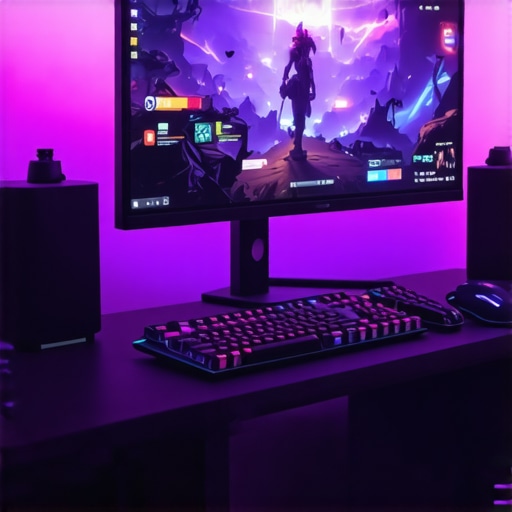
Ever sat down for a gaming session and felt that dreaded lag, stutter, or miss that crucial shot because your monitor just couldn’t keep up? I’ve been there. One moment, everything’s smooth; the next, I’m frustrated because my screen just doesn’t match my adrenaline-fueled gameplay. That lightbulb moment hit me hard—I realized that my old 60Hz monitor was holding me back, especially when I was striving for those competitive edges. That’s when I started exploring 144Hz monitors, and let me tell you, the difference is night and day.
Why 144Hz Monitors Are a Game Changer
In the heat of a fast-paced game, a higher refresh rate means smoother visuals, quicker responses, and a more immersive experience. It’s like upgrading from a bicycle to a sports car—suddenly, everything feels more responsive and fluid. But beyond gaming, these monitors are also fantastic for work tasks that demand precision and quick visual updates. The good news? The market is flooded with options, making it tricky to choose the right one. That’s exactly what I want to help you with today.
Has Your Setup Fallen Behind Because of Outdated Tech?
I remember spending hours tweaking settings on my old monitor, convinced I was squeezing out every bit of performance. Turns out, I was just wasting time because I hadn’t upgraded yet. The biggest mistake I made early on was ignoring the importance of refresh rates and response times, which are crucial for a seamless experience. Don’t make the same mistake—trust me, it’s worth investing in a good 144Hz monitor.
In this guide, I’ll walk you through everything you need to know about choosing the perfect 144Hz monitor for your gaming and work needs, including key features, tech insights, and expert tips. Ready to elevate your setup and finally say goodbye to lag and motion blur? Let’s dive into the world of high-performance displays that could transform how you game and work every day.
Choose the Right Monitor Size and Resolution
Start by selecting a monitor size that fits your desk space and visual preference. Typically, 24 to 27 inches is ideal for most gaming and work setups. For sharp visuals, opt for a resolution of 1920×1080 (Full HD) or higher like 2560×1440 (QHD). Remember, a higher resolution provides more workspace and clearer images, especially important if you do creative work or multitasking.
Focus on Refresh Rate and Response Time
The core of a 144Hz monitor is its refresh rate—how many times per second the display updates. A 144Hz refresh rate ensures smoother motion and reduces blur during fast action scenes. Response time, usually measured in milliseconds, indicates how quickly a pixel changes color. Aim for a response time of 1-3ms for gaming, which minimizes ghosting and motion artifacts. When I upgraded my monitor, I specifically looked for these specs, and the improvement in gameplay was immediate and noticeable.
Prioritize Panel Technology for Visual Quality
Panel type impacts color accuracy, viewing angles, and contrast. IPS panels are known for vibrant colors and wide viewing angles, making them perfect for both gaming and creative work. TN panels are faster but often have duller colors, while VA panels offer better contrast. For a versatile experience, I recommend an IPS monitor with a 144Hz refresh rate—these are often hailed as a game-changer in 2025, especially for multitasking and detailed visuals. For a detailed comparison, visit this guide on IPS monitors.
Connect Your Monitor Correctly
Use DisplayPort or HDMI cables to connect your monitor to your PC. DisplayPort generally offers higher bandwidth, supporting 144Hz at higher resolutions like 2560×1440. Ensure your graphics card supports these standards; older cards might limit your refresh rate. I once struggled with a 60Hz connection because I used an outdated HDMI cable, but switching to DisplayPort instantly unlocked the full 144Hz potential.
Adjust Settings for Optimal Performance
Go into your graphics card control panel and set the refresh rate to 144Hz. Also, disable V-Sync if you want the lowest input lag, but enable it if you experience screen tearing. For Windows users, right-click on the desktop, select Display Settings, then Advanced Display Settings, and choose your 144Hz monitor. Fine-tune brightness, contrast, and color profiles to match your environment. I personally calibrated my monitor for gaming and editing, which improved visual clarity significantly.
Optimize Your Workspace for Comfort and Efficiency
Position your monitor at eye level, about an arm’s length away, to prevent neck strain and ensure a clear view of the screen. Use adjustable stands or monitor arms for flexibility. Good ergonomics enhance your gaming and work experience, preventing fatigue during long sessions. For productivity boosts, consider dual monitors with 144Hz support, especially if you’re into multitasking or content creation. Check out this article on work monitors for more tips.
Stay Updated on Latest Tech
Monitor technology advances rapidly. Keep an eye on updates in 2025, such as improved IPS panels, faster response times, and new features like G-Sync or FreeSync for tear-free gameplay. Regularly visiting review sites or tech forums helps you make informed decisions. Upgrading your monitor can seem daunting, but following these steps ensures you get the best performance for gaming and work. If you’re ready for top-tier options, explore the top gaming monitors of 2025 to find your perfect match.Many enthusiasts often believe that simply upgrading to a 144Hz monitor guarantees a flawless gaming or work experience. However, there are common misconceptions that can hinder your true potential. First, some assume that all 144Hz monitors are created equal, but in reality, the quality of the panel, response times, and synchronization technology like G-Sync or FreeSync can make a significant difference. For example, an IPS panel with a 144Hz refresh rate offers vibrant colors and wide viewing angles, but if it has high input lag or slow response times, your gaming performance might suffer. To truly leverage the benefits of high refresh rates, you need to pay attention to these nuanced specs.
A frequent mistake is undervaluing the importance of refresh rate consistency. Many users focus on peak numbers (like 144Hz) but ignore whether the monitor maintains a stable refresh rate during intense scenes. Variations can cause tearing or stuttering, especially if your GPU struggles with frame rendering. Technologies such as V-Sync or adaptive sync help mitigate this issue, but relying solely on software can introduce input lag. Instead, choosing a monitor with built-in G-Sync or FreeSync support ensures smooth visuals without sacrificing responsiveness.
Another trap is ignoring the impact of response times and overdrive settings. Many gamers think that a 1ms response time is universally better, but if overdrive is set too high, it can cause inverse ghosting, which is distracting and diminishes image clarity. Adjusting these settings based on your specific monitor model and game type is crucial for optimal performance.
For advanced users, understanding the difference between pixel response times and actual input lag is vital. Response time measures how quickly pixels change color, while input lag reflects the delay between your actions and the display output. A monitor can have a fast response time but still introduce noticeable lag if the processing circuitry is inefficient. Experts recommend testing your monitor with tools like Blur Busters’ input lag tests to ensure you’re not deceived by marketing specs.
Finally, don’t fall into the trap of believing that higher resolution always equals better experience. While 1440p or 4K offers sharper images, they demand more from your GPU, which can introduce frame rate drops and negate the smoothness benefits of 144Hz. Balance your resolution choice with your hardware capabilities to avoid frustration.
Make sure to read comprehensive reviews and guides, such as those on top gaming monitors of 2025, to find a model that truly aligns with your needs. Have you ever fallen into this trap? Let me know in the comments.
Keeping your high-performance monitor in top shape over time requires the right tools and consistent maintenance routines. From calibration devices to cleaning supplies, I rely on specific equipment that ensures my IPS monitor maintains vibrant colors and sharp details, whether I’m gaming or working on creative projects. A colorimeter like the Datacolor SpyderX is invaluable; I use it regularly to recalibrate my monitor, ensuring color accuracy remains consistent, especially important when editing photos or videos. Additionally, I recommend investing in a good cleaning kit with microfiber cloths and screen-safe cleaning solutions to prevent dust and smudges from degrading the display quality. Regular dusting and gentle cleaning extend the lifespan of the display and preserve its visual fidelity.
For software, I swear by tools like DisplayCal, which is free and highly customizable for calibration profiles. It works seamlessly with hardware colorimeters and helps me fine-tune my IPS monitor’s color temperature and gamma settings. This software is particularly useful if you want to maintain consistent color performance, especially if you’re switching between work and gaming modes. Additionally, keeping your graphics card drivers up to date via manufacturer utilities like GeForce Experience or AMD Radeon Software ensures your monitor communicates effectively with your PC, supporting features like adaptive sync without hiccups.
Planning for future-proofing, I also keep an eye on firmware updates from monitor manufacturers. These updates often improve stability, add compatibility with new standards, or fix bugs. Checking the manufacturer’s support page periodically can save you from unexpected issues down the line. For instance, the latest firmware for many IPS monitors enhances response times and reduces input lag, which is crucial for competitive gaming.
How do I maintain my monitor over time? I recommend setting a routine every few months to recalibrate using your colorimeter and software. Meanwhile, regular cleaning with appropriate tools prevents dust buildup that can affect cooling and performance. It’s also wise to organize your workspace to avoid exposing your monitor to direct sunlight or extreme temperatures, which can accelerate component wear. Lastly, staying informed about new firmware updates and technological advancements in monitor tech, like improved IPS panel coatings or better anti-reflective layers, keeps your setup ready for the future. As monitor technology continues to evolve rapidly, embracing these maintenance habits will help you enjoy vibrant visuals and responsiveness for years to come. For more tips on optimizing your monitor’s long-term performance, check out top gaming monitors of 2025.
My journey into the world of 144Hz monitors taught me that there’s more to these displays than just a high refresh rate. The real game-changer is understanding how the right combination of panel technology, response times, and synchronization features can elevate your gaming and productivity experiences to new heights. I used to think that a simple upgrade from 60Hz to 144Hz was enough, but I soon realized that paying attention to the finer details made all the difference. For instance, choosing an IPS panel with low response times and G-Sync support turned my setup into a powerhouse of smooth visuals and responsiveness, even during the most intense moments.
The Hardest Lesson I Learned About 144Hz Monitors
- Don’t fall for marketing hype alone: Not all 144Hz monitors deliver the same performance. Specs like response time, panel type, and adaptive sync technology are crucial for real-world benefits.
- Stable refresh rates matter: A monitor that fluctuates in refresh rate can cause stuttering and tearing. Technologies like G-Sync and FreeSync are essential for a seamless experience.
- Pixel response times are just as important as refresh rate: A 1ms response time is great, but if overdrive settings are misconfigured, ghosting can ruin the visuals. Calibration and proper settings are key.
- Balance resolution with hardware capabilities: Going for 1440p or 4K sounds tempting, but ensure your GPU can handle it at high frame rates to truly enjoy the benefits of a 144Hz monitor.
- Regular calibration and maintenance boost longevity: Using tools like a colorimeter and software like DisplayCal keeps your display vivid and accurate over years of use.
My Essential Toolkit for 144Hz Display Mastery
- IPS monitor guides – for understanding panel advantages and making informed choices.
- Top gaming monitor reviews 2025 – to find the best high-performance options.
- Creative work monitors – essential if you combine gaming with creative tasks.
- Expert advice and community forums – for ongoing support and updates.
Your Next Step in Mastering High-Performance Displays
Embrace the challenge of optimizing your setup and stay curious about the latest tech advancements. Upgrading to a high-quality 144Hz monitor isn’t just about smoother gameplay; it’s about transforming your entire visual experience. Whether you’re a gamer, a creative professional, or someone who demands precision, the right monitor can change everything. So, go ahead—try out new settings, calibrate your display, and explore the latest models. The future of high-performance visuals is waiting for you. What’s your biggest hurdle in upgrading your monitor setup? Drop your thoughts in the comments below and let’s discuss how to overcome it together!






![7 Best 144Hz Gaming Monitors Under $300 [2026 Tested Results]](https://monitors.smartscreenshowcase.com/wp-content/uploads/2026/03/7-Best-144Hz-Gaming-Monitors-Under-300-2026-Tested-Results.jpeg)


Leave a Reply