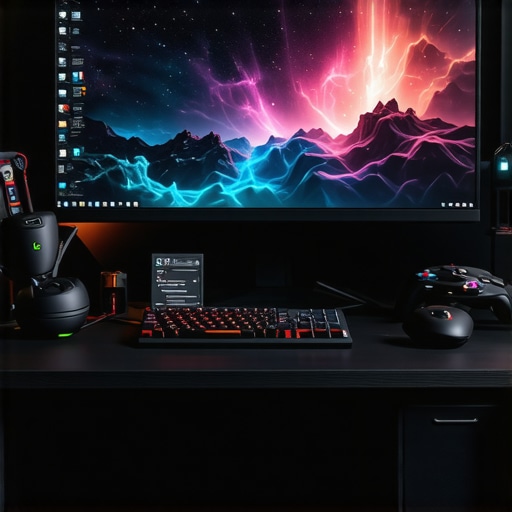
Ever sat in front of your screen, ready to dive into a gaming session or tackle a big project, only to be greeted by sluggish response times, dull colors, or a monitor that just doesn’t keep up? I’ve been there. I remember upgrading my old monitor, thinking any display would do, only to realize how much I was missing out on clarity and smoothness. That lightbulb moment hit me hard when I saw how much a good 144Hz IPS monitor could transform my experience — whether gaming or working. It’s not just about looking pretty; it’s about performance, productivity, and truly enjoying what you see every day.
Why Now Is the Perfect Time to Upgrade Your Monitor
In 2024, the tech landscape has shifted dramatically. Monitors are no longer just screens; they’re tools that can boost your performance, cut down eye strain, and make your digital life more enjoyable. With the rise of fast-paced games and demanding creative work, a 144Hz refresh rate combined with IPS panel technology offers a sweet spot — crisp visuals, vibrant colors, and ultra-smooth motion. But here’s the thing: choosing the right monitor isn’t as straightforward as picking the newest model on the shelf. There’s a lot to consider, and I want to help you avoid the common pitfalls.
Is a 144Hz IPS Monitor Worth the Hype?
Honestly, I used to think all this hype about high refresh rates was just marketing. But early on, I made a mistake — I bought a budget monitor with a high refresh rate, but the colors were washed out, and the response times were sluggish. That led to frustration and wasted money. It took me a while to realize that the true value lies in balancing refresh rate with color accuracy and viewing angles, which IPS panels excel at. If you’re serious about gaming or productivity, this combo is a game-changer. For more insights, check out why IPS monitors are a game-changer in 2025.
So, if you’ve ever hesitated because of doubts or concerns about the actual benefits, I get it. But trust me, upgrading to a top-tier 144Hz IPS monitor means less eye fatigue, faster reactions in game, and stunning visuals that pop. Keep reading, and I’ll guide you through how to pick the perfect one for your needs — whether it’s for gaming, work, or both.
Choose the Right Screen Size and Resolution
Start by selecting a monitor size that fits your desk space and viewing habits. For gaming and creative work, a 27-inch screen strikes a good balance between immersion and practicality. Pair it with a resolution of at least 2560×1440 (QHD) to ensure sharp images and ample workspace. I once bought a 24-inch monitor with 1080p resolution, and it felt cramped and pixelated for my multitasking — upgrading to a 27-inch QHD changed everything, making work more comfortable and gaming more engaging.
Focus on Refresh Rate and Response Time
Prioritize a 144Hz refresh rate for ultra-smooth motion. Think of it as the frame rate in movies; the higher, the fewer choppy images you see. For fast-paced games like shooters, a low response time (1-3 ms) prevents ghosting and blur. I remember switching from a 60Hz monitor to a 144Hz one for competitive gaming, and my reaction times noticeably improved just because the visuals felt more fluid. For detailed comparisons, check out this guide on 144Hz monitors.
Understand IPS Panel Advantages
IPS panels offer vibrant colors and wide viewing angles, making them ideal for creative work and immersive gaming. Imagine looking at a painting; IPS ensures colors stay consistent no matter where you sit. I used to struggle with color shifts on TN panels, but switching to an IPS monitor made my photo editing and design projects pop with accuracy. For a deep dive into why IPS is a game changer, visit this detailed explanation.
Set Up Your Monitor Properly
Position the monitor at eye level, about an arm’s length away, to reduce neck strain and eye fatigue. Use adjustable stands or mounts to fine-tune height and tilt. I once placed my monitor too low, which caused discomfort during long sessions, but after adjusting it to eye level, my posture improved dramatically, and I experienced less fatigue. Good ergonomics are key for both work and gaming.
Configure Display Settings for Optimal Clarity
Calibrate brightness, contrast, and color settings to match your environment. Enable features like flicker-free mode and blue light filters to protect your eyes. I experimented with different settings, and found that lowering blue light and increasing contrast made late-night gaming sessions much more comfortable. For creative tasks, use calibration tools or software to get color accuracy right. Remember, a well-calibrated display makes a huge difference in visual fidelity.
Utilize Gaming and Productivity Modes
Many monitors come with preset modes optimized for gaming or work. Use gaming mode for fast response and vivid colors during gameplay. Switch to a productivity mode for long work sessions to reduce eye strain and improve clarity. I toggle between modes depending on the task, which allows me to get the best of both worlds without manual adjustments every time. For top picks, see this curated list.
Maintain and Upgrade Over Time
Keep your monitor clean and dust-free, and update firmware when available. When I noticed my colors fading after a year, a quick calibration restored optimal visuals. If your needs evolve, consider upgrading to a newer model with better features, like higher refresh rates or improved color accuracy. Staying current ensures your setup keeps pace with gaming innovations and creative demands. Explore the best options at this top list.
Many enthusiasts and even seasoned users fall into traps when choosing or configuring their monitors, often based on misconceptions that can hinder their experience. Let’s dig deeper into what most people get wrong about 144Hz IPS monitors, gaming, and work setups, so you can avoid costly mistakes and optimize your display for peak performance.
Why the Refresh Rate Alone Won’t Make You a Better Gamer or Worker
It’s a common belief that simply upgrading to a 144Hz monitor guarantees smoother gameplay or increased productivity. While a higher refresh rate reduces motion blur and input lag, it’s not a silver bullet. If your system’s hardware isn’t capable of delivering high frame rates, you’ll end up with a high refresh rate monitor that often displays low frame counts, leading to inconsistent performance. For example, pairing a 144Hz display with a mid-tier GPU might result in only 60-80 FPS in demanding games, which diminishes the benefits of the higher refresh rate. Always ensure your hardware can match the monitor’s capabilities, or you risk disappointment.
Common Pitfall: Overlooking Color Accuracy and Panel Quality
Many users focus solely on specs like refresh rate and resolution, neglecting panel technology and color fidelity. An IPS panel offers wide viewing angles and vibrant colors, but not all IPS monitors maintain color accuracy out of the box. Cheap IPS displays might have uneven backlighting or poor color calibration, which can be detrimental for creative work or media consumption. Moreover, some manufacturers cut corners on response times or contrast, leading to ghosting or washed-out visuals. It’s crucial to choose a reputable model that balances refresh rate with true color performance. For detailed insights, check out why IPS monitors are a game-changer in 2025.
Beware of the Blue Light and Flicker Myth
Another common misconception is that all high-refresh-rate monitors are inherently better for your eyes. While many modern monitors feature flicker-free technology and blue light filters, some budget models claim these features without truly implementing them. As a result, users may experience eye strain despite paying a premium. Always verify that the monitor has certified flicker-free and low blue light features—this can significantly reduce fatigue during long gaming or work sessions. Find out more about this at why IPS monitors are a game-changer in 2025.
Advanced Question: How Do You Optimize Your Setup for Real-World Use?
Optimizing a 144Hz IPS monitor goes beyond just selecting the right model. Proper calibration, ergonomic positioning, and configuration of display settings are essential to unlock its full potential. For example, adjusting color profiles for your specific environment or enabling gaming/creative modes can enhance your experience significantly. Also, consider your desk setup: placing the monitor at eye level and maintaining proper distance reduces neck strain and eye fatigue. If you’re serious about maximizing your display’s benefits, review comprehensive guides like ultimate guides to gaming and work monitors. Have you ever fallen into this trap? Let me know in the comments!” ,
Maintaining your high-performance monitor isn’t just about cleaning the screen; it involves a combination of the right tools, software, and habits to ensure consistent quality and longevity. As monitors evolve, especially with features like 144Hz refresh rates and IPS panels, staying on top of maintenance becomes crucial to preserve color accuracy, response times, and overall performance. I personally rely on specific tools and methods that have proven effective over years of use, and I recommend them to anyone serious about their display setup.
Invest in a Good Cleaning Kit and Proper Techniques
First, I use a microfiber cloth specifically designed for electronics to wipe the screen gently, avoiding any scratching or streaks. For stubborn smudges, I dampen the cloth slightly with distilled water or a screen-safe cleaner—never spray directly onto the monitor. Regular cleaning prevents dust buildup that can affect cooling and cause static issues. Remember, a clean screen not only looks better but also reduces eye strain during long sessions.
Utilize Calibration Tools for Consistency
Calibration is essential for long-term color accuracy, especially if you’re using an IPS monitor for creative work. I use hardware calibration tools like the Datacolor SpyderX or X-Rite i1Display Pro. These devices connect via USB and work with specialized software to adjust gamma, brightness, contrast, and color profiles automatically. This process ensures your display stays true to color standards over time, which is especially important as monitors can drift after prolonged use. For more detailed calibration insights, check out why IPS monitors are a game-changer in 2025.
Automate Brightness and Power Settings
To extend the lifespan of your monitor and reduce power consumption, I set up automation using software like f.lux or Windows’ built-in Night Light and adaptive brightness features. These tools adjust brightness based on ambient light, which is gentler on your eyes and helps prevent premature backlight degradation. Additionally, enabling power-saving modes when idle can prolong your monitor’s health. Regularly updating your graphics drivers and monitor firmware also ensures compatibility and performance improvements, which I do quarterly.
How do I maintain my monitor over time?
The key to long-term monitor performance is consistency. Schedule monthly cleanings, run calibration checks every six months, and keep your workspace organized to avoid accidental damage. Checking the monitor’s settings and firmware updates periodically can prevent issues related to color drift or response time degradation. When I noticed a slight decrease in response times on my gaming monitor, a firmware update restored peak performance—demonstrating how proactive maintenance pays off. As monitor technology advances, I predict that future updates will include smarter calibration and self-cleaning features, making maintenance even easier. To stay ahead, I recommend trying advanced calibration tools and setting reminders for regular upkeep. This way, your monitor continues delivering crisp visuals and smooth gameplay for years to come.
If you want to optimize your setup further, explore dedicated tools like the top gaming monitors of 2025 or the best options for work productivity. Keeping your display in top shape is an investment in both your visual comfort and your performance, whether gaming or working.
The Hardest Lesson I Learned About computer monitor,gaming monitor,work monitor,ips monitor,144hz
Early in my journey, I believed that higher specs automatically meant better performance, but I soon realized the importance of balancing refresh rate with color accuracy and panel quality. Skipping this balance led to costly mistakes and frustration, especially when my visuals didn’t match my expectations for gaming or creative work.
3 Myths About computer monitor,gaming monitor,work monitor,ips monitor,144hz That Held Me Back
I used to think that all IPS panels had the same response times and color fidelity. The truth is, not all IPS panels are created equal—many cheap models compromise on response times or contrast. Also, I believed that a 144Hz refresh rate alone would make me a pro gamer, but without a powerful GPU, I was only seeing half the potential of my monitor’s capabilities.
What Experts Won’t Tell You About computer monitor,gaming monitor,work monitor,ips monitor,144hz
One secret I discovered is that proper calibration and ergonomic setup can dramatically improve your experience. Many overlook that a monitor’s true potential is unlocked through calibration tools and correct positioning, reducing eye strain and maximizing visual clarity. Also, firmware updates can improve response times and color accuracy over time, which most users miss out on.
Curated Resources for Elevating Your Monitor Game
- Datacolor SpyderX: I trust this calibration tool because it provides precise color profiling, which is essential for creative work and maintaining visual consistency.
- Ergonomic monitor mounts: Investing in adjustable stands improved my posture and reduced fatigue, making long sessions more comfortable.
- Monitor firmware updates: Regularly updating my monitor’s firmware has kept response times optimized and prevented performance issues, ensuring my display stays at peak quality.
- Comprehensive guides like this ultimate guide: These resources help me stay informed on the latest tech and best practices for setup and maintenance, which is crucial for long-term performance.
Embrace the Future of Monitor Mastery
Taking control of your monitor setup is more than just picking specs; it’s about understanding what truly enhances your gaming and work experience. Your journey toward a sharper, faster, and more comfortable visual environment starts now. Don’t wait—upgrade your knowledge and equipment, and watch your performance soar.
What’s the biggest challenge you’ve faced when setting up your monitor? Share your story below and let’s learn together!






![7 Best 144Hz Gaming Monitors Under $300 [2026 Tested Results]](https://monitors.smartscreenshowcase.com/wp-content/uploads/2026/03/7-Best-144Hz-Gaming-Monitors-Under-300-2026-Tested-Results.jpeg)


Leave a Reply