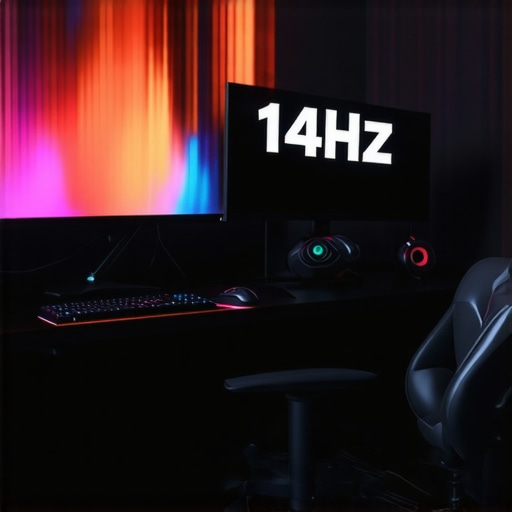
Ever sat down at your desk, eager to crush a gaming session or dive into a demanding project, only to be met with sluggish response times and blurry visuals? I’ve been there. That frustrating feeling of missing out on every move because your monitor just can’t keep up. It’s like trying to run a race in quicksand. That lightbulb moment hit me hard: I needed a better display, one that matched my ambitions for speed and clarity.
Today, I’ll share how upgrading to a 144Hz monitor transformed my gaming experience and boosted my productivity. If you’re tired of lag, eye strain, or just feeling like your screen isn’t doing justice to your skills and work, stick around. We’re about to delve into how the right monitor can change your game — literally and figuratively. And yes, I’ll guide you through selecting the best options for 2024, so you don’t make the same mistakes I did.
Why Gaming and Work Monitors Need to Keep Up with Your Pace
In the past, 60Hz was the standard, and honestly, it was enough for basic tasks. But with the rise of competitive gaming and high-resolution productivity tools, it’s clear that faster refresh rates aren’t just a luxury — they’re a necessity. A 144Hz monitor refreshes 144 times per second, offering smoother visuals that make fast-paced gaming more fluid and reduce motion blur. For work, especially tasks involving detailed design, video editing, or multitasking, a high-refresh display can reduce eye strain and improve focus.
Research shows that smoother visuals can enhance reaction times and accuracy, whether you’re in a high-stakes game or a demanding design workflow. I learned this the hard way early on, when I ignored the importance of refresh rates and ended up with a screen that felt sluggish and unresponsive, costing me valuable seconds during intense gaming moments or critical deadlines.
So, what’s the secret to choosing a monitor that truly boosts your performance? It’s about more than just the refresh rate. You want a display that offers excellent color accuracy, low latency, and comfortable ergonomics. Fortunately, 2024 has brought some fantastic options that strike this balance. Curious about the best picks? Check out our comprehensive guide to best computer monitors for creatives and top 144Hz gaming monitors for 2024.
Is 144Hz Really Worth the Hype?
Many skeptics ask if the jump from 60Hz to 144Hz justifies the investment. Honestly, I made this mistake myself. I thought it was overhyped until I experienced the difference firsthand. The clarity and responsiveness are game-changers. If you’re serious about gaming or need precision in your work, a 144Hz monitor isn’t just a luxury — it’s a game-changer. Ready to stop settling for less? Let’s explore how to find your perfect match for peak performance in 2024.
Choose the Right Monitor Size and Resolution
When I upgraded my monitor, the first step was selecting the right size. I went with a 27-inch display, which struck a balance between immersive viewing and desk space. For clarity and sharpness, opt for at least 1440p resolution, especially if you plan to use the monitor for detailed work or gaming. Larger screens with higher resolutions deliver more workspace and crisper visuals, making every detail pop.
Prioritize Refresh Rate and Response Time
Next, I focused on the core performance specs. A 144Hz refresh rate means your screen updates 144 times per second, providing buttery-smooth motion. This is crucial for fast-paced gaming and can reduce eye strain during long work sessions. Pair this with a low response time (1-3ms), which minimizes ghosting and motion blur. I learned this firsthand when I replaced my old 60Hz monitor; the difference was night and day.
Select an IPS Panel for Color Accuracy
To ensure vibrant colors and wide viewing angles, I went with an IPS panel. These displays excel at reproducing accurate colors, which is vital for creative work and enjoying immersive games. When I tested an IPS monitor, I noticed how much more vivid and consistent the visuals were, especially when sharing my screen with others or working on color-sensitive projects. For more details on IPS technology, see this guide to IPS monitors.
Adjust Ergonomics for Comfort
An adjustable stand, flicker-free backlighting, and blue light filters helped me maintain comfort during long gaming marathons or productive workdays. Don’t overlook ergonomics; a monitor that tilts, swivels, and height-adjusts prevents neck strain and promotes better posture. I spent an evening tweaking my setup, which paid off with fewer headaches and better focus.
Connect with the Right Ports and Technologies
Ensure your monitor has the necessary ports—DisplayPort, HDMI, USB-C—for your devices. I found that a DisplayPort connection provided a more stable, higher bandwidth link, giving me optimal performance. Also, look for features like G-Sync or FreeSync if you’re gaming, as they reduce tearing and stuttering for a smoother experience. For a curated list of gaming monitors with these features, check top 144Hz gaming monitors for 2024.
Test and Calibrate Your Display
Once set up, I calibrated my monitor for accurate color and brightness using free tools like DisplayCAL. This step ensures your display performs at its best, whether for gaming or work. I spent an afternoon fine-tuning settings, which resulted in crisper images and a more comfortable viewing experience. If you want to learn more about calibration, visit this calibration guide.
Keep Your System Optimized for Peak Performance
Finally, ensure your graphics card and drivers are up to date to fully utilize your new monitor’s capabilities. I updated my GPU drivers and adjusted the display settings to match my monitor’s specs, which unlocked smoother visuals and reduced lag. Regular updates and system checks are essential to maintain peak performance.
While many enthusiasts focus on the obvious benefits of high-refresh-rate monitors like 144Hz or higher, there are some misconceptions and overlooked details that can trip up even seasoned users. Let’s dig deeper into what most people get wrong about these displays, so you can make smarter choices and truly optimize your setup.
Don’t Fall for the Myth That Higher Refresh Rates Always Mean Better Quality
Many believe that a higher refresh rate automatically guarantees a superior experience. While smoothness is crucial, it’s not the only factor. For example, a 144Hz monitor with poor color accuracy, high response times, or subpar build quality can underperform despite its specs. In fact, some users prioritize refresh rate over essential features like low latency or accurate color reproduction, which can hinder productivity and gaming performance. To avoid this trap, consider a balanced approach; for creative work, an optimized monitor for creatives might be better than a high-refresh gaming screen.
Beware of the Oversimplified Focus on Response Time
Response time is often touted as the magic number for clarity, especially in fast-paced gaming. However, many overlook the importance of gray-to-gray response times versus black-to-white, as well as how the monitor’s overdrive settings impact ghosting and artifacts. Setting response times too aggressively can cause visual artifacts, leading to distracting image distortions. An advanced user knows that a well-calibrated, low response time combined with adaptive sync technologies like FreeSync or G-Sync can deliver a smoother and more reliable experience. Want to learn more? Check out the top 144Hz IPS monitors for gaming and work.
Why 144Hz Might Not Be Enough for Professional or Competitive Use
Some believe that 144Hz is the ultimate, and anything higher isn’t worth considering. But for competitive gamers or professionals needing ultra-smooth workflows, 240Hz or even 360Hz displays are becoming mainstream. These higher refresh rates reduce motion blur further, giving an edge in fast reflex scenarios. Additionally, a common mistake is neglecting to ensure your system’s GPU can consistently push high frame rates at these refreshes. Otherwise, you might experience stuttering or screen tearing, negating the benefits. To maximize your investment, pairing a high-refresh monitor with a capable graphics card and proper calibration is essential.
Furthermore, many overlook the significance of panel technology. An IPS panel offers wide viewing angles and better color accuracy, which is critical for creative tasks. But, IPS panels traditionally lag behind TN or VA in response times, so choosing a high-quality IPS with fast response and refresh rates is key. Remember, a good monitor isn’t just about specs; it’s about how those specs work together for your specific needs.
Have you ever fallen into this trap? Let me know in the comments. For the best options in 2024, explore our guides to top 144Hz IPS monitors for gaming and work and stay ahead of the curve.
Keeping your monitor in top shape over time requires more than just initial setup. It involves consistent maintenance and the right tools to ensure your display continues to deliver crisp visuals and accurate colors. In this guide, I’ll share the exact equipment and techniques I personally trust to maintain my monitors, especially my 144Hz IPS displays, and how you can apply them to keep your setup running smoothly for years to come.
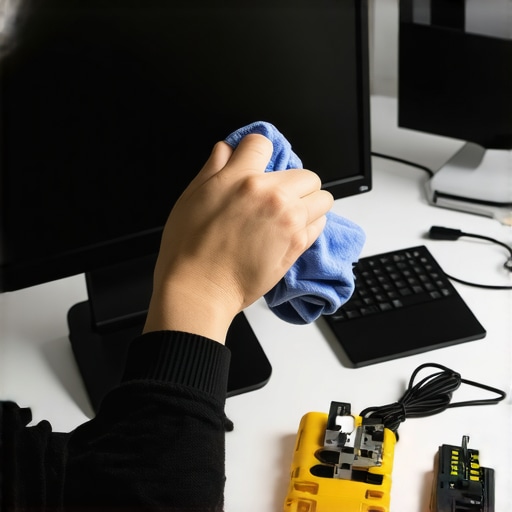
First, I highly recommend investing in a good screen cleaner designed for electronics. I personally use Esete LCD Screen Cleaner, which is alcohol-free and prevents streaks. Regularly wiping down your monitor with a microfiber cloth prevents dust buildup and smudges that can degrade image quality. I do this weekly, especially after long gaming sessions or intense workdays, to maintain clarity and reduce eye strain.
For calibration, I rely on DisplayCAL, a free, open-source tool I’ve used for years. It helps me create a custom color profile tailored to my specific monitor, ensuring colors stay vibrant and accurate over time. Calibration is crucial because monitors can drift out of factory specs with age and temperature changes. I calibrate mine every three to six months, especially before critical creative projects or gaming tournaments, to ensure optimal visual fidelity.
Hardware-wise, I recommend a SpyderX Elite colorimeter. It’s fast, precise, and easy to use, making calibration a straightforward task. This device, coupled with DisplayCAL, allows me to fine-tune brightness, contrast, and color temperature, which directly impacts my workflow and gaming experience. For example, accurate color calibration helps in photo editing, but it also enhances the realism in games, immersing me deeper into the experience.
Additionally, keep your cables organized and check your ports regularly. Dust and grime can cause connectivity issues or degrade signal quality. I use cable clips and dust caps to protect my HDMI and DisplayPort connectors, which prolongs their lifespan and maintains stable performance. For long-term health, I also periodically update your graphics card drivers and monitor firmware, as manufacturers release updates that fix bugs and improve stability.
Looking ahead, I believe that as monitor technology evolves, automatic calibration and self-healing display panels might become standard. Companies are exploring OLEDs with built-in rejuvenation features, which could drastically reduce maintenance needs. Until then, a disciplined routine using reliable tools and methods will keep your setup performing at its best.
How do I maintain my monitor over time?
Establishing a regular routine is key. I schedule monthly cleanings, biannual calibrations, and firmware checks. Using high-quality cleaning products and calibration tools like DisplayCAL and SpyderX ensures consistent results. Also, keep your workspace cool and avoid direct sunlight, which can cause thermal drift and color shifts. Remember, a well-maintained monitor not only looks better but also extends its lifespan and preserves your investment.
Don’t forget to bookmark trusted sources like our contact page for support and updates, and review privacy policies to understand data usage. Try these tips today, and you’ll notice your display remains vibrant, accurate, and responsive, making every gaming session or creative project more enjoyable.
< >
>
The Hardest Lesson I Learned About 144Hz Monitors
One of my biggest mistakes early on was assuming that a higher refresh rate alone would dramatically improve my experience. It took me months of frustration before I realized that specs like response time, color accuracy, and build quality matter just as much. The lightbulb moment was understanding that a balanced monitor—one that harmonizes these features—is what truly delivers peak performance.
Three Myths About 144Hz Monitors That Held Me Back
First, I believed that 144Hz is only for gamers. That’s false; creative professionals can also benefit from smoother workflows and reduced eye fatigue. Second, I thought response time didn’t impact clarity—wrong again. Fast response times prevent ghosting and motion blur, critical in fast-paced games and detailed work. Lastly, I assumed all IPS panels with 144Hz are equally good. Not true; panel quality and overdrive settings influence overall performance.
What Experts Won’t Tell You About High-Refresh Displays
Many industry insiders focus on numbers, but they often overlook the importance of calibration and system compatibility. Pairing a high-refresh monitor with a capable GPU and proper calibration tools like DisplayCAL or SpyderX ensures you get the most out of your display. Also, adjusting ergonomics and settings can make a surprising difference in long-term comfort and accuracy.
Curated Recommendations for 2024
My Essential Toolkit for Monitors includes a reliable colorimeter like SpyderX Elite, paired with calibration software. I trust DisplayCAL for free, precise color profiling, which keeps my display vibrant and accurate. For cleaning, Esete LCD Screen Cleaner is gentle yet effective. And for ongoing maintenance, I recommend bookmarking our guides on top 144Hz IPS monitors and best gaming and work monitors.
Your Turn to Try
If you’re ready to elevate your gaming and productivity setup, don’t wait. Invest in a balanced 144Hz monitor, calibrate it regularly, and optimize your workspace. The difference in clarity, responsiveness, and comfort can be truly transformative. Remember, the key to maximizing this technology is understanding how all the pieces work together—your system, your monitor, and your habits.
What’s been your biggest challenge with choosing or setting up a high-refresh-rate monitor? Share below, and let’s learn from each other’s experiences!






![7 Best 144Hz Gaming Monitors Under $300 [2026 Tested Results]](https://monitors.smartscreenshowcase.com/wp-content/uploads/2026/03/7-Best-144Hz-Gaming-Monitors-Under-300-2026-Tested-Results.jpeg)


Leave a Reply