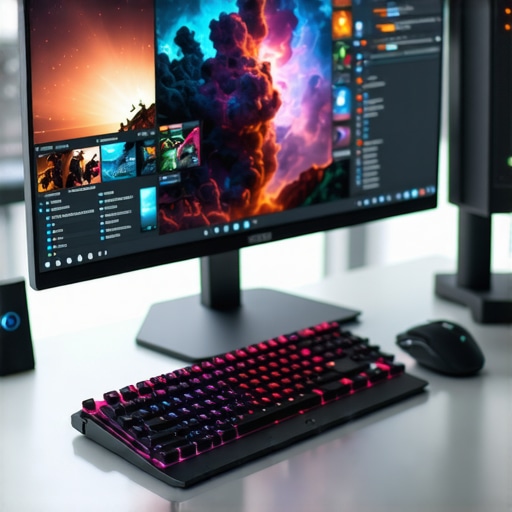
Ever found yourself in the middle of a high-stakes game or a crucial work presentation, only to be frustrated by lag, screen tearing, or sluggish response? I’ve been there. One moment, everything’s smooth. The next, a missed shot or a misclick ruins the flow. That lightbulb moment hit me hard: my old monitor just couldn’t keep up. It’s like trying to race a sports car with a bicycle—no matter how talented you are, the equipment matters.
Why 144Hz Monitors Are a Game-Changer in 2024
In recent years, especially as we gear up for 2024, the importance of high-refresh-rate monitors has skyrocketed. They’re no longer just for gamers; professionals and content creators are catching on too. Why? Because a 144Hz display delivers ultra-smooth visuals, making fast-paced gaming and quick work tasks feel seamless. Plus, with the rise of esports and competitive gaming, a monitor that refreshes 144 times per second can mean the difference between victory and defeat.
My personal experience? Upgrading to a 144Hz monitor transformed my gaming sessions into buttery-smooth adventures and boosted my productivity during long work hours. The clarity and responsiveness made my workflow more efficient, and I felt less strain on my eyes. It’s like finally having a monitor that actually matches how fast my brain and hands operate.
But here’s the thing—choosing the right 144Hz monitor isn’t as simple as it sounds. There are plenty of options, and not all are created equal. Some boast high refresh rates but fall short on color accuracy or response time. Others are budget-friendly but lack the durability or features you need for serious gaming or professional work.
That’s why I want to help you navigate this maze. Over the coming sections, I’ll share my insights, tips, and real-world advice to help you pick the perfect 144Hz monitor for your needs. Whether you’re a gamer, a creative professional, or someone who just wants a smoother experience, there’s a solution for you. And if you’re wondering whether it’s worth the investment, trust me—once you see the difference, there’s no going back. For a comprehensive look at the top models for 2024, check out this guide.
Is a 144Hz Monitor Really Worth the Hype?
One of the biggest skepticsm I had early on was whether the higher refresh rate truly made a noticeable difference. I made the mistake of sticking with a 60Hz monitor for too long—thinking, “How much better can it really get?” Well, I learned the hard way. The answer: a lot. Especially for fast-paced games or editing tasks where responsiveness counts. Studies show that higher refresh rates can reduce motion blur and improve reaction times, which I can personally attest to. So, if you’ve ever wondered whether upgrading is worth it, the answer is a definitive yes.
Now, before you dive into the world of 144Hz displays, it’s worth understanding what features matter most. Do you need an IPS panel for color accuracy? A curved screen for immersive gameplay? Or perhaps a budget-friendly option that still boosts performance? I’ll guide you through all that soon. But first, let’s look at some common pitfalls I fell into early on to help you avoid making the same mistakes.
Set Up Your Equipment Correctly
Before diving into the specifics of your new 144Hz monitor, ensure your PC or laptop can support it. Check your graphics card specifications—older cards might struggle to push high frame rates. For example, if you’re gaming at 144Hz, your GPU should be capable of rendering 144 frames per second (FPS) consistently. If not, consider upgrading your GPU or lowering game settings temporarily to match your hardware capabilities.
Connect with the Right Cables
Use DisplayPort or HDMI 2.0+ cables to unlock the full 144Hz potential. Many people forget that using inferior cables can limit your refresh rate or cause flickering. I once faced flickering issues until I switched from a standard HDMI cable to a certified DisplayPort cable, which instantly stabilized my display. When in doubt, consult your monitor’s manual or product page to verify supported connection types.
Adjust Your Monitor Settings for Optimal Performance
Navigate to your monitor’s on-screen display (OSD) menu and set the refresh rate to 144Hz. Many monitors default to 60Hz or 120Hz, so manually selecting 144Hz ensures smooth visuals. Additionally, disable any unnecessary features like motion blur reduction if you’re aiming for true responsiveness. A quick tip: enable overdrive settings for faster pixel response times, but avoid setting it too high to prevent ghosting effects.
Configure Your Operating System
On Windows, right-click your desktop and select Display Settings > Advanced Display Settings. Here, pick your monitor and set the refresh rate to 144Hz if it isn’t already. I remember spending an hour troubleshooting display issues until I realized the refresh rate was stuck at 60Hz in Windows settings. Confirming the setting made a noticeable difference in gaming and editing workflows.
Calibrate Your Screen for Best Visuals
Color accuracy isn’t just for creators—gaming and productivity benefit too. Use built-in calibration tools or third-party software like DisplayCAL to adjust brightness, contrast, and color profiles. When I calibrated my monitor, colors appeared more vibrant, and motion looked sharper, which especially helped during fast-paced FPS games and detailed photo editing.
Optimize Your Game or Work Application Settings
Within your game settings or creative software, set the frame rate cap to 144 FPS or enable V-Sync if your hardware can sustain it. For work tasks, ensure your application supports high refresh rates—many professional tools automatically adjust, but it’s worth double-checking. This alignment reduces lag and tearing, resulting in a smoother experience across all tasks.
Regular Maintenance and Updates
Keep your graphics drivers up-to-date. Manufacturers often release updates that enhance compatibility with high-refresh monitors. I update my GPU drivers monthly, which keeps my system running smoothly and maximizes performance. Also, periodically clean your monitor and check for firmware updates from the manufacturer, especially if you encounter issues or flickering.
Implementing these steps transforms your 144Hz monitor from a fancy gadget into a powerhouse for gaming and work. Remember, setup isn’t a one-and-done task; revisit your settings periodically to adapt to new games, software updates, or hardware upgrades. Want to explore top-rated models? Check out this guide to find the best options for 2024.
While many enthusiasts and professionals embrace the advantages of 144Hz monitors, there’s a surprising amount of misinformation and overlooked details that can hinder your experience. Let’s dig deeper into what most people get wrong about high-refresh-rate displays and explore some advanced nuances that can make a real difference in your setup.
Why Higher Refresh Rates Aren’t a Magic Bullet
One prevalent myth is that simply upgrading to a 144Hz monitor guarantees smoother gameplay or enhanced productivity. However, this isn’t always the case. Your system’s ability to produce consistent 144 FPS is crucial. If your graphics card can’t render enough frames per second, you’ll not see the full benefit, and in some cases, the experience might even become more frustrating due to screen tearing or stuttering. This is why pairing a high-refresh-rate monitor with a capable GPU is essential. For example, even the best 144Hz IPS monitors are less effective if your hardware can’t keep up.
The Hidden Trap of V-Sync and Frame Rate Caps
Many users enable V-Sync or set strict frame rate caps to prevent tearing, but these features can introduce input lag or reduce responsiveness if not configured properly. Advanced gamers often prefer technologies like G-Sync or FreeSync, which synchronize the monitor’s refresh rate with your GPU’s frame rate, minimizing tearing without sacrificing performance. Understanding when and how to use these technologies is a nuanced skill that can significantly impact your experience. For detailed insights, check out this guide.
Is a 144Hz Monitor Really Better than 120Hz or 165Hz?
It’s common to see various refresh rates like 120Hz, 144Hz, or even 165Hz in the market. The difference between them isn’t just a number—it’s about the nuances of how your system handles these rates and your specific use case. For instance, the jump from 60Hz to 120Hz offers a noticeable improvement, but the difference between 144Hz and 165Hz can be subtle and often depends on the content or game engine. As an expert, I recommend considering your hardware, the type of games or tasks you perform, and your sensitivity to motion blur. For more options, explore top models for 2025.
Don’t Overlook Color Accuracy and Response Time
Many associate high refresh rates solely with gaming, but for creative professionals, features like color accuracy and response time matter just as much. A monitor boasting 144Hz might have poor color reproduction or slow pixel response, which can hinder photo editing or video work. Look for models that balance refresh rate with other specs like IPS panels for color fidelity. For instance, the best 144Hz IPS monitors blend responsiveness with color performance, making them ideal for multitasking.
Have you ever fallen into this trap? Let me know in the comments. Remember, understanding these nuances can help you make smarter choices and truly maximize your monitor’s potential.
Keeping your high-refresh-rate monitor in top shape requires more than just initial setup. From software utilities to physical maintenance, there’s a range of strategies that can extend your monitor’s lifespan and ensure consistent performance. I’ve personally relied on a combination of specialized tools and routine practices to keep my setup running smoothly, and I recommend these to anyone serious about maximizing their investment.
How do I maintain my monitor over time?
First, regular cleaning is vital. Dust and fingerprints can impair image quality and even cause overheating. I use a microfiber cloth and a gentle screen cleaner specifically designed for electronics, avoiding harsh chemicals that might damage coatings. For stubborn spots, a slightly damp cloth does the trick, but always power down the monitor before cleaning to prevent static buildup or accidental damage.
Beyond cleaning, software tools play a crucial role. I use DisplayCAL, a free calibration utility that enables me to fine-tune my monitor’s color accuracy every few months. Proper calibration not only improves visual fidelity but also prevents eye strain during long sessions. For brightness and contrast adjustments, I prefer using the monitor’s built-in OSD menu, but I regularly reset these settings to factory defaults, then recalibrate for consistent results.
Firmware updates are another often-overlooked aspect. Manufacturers release updates to fix bugs, improve compatibility, or enhance features. I check the manufacturer’s website periodically and install updates when available, ensuring my monitor benefits from the latest improvements. This proactive approach can prevent issues like flickering or color inconsistencies from developing over time.
Tools I recommend for long-term monitor health
For physical maintenance, a good compressed air can is invaluable for cleaning vents and ports—dust buildup can cause overheating or reduce responsiveness. For calibration, I swear by CalMAN or DisplayCAL. These tools provide precise control over color profiles, which is especially important if you use your monitor for creative work or competitive gaming. Additionally, a surge protector with an EMI filter will protect your device from power surges and electrical interference, extending its lifespan.
In the future, I believe monitor maintenance will become even more sophisticated. With advancements like integrated sensors and automatic calibration, your monitor might self-maintain, reducing manual effort. For now, staying proactive with updates and cleaning is your best bet.
Just try this advanced tip
One tip I find game-changing is setting up a custom color profile for different tasks. For gaming, I prefer vibrant, high-contrast settings; for work, I dial down brightness and enhance color accuracy. Switching profiles with a keyboard shortcut saves time and ensures optimal visuals for every activity. Explore the monitor’s settings or software utilities to create and assign these profiles—you’ll notice a difference in comfort and clarity. Want to see what’s possible? Check out the best 144Hz IPS monitors for versatile, high-performance screens that support advanced calibration.
The Hardest Lesson I Learned About 144Hz Monitors
One of my biggest mistakes early on was assuming that a higher refresh rate alone would instantly transform my gaming and work experience. I quickly realized that without a capable GPU and proper setup, a 144Hz monitor can fall flat. The real game-changer was learning how to align my hardware, cables, and software to maximize its potential. This taught me that excellence comes from understanding the synergy between your components, not just the specs on paper.
3 Myths About 144Hz Monitors That Held Me Back
I used to believe that all 144Hz monitors are the same and that response time or color accuracy didn’t matter. Breaking free from these myths opened my eyes to the value of choosing a model with an IPS panel for vibrant colors and low response times for sharp visuals. Recognizing that not all high-refresh-rate displays are created equal helped me avoid costly mistakes and find monitors that truly match my needs.
What Experts Won’t Tell You About Making the Most of Your 144Hz Setup
Most guides focus on the hardware, but the real secret is in your setup and calibration. Fine-tuning your display settings, using G-Sync or FreeSync when appropriate, and maintaining your hardware can dramatically improve your experience. For instance, I discovered that a simple calibration with DisplayCAL can make a huge difference in color fidelity and motion clarity. These small adjustments, often overlooked, are what separate good setups from great ones.
My Essential Toolkit for 144Hz Mastery
To keep my monitor performing at its best, I rely on tools like DisplayCAL for calibration, a microfiber cloth for regular cleaning, and a surge protector to safeguard against power issues. These might seem simple, but they play a crucial role in extending your monitor’s lifespan and ensuring consistent quality. I also stay updated with firmware from the manufacturer to fix bugs and unlock new features. These resources empower me to get the most out of my high-refresh-rate display.
Where to Go from Here
If you’re serious about boosting your gaming, editing, or productivity with a 144Hz monitor, start by evaluating your hardware compatibility. Then, explore models that balance refresh rate with color accuracy and response time, like the best 144Hz IPS monitors for 2024. Remember, investing in the right setup is an ongoing journey, and continuous calibration and maintenance will keep your monitor performing like new for years to come.
Your Turn to Try
Have you ever struggled with optimizing your monitor settings or pairing your hardware? Share your experiences below, and let’s learn from each other’s lessons. Embrace the power of a 144Hz display, and watch your gaming, creativity, and productivity soar in 2024!






![7 Best 144Hz Gaming Monitors Under $300 [2026 Tested Results]](https://monitors.smartscreenshowcase.com/wp-content/uploads/2026/03/7-Best-144Hz-Gaming-Monitors-Under-300-2026-Tested-Results.jpeg)


Leave a Reply