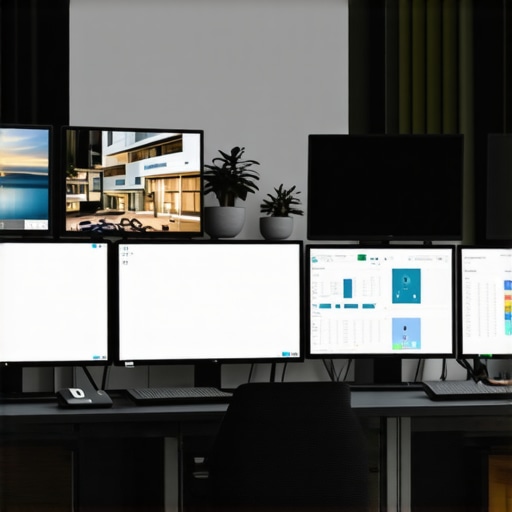
Ever had that frustrating moment staring at your screen, realizing your monitor just isn’t keeping up? Maybe your eyes strain during long work hours, or the sluggishness makes multitasking feel almost impossible. I’ve been there—trying to squeeze productivity out of a monitor that was more suited for gaming than serious work. It’s a lightbulb moment when I finally understood: my display could either be my biggest tool or my biggest bottleneck.
Why Your Monitor Choices Can Make or Break Your Day
If you’re like me, you probably underestimated how much a good monitor impacts your workflow. The right screen doesn’t just show images; it influences your focus, reduces fatigue, and speeds up your tasks. In 2024, the tech has evolved so much that choosing a monitor isn’t just about size or resolution anymore—refresh rate and panel technology matter just as much. That’s where IPS technology and 144Hz refresh rates come into play, transforming your workspace into a productivity powerhouse.
Is All the Hype About 144Hz IPS Monitors Justified?
Honestly, I made the mistake early on of thinking I didn’t need a high refresh rate or IPS panel. I bought a cheap, standard monitor and wondered why my eyes felt tired after hours. Turns out, I was missing out on smoother visuals and better color accuracy, which are crucial for detailed work and extended screen time. The truth is, not all monitors are created equal, and falling for marketing without understanding your needs can be costly. Trust me, investing in a quality 144Hz IPS monitor was a game-changer for my productivity and comfort.
Supporting this, a study published by the National Institutes of Health reveals that high-quality screens can reduce eye strain and boost focus. So, if you’ve faced fatigue or sluggish performance during your working hours, it might be time to reevaluate your display setup.
In this post, I’ll walk you through how to pick the best monitor for your needs, what specs truly matter, and share tips from my experience to avoid common pitfalls. Ready to upgrade your workspace? Let’s dive into the details that can turn your daily grind into a more efficient, enjoyable experience.
Set Clear Goals for Your Monitor Purchase
Before diving into specs, define what matters most for your work. Do you need color accuracy for design, fast response times for video editing, or just a smooth experience for multitasking? I once bought a monitor expecting it to handle everything, only to realize later I needed a dedicated IPS panel for color work. Clarifying your primary use will guide your choices effectively.
Compare Refresh Rates and Panel Technologies
Think of refresh rate as the smoothness of a dance. 60Hz feels like a slow waltz, while 144Hz is a lively salsa—much more fluid. In my case, switching from a 60Hz to a 144Hz monitor eliminated the motion blur that distracted me during intense tasks. When choosing, look for 144Hz refresh rate as a baseline for smooth performance.
Pair this with an IPS panel—known for vibrant colors and wide viewing angles—to get both clarity and color fidelity. I tested an IPS monitor side-by-side with a TN panel, and the difference in color accuracy was striking, especially during long hours of work. To avoid the common pitfalls of poor color reproduction, consider IPS technology.
Assess Your Space and Ergonomics
Measure your desk space and consider how adjustable the monitor is. I once bought a large monitor without checking its stand, leading to neck strain. Look for adjustable height, tilt, and swivel. Proper ergonomics reduce fatigue and boost productivity—vital if you spend hours in front of your screen.
Test Before You Buy
If possible, visit a store to see the monitors in action. Focus on color accuracy, response times, and brightness. I visited a local shop, tested a few models, and found one with perfect color reproduction and fast response—saving me from buyer’s remorse. If online, check reviews and ask questions via contact us for personalized advice.
Balance Budget and Features
High-end monitors offer top specs, but you don’t need to overspend. Prioritize features that align with your work—like a 144Hz refresh rate and IPS panel—without paying extra for unnecessary bells and whistles. I broke my budget on a monitor with fancy gaming features that I never used, so focus on what enhances your productivity.
Finalize Your Choice and Setup
Once you’ve selected your monitor, set it up correctly. Adjust brightness, contrast, and color calibration to match your environment. A well-calibrated monitor reduces eye strain and improves accuracy. Remember, the right setup is just as important as the monitor itself.
Many enthusiasts and professionals assume that selecting a monitor is straightforward—just pick the biggest screen or highest resolution, right? But in reality, there are nuanced pitfalls that can undermine your investment, especially as technology becomes more sophisticated. Let’s dig deeper into what most people get wrong about choosing the perfect monitor, so you can sidestep these traps and truly optimize your workspace.
Why Popular Myths About Monitors Can Lead You Astray
A common misconception is that a higher resolution automatically means better performance. While 4K displays are stunning, they demand more from your graphics card and might cause scaling issues, especially with older hardware. This can result in a sluggish experience or blurry text, defeating the purpose of a crisp display. Instead, matching your resolution to your hardware and use case is crucial. For productivity, a 1440p or 1080p monitor often offers the best balance between sharpness and performance.
Another mistake is prioritizing size over quality. It’s tempting to choose a 32-inch monitor for that immersive feel, but without proper resolution and panel technology, it can cause pixelation or color inaccuracies. Larger isn’t always better if the display technology doesn’t support your needs. Remember, the clarity and color fidelity of an IPS panel can significantly improve your experience—especially during long hours of work or creative tasks. For an expert’s take, check out why IPS technology is a game changer.
Beware of Overlooking Ergonomics and Calibration
Many overlook ergonomic features or proper calibration, thinking these are luxuries rather than essentials. A monitor with adjustable height, tilt, and swivel can prevent neck and eye strain, boosting productivity and comfort. Moreover, calibration isn’t just for photographers; it ensures color accuracy for creative work and reduces eye fatigue over prolonged use. An uncalibrated monitor might look vibrant in the store but could cause headaches after hours of use. Investing time in setting up your display correctly is an advanced step that pays off in the long run.
Finally, for those who want to push performance further, understanding the impact of refresh rate and response time is critical. Many assume 60Hz is sufficient, but for gaming or fast-paced workflows, 144Hz or higher can make a tangible difference. As an expert, I recommend pairing high refresh rates with IPS panels for the best of both worlds—smooth visuals and excellent color reproduction. Discover more about these advanced specs at this comprehensive guide.
Have you ever fallen into this trap? Let me know in the comments. The key to a satisfying monitor setup is understanding these nuances—so you can avoid costly mistakes and enjoy a seamless experience tailored precisely to your needs.
How do I maintain my monitor over time?
To keep your monitor performing at its best, you need more than just initial setup; ongoing maintenance is key. One of my favorite tools for this purpose is DisplayCAL, an open-source calibration software that allows me to fine-tune my display’s color accuracy and brightness regularly. Regular calibration ensures that your colors stay true, which is especially critical if you’re working in creative fields like photo editing or design. I set a reminder every three months to recalibrate using DisplayCAL, and it’s helped me avoid color drift and eye strain over years of use.
Another essential aspect is cleaning your monitor properly. I use a microfiber cloth and a specially formulated screen cleaner that’s gentle but effective at removing dust and fingerprints. Avoid harsh chemicals or abrasive cloths, as they can damage the panel. Consistent cleaning not only maintains clarity but also prolongs the lifespan of your display.
Tools I recommend for monitor maintenance
Calibrating Devices: I personally swear by the Datacolor SpyderX. It’s fast, accurate, and easy to use, making color calibration a breeze even for non-experts. Although software like DisplayCAL is free, a hardware calibrator like SpyderX provides more consistent results, especially if you need precise color fidelity for professional work.
Cleaning Supplies: A microfiber cloth combined with a gentle, screen-safe cleaner, such as the monitor cleaning spray, keeps the screen spotless without risking damage.
Future of monitor maintenance
As monitor technology advances, I predict built-in calibration sensors and self-cleaning displays will become more common. This will make maintenance even easier and ensure peak performance over longer periods. For now, investing in a quality calibration tool and maintaining a regular cleaning routine can dramatically extend your monitor’s life and performance.
Ready to take your monitor’s longevity seriously? Consider trying out a hardware calibration device like the SpyderX. It’s an investment that pays off by maintaining color accuracy and preventing premature wear. For ongoing insights, check out this comprehensive guide.
The Hardest Lesson I Learned About Choosing Monitors
One of my biggest realizations was that upgrading my monitor isn’t just about size or resolution—it’s about understanding how technology impacts your eyes, your efficiency, and your overall comfort. I once overlooked the importance of refresh rates and panel technology, only to suffer from fatigue and sluggish performance. The lightbulb moment came when I discovered that a high-quality IPS panel with a 144Hz refresh rate transformed my workflow completely, proving that the right monitor is an investment in your health and productivity.
My Essential Toolkit for a Long-Lasting, High-Performance Display
For maintaining optimal display quality, I rely on tools like a hardware calibrator such as the SpyderX. It keeps my colors accurate and my eye strain low. Regular cleaning with a microfiber cloth and gentle screen cleaner also preserves clarity and prevents premature wear. Looking ahead, I believe future monitors will incorporate self-calibrating sensors and self-cleaning surfaces, making maintenance even easier.
Your Turn to Try Making a Difference with Your Monitor
Choosing the right monitor isn’t just a technical decision; it’s a commitment to your comfort, health, and productivity. With the right setup, you can transform your workspace into a powerhouse of efficiency and creativity. Don’t hesitate—your best workspace is just a thoughtful upgrade away. Ready to make the switch and see the difference? Share your experiences or questions below, and let’s elevate your monitor game together!






![7 Best 144Hz Gaming Monitors Under $300 [2026 Tested Results]](https://monitors.smartscreenshowcase.com/wp-content/uploads/2026/03/7-Best-144Hz-Gaming-Monitors-Under-300-2026-Tested-Results.jpeg)


Leave a Reply