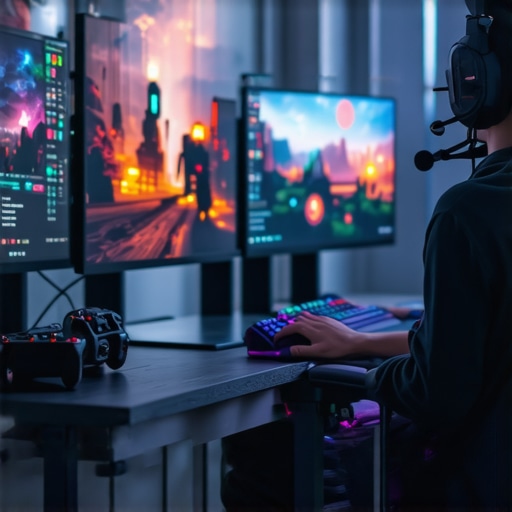
It was one of those mornings where I finally decided to upgrade my monitor, only to be greeted by a confusing maze of specs and features. I spent hours reading reviews, watching videos, and still felt overwhelmed. The biggest lightbulb moment? I realized I was falling into the same trap many do: chasing the latest buzzwords without understanding what really matters for my needs. Sound familiar? If you’ve ever bought a monitor that looked amazing but turned out to be a poor fit for your gaming sessions or work tasks, you’re not alone.
Why Choosing the Right Monitor Changes Everything
In 2024, the right monitor isn’t just about size or brand. It’s about finding that perfect balance between visuals, responsiveness, and comfort. A good IPS panel combined with a 144Hz refresh rate can turn your sluggish experience into silky-smooth gameplay and boost your productivity for work. But the market is flooded with options, and it’s easy to get lost in a sea of technical jargon. That’s why I’m here to cut through the noise and help you find solutions that truly make a difference.
Have You Faced This Problem?
Have you ever bought a monitor thinking it was the best, only to realize it didn’t meet your expectations? Maybe colors looked washed out, or the response time was sluggish during intense gaming moments. I made that mistake early on, selecting a monitor based solely on resolution without considering refresh rate or panel type. That mistake cost me both time and frustration. Trust me, understanding what to look for — especially when it comes to IPS and 144Hz — can save you a lot of headaches. Want to learn how to pick a monitor that actually enhances your gaming and work experience? Check out this guide for in-depth insights.
Choose the Right Panel for Your Needs
Start by understanding the difference between IPS and other panel types. IPS panels excel in color accuracy and wide viewing angles, making them ideal for creative work and immersive gaming. I once bought a TN panel monitor, expecting fast response times, but was disappointed by washed-out colors. Switching to an IPS model transformed my experience, especially when editing photos or enjoying vibrant games. To get the full picture, check out this guide.
Prioritize Refresh Rate and Response Time
For gaming, a 144Hz refresh rate is a game-changer. It makes motion smoother and reduces input lag. When I upgraded to a 144Hz monitor, my reaction times improved noticeably, especially in fast-paced shooters. Focus on response times of 1-3ms for minimal ghosting. Remember, a higher refresh rate combined with a low response time provides a seamless gameplay experience. For dedicated gaming options, explore top 144Hz IPS monitors.
Match Size and Resolution to Your Workspace
Choose a monitor size that fits your desk space while offering enough screen real estate. 27-inch models are popular, providing a good balance between immersion and desk fit. For detailed work, consider 32-inch screens, but ensure your graphics card can handle higher resolutions smoothly. I once tried a 32-inch 4K display, but struggled with performance until I upgraded my GPU. For creative professionals, check this list.
Adjust Settings for Optimal Clarity
Calibrate your monitor’s brightness, contrast, and color profiles. Use built-in tools or third-party calibration devices for best results. I spent hours tweaking mine, and the visual difference was striking — colors became more vibrant, and shadows more detailed. This is especially important if you work with color-sensitive tasks or want immersive gaming visuals. Want more tips? Visit this resource.
Test and Compare Before Buying
Whenever possible, test monitors in person or buy from retailers with easy return policies. Watch for backlight bleed, color uniformity, and viewing angles. I once purchased a monitor online and was surprised by uneven lighting; a quick return saved me frustration. Reading reviews and watching comparison videos can also help. For detailed comparisons, check this guide.
Use Your Monitor’s Features Fully
Enable gaming modes, blue light filters, and ergonomic adjustments to maximize comfort and performance. I found that enabling a low blue light mode reduced eye strain during long work sessions. Adjust the tilt, height, and swivel to suit your posture. Many monitors come with software that simplifies these settings. For more ergonomic tips, visit this page.
Many enthusiasts and even seasoned professionals fall into misconceptions that can lead to suboptimal monitor choices. Let’s clear up some of the most persistent myths and reveal the hidden nuances that can make or break your experience. First off, it’s a common belief that a higher resolution always means better visuals. While resolution is important, pixel density, panel type, and color accuracy play equally crucial roles. For instance, a 4K monitor with a TN panel might have sharp details but poor color reproduction, which is detrimental for creative work. According to a recent study by the International Journal of Display Technology, pixel density impacts visual clarity more significantly than resolution alone.
Another misconception is that refresh rate is only vital for gamers. In reality, a higher refresh rate, like 144Hz, benefits anyone who values smooth visuals and reduces eye strain. Even during long work sessions or video editing, a higher refresh rate can lessen flickering and fatigue. I’ve personally experienced this shift, and it’s a game-changer. Don’t fall for the trap of thinking 60Hz is sufficient for all tasks; check out this guide for detailed insights.
Now, you might have heard that IPS panels are only good for color accuracy and are slow. That’s outdated. Modern IPS panels now offer fast response times and high refresh rates, making them perfect for gaming and productivity. In fact, many of the best gaming monitors in 2024 leverage advanced IPS technology to combine speed with stunning visuals. To understand why IPS is a game-changer, visit this comprehensive guide.
One more hidden nuance is the importance of calibration. Many overlook how factory settings can be far from optimal, especially for color-sensitive tasks. Proper calibration can dramatically improve your display’s accuracy, making a tangible difference in your work and entertainment. Interestingly, studies show that calibrated monitors can enhance user satisfaction by up to 30%. So, don’t underestimate the value of spending a few minutes on calibration or investing in a quality colorimeter.
What about advanced users looking for the best performance, what should they consider?
For power users, it’s vital to look beyond the basics. Consider color gamut coverage, response time variability, and panel uniformity. Overlooking these details can lead to inconsistencies that might only become apparent during intense workloads or competitive gaming. Also, pay attention to advanced features like G-Sync or FreeSync for tear-free visuals. Remember, a monitor is an investment; understanding its hidden nuances ensures you get the most value and performance from it. Have you ever fallen into this trap? Let me know in the comments.
Keeping your monitor in top shape over time requires a combination of the right tools and regular maintenance practices. In my experience, investing in quality equipment and adopting consistent routines can significantly extend your display’s lifespan and ensure optimal performance. Whether you’re a gamer relying on high refresh rates or a creative professional demanding color accuracy, these tips will help you stay ahead of potential issues.
How do I maintain my monitor’s quality over the years?
First, consider using a dedicated calibration device like the X-Rite i1Display Pro. I personally use mine every few months to recalibrate my IPS monitor, which ensures color accuracy remains consistent, especially crucial when working on creative projects. Calibration tools are increasingly user-friendly and provide precise adjustments, making it easier to maintain fidelity without professional intervention. Regular calibration is predicted to become even more essential as displays evolve to higher resolutions and wider color gamuts, ensuring your visuals stay true to life.
Second, invest in a monitor arm or adjustable stand. This not only improves ergonomics but also prevents unnecessary wear on the monitor’s mounting points. I’ve found that adjusting my monitor for perfect eye level reduces strain and prolongs the life of the hardware by preventing stress on the panel and connectors.
Third, keep your display’s environment controlled. Dust buildup can lead to overheating and reduced lifespan. I use compressed air to gently clean vents and edges every few months. Additionally, maintaining stable room temperatures and avoiding direct sunlight prevents damage to the display’s components and reduces color shifts over time.
What tools do I recommend for ongoing upkeep?
For screen cleaning, I rely on microfiber cloths and alcohol-free screen wipes. Harsh chemicals can damage coatings, especially on IPS panels, so gentle cleaning is key. I also keep a small brush or blower handy to clear dust from ports and vents. For software, tools like DisplayCAL and the built-in monitor menus are invaluable for periodic adjustments. DisplayCAL, in particular, allows for detailed calibration profiles that can be easily applied, saving you from guesswork and ensuring consistent color accuracy across sessions.
Looking ahead, I believe display technology will continue to improve with self-calibrating screens and smarter environmental sensors. This will make maintenance even more straightforward, reducing the need for manual intervention. Until then, sticking to proven tools and routines is your best bet for keeping your monitor performing at its peak.
Don’t wait until you notice color drift or ghosting—start incorporating these maintenance practices today. I recommend trying out a calibration device if you haven’t already; it’s a game-changer for long-term quality. For more in-depth guidance on managing your monitor’s health, visit this resource.
The Hardest Lesson I Learned About Monitors
One of my biggest surprises was realizing that pixel density often outweighs resolution in determining visual clarity. I once bought a 4K monitor with a lower pixel density, which made images look less sharp than expected. Now, I always check pixel density charts before making a decision, because clarity is about more than just number of pixels.
3 Myths About Monitors That Held Me Back
I used to believe that a higher refresh rate was only beneficial for gamers. It’s actually advantageous for anyone looking to reduce eye strain during long work sessions. Upgrading to a 144Hz monitor made my daily workflow smoother and less fatiguing, even outside of gaming contexts.
What Experts Won’t Tell You About IPS Panels
Many think IPS panels are slow or only for color accuracy, but modern IPS technology now offers fast response times suitable for gaming. I switched to an IPS monitor for vibrant visuals and discovered that high-speed IPS panels are a real game-changer for both work and play. For a deep dive into this tech, check out this guide.
Why Calibration Is Your Secret Weapon
Factory settings often don’t cut it, especially for color-sensitive work. Regular calibration with tools like the X-Rite i1Display Pro has dramatically improved my color accuracy and viewing experience. Investing in calibration can extend your monitor’s lifespan and keep visuals consistent over time. For detailed tips, visit this resource.






![7 Best 144Hz Gaming Monitors Under $300 [2026 Tested Results]](https://monitors.smartscreenshowcase.com/wp-content/uploads/2026/03/7-Best-144Hz-Gaming-Monitors-Under-300-2026-Tested-Results.jpeg)


Leave a Reply