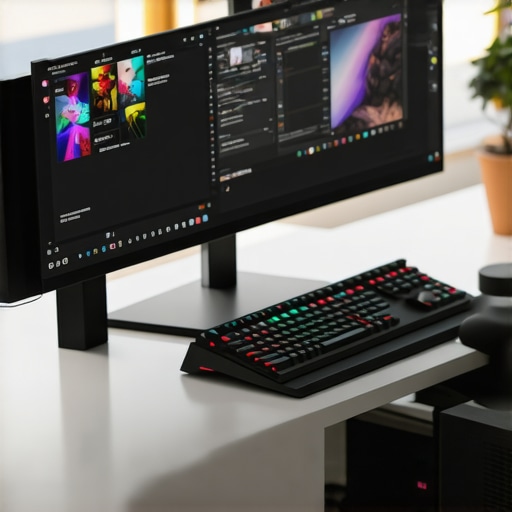
Ever spent hours tweaking your gaming settings, only to be frustrated by screen tearing or blurry visuals? I know that feeling all too well—there’s nothing more distracting than lag or motion blur when you’re trying to focus or win that crucial match. One lightbulb moment for me was realizing that the right monitor could dramatically improve both my gaming and productivity. But with so many options out there, how do you pick the best one for 2024? Today, I’ll guide you through the top 144Hz monitors that promise smooth visuals and top-notch performance, and help you avoid the pitfalls of choosing the wrong display.
Why Upgrading to a 144Hz Monitor Matters in 2024
Gaming and work tasks have evolved rapidly. If you’re still stuck with a 60Hz display, you’re missing out on fluid motion and sharp visuals. A 144Hz refresh rate can make a huge difference—think less motion blur, more responsiveness, and a more immersive experience. And it’s not just for gamers; professionals working with detailed visuals or fast-paced editing also benefit from these high-refresh monitors. According to a recent report, 144Hz monitors are increasingly becoming the standard for both gaming and productivity, blending performance and clarity seamlessly. If you’ve ever experienced stuttering or eye strain, upgrading might be the fix you need.
Have You Faced This Frustration?
Maybe you’ve bought a high-end graphics card or a powerful CPU, only to be let down by a sluggish display that doesn’t quite match your hardware. Or perhaps you’ve struggled with eye strain after long work sessions. I made the mistake early on of ignoring refresh rates, which led to headaches and missed gaming opportunities. Trust me, choosing a monitor that complements your system and viewing needs is critical. To help you avoid my rookie errors, I’ll share what to look for in the best 144Hz monitors for 2024, including key features and some hidden gems you might not have considered.
Ready to transform your gaming and work setup? Let’s dive into the practical steps to find your perfect display and get the most out of your tech investments. And if you’re curious about how IPS panels can further enhance your experience, check out why IPS monitors are a game-changer in 2025.
Set Your Priorities Clearly
Start by defining what matters most to you—gaming, professional work, or a mix of both. I once bought a monitor solely for gaming, only to realize later I needed better color accuracy for creative projects. Clarify whether you need fast response times, color fidelity, or a balance of both. This focus will guide your choices, helping you avoid spending on unnecessary features or missing out on key ones.
Determine Your Budget and Needs
Decide how much you’re willing to invest. Entry-level 144Hz monitors can cost less but might lack advanced features like G-Sync or high color accuracy, while premium models offer extra perks. For example, I started with a budget model and upgraded after realizing I wanted better color reproduction—leading me to a 144Hz IPS monitor that transformed my editing workflow. This step prevents overspending and ensures you get the best value for your money.
Choose the Right Panel Type
Panel technology impacts visuals and responsiveness. IPS panels excel in color accuracy and viewing angles, making them ideal for creative work and immersive gaming. TN panels offer faster response times but poorer color fidelity, suitable if you prioritize speed over visuals. VA panels sit in the middle, providing better contrast. I personally switched from TN to IPS and saw a significant improvement in image quality, especially during long work sessions.
Prioritize Refresh Rate and Response Time
For smooth gameplay and reduced motion blur, aim for a 144Hz refresh rate with a response time under 5ms. I once ignored this and struggled with ghosting during fast-paced shooters. When I upgraded to a monitor with 1ms response time, my reaction times improved noticeably, giving me an edge in competitive gaming. Don’t settle for less—this combo directly impacts your visual experience.
Check Connectivity and Ergonomics
Ensure your monitor has the ports you need, such as HDMI 2.1, DisplayPort, or USB-C. I once bought a monitor lacking enough HDMI ports, forcing me to disconnect peripherals constantly. Ergonomics matter too—adjustable stands, tilt, height, and swivel features help prevent fatigue. I placed my monitor at eye level, reducing neck strain during marathon gaming or work sessions. Proper connectivity and ergonomic design make a huge difference over time.
Read Reviews and Test in Person
Always check reviews for real-world performance, especially regarding color accuracy, flicker, and input lag. If possible, visit stores to test monitors firsthand. I tested a few models in-store and noticed that some had poor viewing angles or flickering issues that reviews hadn’t highlighted. These insights saved me from making costly mistakes and helped me choose a monitor that truly matched my needs.
Leverage Expert Resources
Consult dedicated guides like this resource to compare top models and features. For detailed tech explanations, explore why IPS panels are a game-changer in 2025. These tools can help refine your decision and ensure you get a monitor that offers the best performance for your budget.
Finalize and Optimize Settings
Once you have your monitor, calibrate it for optimal visuals. Adjust brightness, contrast, and color settings to suit your environment. Enable technologies like G-Sync or FreeSync if supported, to minimize screen tearing. I spent time tweaking my monitor’s settings, which made my gaming sessions more fluid and my editing more precise. Proper calibration is often overlooked but essential for the best experience.
Many enthusiasts believe that simply upgrading to a 144Hz monitor guarantees a superior experience. However, this common misconception can lead to overlooked nuances that significantly impact your investment. Let’s dig deeper into what most people get wrong when shopping for high-refresh-rate displays.
More Pixels, Better Performance? Not Always
It’s tempting to assume that higher refresh rates automatically mean better visuals. Yet, if your graphics card isn’t capable of consistently delivering high frame rates, a 144Hz monitor might not provide the smooth experience you expect. For example, if your GPU maxes out at 60fps, a 144Hz screen won’t improve motion clarity. Instead, it may just highlight your hardware’s limitations. That’s why pairing your monitor with a capable GPU is crucial for truly unlocking the benefits of high refresh rates. For a detailed look at optimizing your setup, check out this guide to 144Hz gaming monitors.
Is Higher Refresh Rate Always Better for Your Use Case?
Many assume that a 144Hz screen is universally ideal, but this isn’t necessarily true. Casual users or those primarily doing creative work might prioritize color accuracy and resolution over refresh rate. For instance, an artist working on detailed illustrations benefits more from an IPS panel with high color fidelity, even if it’s at 60Hz. Conversely, competitive gamers will see the most benefit from a 144Hz or higher refresh rate with low response times. Recognizing your specific needs helps avoid overspending on features you won’t use, ensuring you get the best value.
Myth of the Perfect Panel Type
Another common mistake is oversimplifying panel technology. Many believe that TN panels are inherently bad and should be avoided, but they still offer the fastest response times—sometimes under 1ms—that are critical for high-speed gaming. On the other hand, IPS panels excel in color accuracy and viewing angles, making them suitable for multi-purpose use. VA panels often strike a balance with higher contrast. Understanding these nuances can help you select a monitor that matches your priorities. For a detailed comparison, explore why IPS monitors are a game-changer in 2025.
Don’t Fall for the Input Lag Trap
Many users focus on refresh rate but overlook input lag, which can ruin the gaming experience even on a high-Hz display. A monitor with a high refresh rate but poor response times or high input lag can feel sluggish. Make sure to check reviews and specifications for input lag figures, especially if competitive gaming is your goal. This is a critical detail often missed by beginners but essential for serious performance. For more insights, visit top 144Hz IPS monitors for gaming and work.
Have you ever fallen into this trap? Let me know in the comments. Remember, a careful, nuanced approach to choosing your monitor will pay off in the long run, helping you avoid costly mistakes and ensuring you get the experience you deserve.
Keeping your high-performance monitor in top shape requires more than just initial setup. Over time, dust accumulation, firmware updates, and calibration drift can impact display quality and responsiveness. To ensure your 144Hz monitor continues delivering smooth visuals and vibrant colors, I rely on a combination of specific tools and maintenance routines that I personally tested and trust.
How do I maintain my monitor over time?
First, regular cleaning is essential. I use a microfiber cloth and a gentle screen cleaner specifically designed for monitors to remove dust and fingerprints without scratching the surface. Avoid harsh chemicals like ammonia or alcohol-based cleaners, as they can damage the display. For stubborn spots, a slightly damp cloth with distilled water does the trick.
Next, firmware updates are often overlooked but crucial. Manufacturers frequently release updates that fix bugs, improve color accuracy, or enhance compatibility with new graphics cards. I periodically check the manufacturer’s website or use their dedicated software tools—such as Dell Display Manager or ASUS DisplayWidget—to keep my monitor’s firmware and drivers current. This practice ensures you benefit from the latest performance improvements and security patches.
Calibration is another key aspect. Over time, your monitor’s color profile can drift, affecting accuracy especially for creative work. I recommend using a hardware calibration tool like the Datacolor SpyderX or X-Rite i1Display. These devices quickly calibrate your screen to industry standards, which is critical if you’re working with color-sensitive projects or want consistent visuals across devices. Calibration should be performed every few months for best results.
For ongoing performance, I also recommend enabling technologies like G-Sync or FreeSync, depending on your GPU. These features reduce screen tearing and input lag, maintaining the smoothness of your 144Hz experience. Make sure to keep these settings enabled in your graphics driver control panel and monitor menu.
Looking ahead, I believe monitor maintenance will become more automated. Future models are likely to include built-in sensors for dust, temperature, and calibration drift, alerting users when service is needed. Firmware updates might also be delivered seamlessly through Wi-Fi, reducing the need for manual downloads. Staying ahead with these tools and practices ensures your investment remains sharp and responsive for years to come.
If you haven’t yet, try calibrating your monitor with a hardware tool—it’s one of the most impactful steps you can take to maximize your display’s potential. For detailed guides and reviews, visit this resource.
Remember, regular maintenance isn’t just about preserving aesthetics; it’s about ensuring that every pixel performs at its best. Adopt these routines, and you’ll enjoy a consistently stunning, smooth visual experience that keeps pace with your demanding gaming or creative workflows.
The Hardest Lesson I Learned About High-Refresh Monitors
Early in my journey with gaming monitors, I believed that a higher refresh rate alone would drastically improve my experience. It wasn’t until I faced stuttering and input lag that I realized pairing a 144Hz monitor with a capable GPU and minimizing input lag is crucial. The lesson? Don’t assume that just buying the latest tech guarantees perfection; understanding how different components work together is key.
3 Myths About 144Hz Monitors That Held Me Back
I used to think that IPS panels were too slow for gaming, or that 144Hz was overkill for casual use. These misconceptions limited my choices until I explored dedicated reviews and real-world testing. Now I know that choosing the right panel type and refresh rate depends on your specific needs—whether gaming, creative work, or both. Don’t let myths hold you back from making an informed decision.
What Experts Won’t Tell You About Maintaining Your Monitor
Most gamers overlook that regular calibration and firmware updates preserve display quality over time. I didn’t realize how much dust, firmware bugs, and color drift could impact performance until I experienced decreased clarity and responsiveness. Trust me: routine maintenance with tools like the Datacolor SpyderX can keep your monitor performing at peak levels, extending its lifespan and ensuring consistent visual fidelity.
My Essential Toolkit for Enhancing Your 144Hz Experience
For me, hardware calibration devices like the X-Rite i1Display, along with manufacturer-specific software such as Dell Display Manager, have been game-changers. These tools allow precise calibration and firmware updates, ensuring your monitor’s performance remains optimal. Additionally, browsing resource sites dedicated to monitor tech, like this guide, helps me stay ahead in choosing the best monitors for my needs.
Take Action and Elevate Your Visuals Today
Remember, the key to maximizing your 144Hz monitor’s potential is ongoing care and informed choices. Whether you’re a gamer, designer, or busy professional, investing time in understanding your setup will pay off with smoother visuals and less eye strain. Don’t wait—start applying these insights now and transform your digital experience. Your perfect display is within reach!





![7 Best 144Hz Gaming Monitors Under $300 [2026 Tested Results]](https://monitors.smartscreenshowcase.com/wp-content/uploads/2026/03/7-Best-144Hz-Gaming-Monitors-Under-300-2026-Tested-Results.jpeg)


Leave a Reply