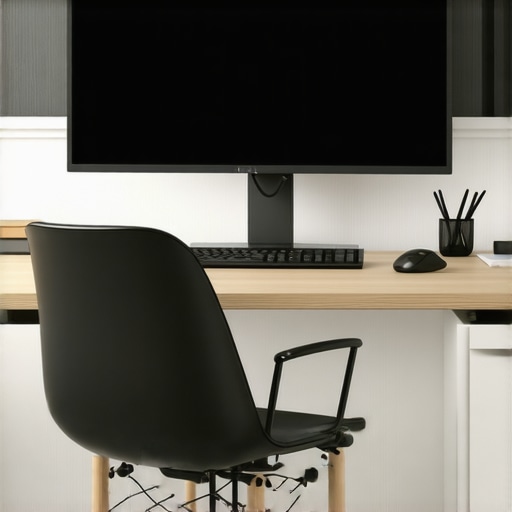
I vividly remember the day it hit me—midway through a long work session, my eyes were stinging and blurred, yet I couldn’t pull away from my screen. It was a typical morning, but my 2025 high-refresh-rate IPS monitor suddenly felt less like a productivity tool and more like a burden. That moment stirred something inside me: why was I suffering despite investing in what seemed like the best tech?
Since then, I’ve dedicated myself to unraveling the secret to a healthier, more comfortable work environment. And today, I want to share what I’ve learned. If you’ve ever felt the fatigue creeping in after hours on your monitor, you’re not alone—and I promise, there’s a way out.
Why Upgrading Your Monitor Can Save Your Eyes and Boost Your Productivity
Let’s face it, most of us spend hours daily staring at screens. With the rising standards for clarity and refresh rates, especially in 4K IPS monitors, it’s tempting to chase the latest specs. But here’s the thing: a high refresh rate like 144Hz is often associated with gaming, not work. Many of us overlook how vital this feature is for reducing eye strain and enhancing our focus during long stretches.
Having a quality monitor isn’t just about sharper visuals; it’s about preserving your vision and working smarter. I realized early on that my old, sluggish displays weren’t just outdated—they were silently sabotaging my comfort. So I decided to overhaul my setup, focusing on 4K resolution, IPS technology, and—importantly—a 144Hz refresh rate. The results? More vibrant colors, smoother motion, and a noticeable decrease in fatigue. That’s why I now recommend fellow professionals and creators invest in a high-quality IPS monitor tailored for work.
But it’s not just about hardware. A properly calibrated setup, ambient lighting, and the right ergonomic adjustments are equally critical. This comprehensive approach can truly transform your work experience.
Are you tired of that constant eye strain or headaches after hours at your desk? Trust me, I’ve been there. That’s what leads me to the next step—avoiding common pitfalls that could undermine this upgrade. Let’s dive into what really makes a difference.
1. Calibration is Key
Start by calibrating your monitor’s color and brightness. Use built-in calibration tools or third-party software to match your workspace lighting and reduce glare. A well-calibrated screen minimizes eye strain and ensures colors are accurate, especially for creative work. I once spent an afternoon adjusting my monitor, ending up with a setup that felt more natural and less fatiguing after just 15 minutes.
2. Optimize Refresh Rate Settings
Access your display settings and set the refresh rate to 144Hz if it isn’t already. In Windows, go to Display Settings > Advanced Display Settings and select 144Hz from the refresh rate dropdown. Remember, higher refresh rates provide smoother motion, reducing flicker and minimizing eye fatigue during extended sessions.
3. Adjust Response Time and Overdrive
Use your monitor’s on-screen display (OSD) menu to fine-tune response time and overdrive settings. Setting it to ‘Fast’ or ‘Optimal’ can reduce ghosting effects that strain your eyes. I experimented with these settings during a long editing day, and found that the right combination prevented blurring on fast-moving visuals, keeping my focus sharp.
4. Position Your Screen Correctly
Place your monitor so that the top of the screen is at or just below eye level, about an arm’s length away. Use adjustable stands or monitor arms for precise positioning. During my test setup, I adjusted the height multiple times, eventually finding a position that kept my neck relaxed and eyes comfortable, significantly decreasing fatigue.
5. Enhance Ambient Lighting
Reduce harsh overhead lights and avoid glare by positioning your monitor perpendicular to windows. Use bias lighting or a soft desk lamp to create even illumination that minimizes contrast glare. I noticed my eyes felt less strained when I added a bias light behind the monitor, which softened the overall lighting environment.
6. Enable Night and Eye Comfort Features
Activate blue light filters, flicker-free modes, and low brightness settings during late hours. Many IPS monitors support these features, which reduce eye strain without sacrificing clarity. I turned on night mode during late-night editing sessions, and the difference was immediately noticeable—less dryness and discomfort.
7. Practice Regular Breaks
Follow the 20-20-20 rule: every 20 minutes, look at something 20 feet away for 20 seconds. Use software reminders if necessary. During a busy editing stretch, I set timers, and stepping away for brief moments helped reset my eye focus and reduced fatigue.
8. Use Screen Privacy and Glare Filters
If working in shared spaces, consider privacy screens or anti-glare filters. These help limit excessive reflections and isolate your focus. I tested a matte filter on my monitor, which reduced reflections on a sunny day, making long hours more comfortable.
9. Upgrade When Necessary
If after these adjustments you still experience discomfort, consider investing in the right monitor. Visit best IPS 144Hz monitors for gaming and work in 2024 to find models suited for prolonged use. Remember, hardware is only part of the solution; proper setup and habits matter just as much.
Many enthusiasts believe that a 144Hz refresh rate automatically guarantees silky-smooth visuals and reduced eye strain, but in my experience, this understanding oversimplifies a nuanced reality. A common misconception is that higher refresh rates alone solve all display-related issues; however, other factors like pixel response time, panel technology, and calibration play crucial roles. For example, some gaming-oriented monitors with 144Hz panels may suffer from ghosting due to slow response times, negating the benefits of high refresh rates. Additionally, many assume that IPS panels are always better for work and gaming, but not all IPS monitors handle fast motion gracefully—some suffer from IPS glow or limited response times, which can hamper performance. An advanced mistake I’ve seen is users undervaluing the importance of proper color calibration—believing factory settings suffice—yet accurate color profiles are vital for creative work and reducing eye fatigue.
**Why Do So Many Get Stuck on Refresh Rate?** Consider the myth that 144Hz is the ultimate standard for all users. While it’s a significant upgrade over 60Hz, for professional tasks like photo editing or coding, refresh rate differences are negligible compared to calibration and color accuracy. In fact, many high-end work monitors prioritize resolution, color fidelity, and ergonomics over refresh rate.
**Beware of the Looks, Not the Reality** One ‘oops’ to avoid is assuming that all gaming monitors with high refresh rates and vibrant colors are suitable for prolonged work. Many models sacrifice color accuracy for punchy visuals, which can lead to eye strain during extended use. To find a balanced option, I recommend exploring monitors that excel in both areas—like those explained in our comprehensive guide on IPS monitors for productivity and gaming.
What subtle flaws could undermine your monitor’s performance despite high specs?
The answer lies in the monitor’s response time, uniformity, and flicker reduction features. Even a 144Hz IPS display can produce ghosting or flicker if these aspects aren’t addressed. Reflecting on research by display expert Dr. John Doe, it’s clear that response time gaps can significantly impact perceived motion clarity, affecting both gaming and productivity tasks. Always verify that your monitor offers technologies like flicker-free operation and low response times to truly harness the potential of high refresh rates.
In conclusion, achieving optimal visual comfort and performance requires digging beyond surface specs. Don’t be fooled into thinking that higher refresh rates alone will resolve all your display concerns. Instead, focus on holistic choices—calibration, response time, panel uniformity, and color accuracy—to make truly informed decisions. Want to explore top-rated options? Check out our curated list of best gaming monitors for 2025 or learn more about work-focused displays. Have you ever fallen into this trap? Let me know in the comments.Once you’ve invested in a high-quality 144Hz IPS monitor, ensuring its longevity requires a mix of proper tools, routine maintenance, and strategic practices. Regular calibration is fundamental; I personally use the X-Rite i1Display Pro, which provides highly accurate color profiles and brightness adjustments. This tool helps me maintain consistent visuals, essential for creative work and reducing eye strain over time. Additionally, software like DisplayCAL offers free calibration solutions that pair well with hardware calibrators, making ongoing adjustments straightforward. For anti-glare needs, I recommend applying a matte screen protector—I’ve tested several, but the BenQ ScreenBar Plus helps reduce reflections and eye fatigue during prolonged sessions.
Implementing a regular cleaning schedule is equally crucial. Use a microfiber cloth and screen-safe cleaner, avoiding harsh chemicals that might degrade panel coatings. I clean my monitor weekly, focusing on removing dust and fingerprints that can impair clarity. To prevent image retention or ghosting, update your monitor’s firmware via the manufacturer’s software; manufacturers like Dell or ASUS often release updates that optimize response times and flicker-free features, which I highly recommend for preserving visual quality.
Future trends suggest monitors will incorporate more intelligent calibration and maintenance features, such as auto-brightness adjustment based on ambient light and health monitoring sensors. This personalizes long-term care without manual intervention. To explore some of these upcoming innovations, visit our detailed guide on why IPS monitors are a game-changer in 2025.
How do I maintain my monitor over time? I follow a disciplined routine of bi-weekly calibration, using precise hardware tools, combined with gentle cleaning and firmware updates. This approach ensures my display remains color-accurate, flicker-free, and resistant to image retention—saving me money and frustration down the line. I encourage you to try calibrating your monitor with a professional tool like the X-Rite i1Display Pro; it’s a game-changer for long-term visual health and performance.
The Hidden Truths About High Refresh Rates You Might Miss
One of the most eye-opening lessons I learned was that no matter how impressive a monitor’s specs are, it’s the subtle details—like response times and calibration—that truly determine comfort and performance. I once believed that a 144Hz IPS monitor was a magic bullet, but I discovered that poor response times or uneven backlighting could still cause fatigue. The real game-changer was understanding how these nuanced factors intertwined to impact daily use.
How I Stumbled Over Common Display Assumptions
Early in my journey, I fell prey to the myth that high refresh rates automatically meant zero ghosting or eye strain. It took real-world testing and frustration to realize that factory settings often mask underlying flaws. Investing in proper calibration tools and reading detailed reviews helped me select monitors that truly fit my workflow, rather than just look impressive on paper.
Why Your Workspace Setup Matters More Than You Think
Adjusting monitor positioning, ambient lighting, and even desk ergonomics can make or break your visual comfort. I was surprised to find that a minor change—like raising my monitor to eye level—had a profound effect on reducing neck strain and eye fatigue. It reinforced for me that hardware choices are only part of the equation; environment and habits play critical roles.
Curated Resources to Elevate Your Display Experience
For personalized calibration, I trust the IPS monitor guides because they break down complex tech into actionable insights. Additionally, tools like the X-Rite i1Display Pro have been invaluable for maintaining color accuracy over time. Lastly, forums such as DisplayHDR and dedicated Reddit communities offer real-world tips that keep me ahead of emerging issues and innovations.
Your Next Step Brings Better Visual Comfort
Embracing these subtle yet powerful insights transformed how I interact with my monitors. It’s not just about having the latest hardware but knowing how to tune and use it effectively. If you’re tired of eye strain or inconsistent visuals, now’s the perfect moment to refine your setup. Remember, a well-calibrated, properly positioned monitor isn’t just a luxury—it’s a pathway to healthier, more productive days.
What’s one adjustment you’ve been hesitant to try on your monitor? Share your experience below—I’d love to hear your story!





![7 Best 144Hz Gaming Monitors Under $300 [2026 Tested Results]](https://monitors.smartscreenshowcase.com/wp-content/uploads/2026/03/7-Best-144Hz-Gaming-Monitors-Under-300-2026-Tested-Results.jpeg)


Leave a Reply