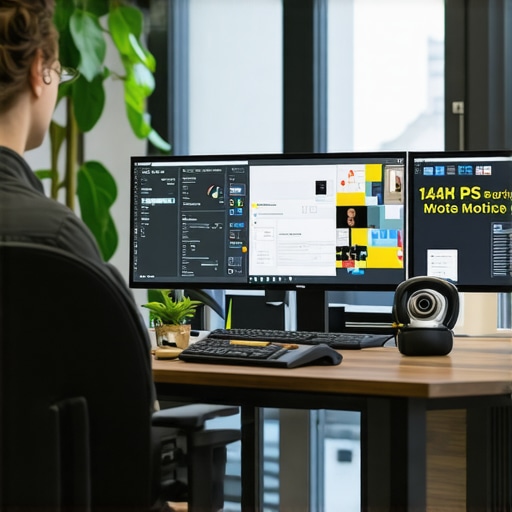
It was a typical Monday morning, coffee in hand, ready to tackle a mountain of spreadsheets and emails. But as I stared at my aging monitor, the sluggish response and dull colors made me feel like I was working through mud. Then, suddenly, I caught a glimpse of my friend’s new 144Hz IPS display. The crispness, the smoothness—it was like seeing my work for the first time. That moment was a wake-up call. I realized my old equipment was holding me back, and I didn’t even know it.
Why Upgrading Your Office Setup to 144Hz IPS Matters in 2026
Fast forward to today, I’m convinced that investing in a high-refresh-rate IPS monitor isn’t just about gaming or eye candy; it’s about turbocharging your productivity. A 144Hz refresh rate can make scrolling, editing, and switching between tasks feel snappier, reducing fatigue and mental clutter. Meanwhile, IPS technology ensures that colors stay vibrant, contrast improves, and viewing angles are broader—crucial factors when working long hours on complex visual tasks. Studies show that smoother visuals can reduce eye strain and increase accuracy, especially during prolonged screen time. For example, a report from Smartscreenshowcase highlights how high refresh rates enhance both creativity and efficiency.
Concerned About Whether This Is Just Hype? Think Again
Like many early adopters, I dismissed the idea that refresh rates above 60Hz could make a real difference outside of gaming. My mistake was assuming that all monitors perform similarly. Once I upgraded, I realized I had been missing out on a smoother, more comfortable work experience. If you’ve ever experienced eye fatigue, sluggish cursor movements, or blurry text after hours at your desk, you know what I mean. The truth is, a good 144Hz IPS monitor can transform your daily workflow—and you might be surprised at how quickly you notice the difference. Ready to see how to leverage this upgrade effectively? Let’s dive into the practical steps that will have you working smarter in 2026.
Upgrade Your Connection for Peak Performance
Before diving into setup, ensure your graphics card supports a 144Hz refresh rate on an IPS monitor. Check your GPU’s specifications and update your drivers via the manufacturer’s website or through your OS updates. I once bought a high-refresh-rate monitor only to realize my old HDMI cable was limiting my connection to 60Hz. Swapping to a DisplayPort cable instantly unlocked the full potential of my new display, making everything smoother and more responsive. For optimal results, use a high-quality cable rated for 4K 144Hz, especially if your workflow involves high-resolution images or video editing. Visit this contact page for reputable cable recommendations.
Configure Settings to Maximize Clarity
Set the Correct Refresh Rate
Navigate to your operating system’s display settings and select your monitor. For Windows, right-click desktop > Display settings > Advanced display settings > Display adapter properties. Under the Monitor tab, choose 144Hz from the dropdown menu. On macOS, go to System Preferences > Displays > Refresh Rate. Correctly setting this ensures smooth motion, reducing eye strain and improving responsiveness. I remember manually changing this setting on my first 144Hz IPS, experiencing an immediate improvement in cursor fluidity—making me realize how default settings often hide these benefits.
Adjust Color Profiles and Calibration
Accurate colors enhance productivity, especially for color-sensitive tasks. Use built-in calibration tools or third-party software like DisplayCAL. Set your monitor to a color profile suited for your work—sRGB for general use, AdobeRGB for creative work. Fine-tuning contrast, brightness, and gamma levels can drastically improve clarity. I once ignored calibration until I noticed my images looked dull on-screen; after calibration, they popped with accurate tones, boosting my confidence in client presentations. For deeper calibration techniques, check this guide.
Optimize Your Workspace Ergonomics
Physical setup matters as much as digital configuration. Position your monitor so that the top of the screen is at or slightly below eye level. Keep your monitor about an arm’s length away to prevent eye fatigue. Use an adjustable stand or VESA mount—this allows fine-tuning of height, tilt, and swivel. I initially propped my monitor on a stack of books, which was awkward and inconsistent; switching to an adjustable mount improved my posture and reduced neck strain, keeping me productive longer. For setup ideas, explore this article.
Utilize Software Enhancements
Leverage operating system features like Night Light or True Tone to reduce blue light and minimize eye strain during long sessions. Some monitors have built-in blue light filters—activate these in the monitor’s on-screen menu or via your OS. I found that enabling a blue light filter in the evening made late-night editing sessions much more comfortable, allowing me to work without headaches. Additionally, explore monitor-specific software that adjusts brightness and contrast dynamically based on ambient lighting, such as these tools.
Maintain and Troubleshoot Your Monitor
Regular cleaning keeps your display clear and prevents dust buildup that can impair visual clarity. Use a soft microfiber cloth and avoid harsh chemicals. If ghosting or motion blur occurs, consider enabling Overdrive settings within the monitor’s menu—be cautious, as aggressive settings can cause inverse ghosting or input lag. I once pushed Overdrive too far, resulting in flickering; dialing it back restored stability. For ghosting issues, refer to this step-by-step fix. Keeping firmware updated and periodically reassessing your calibration ensures long-term performance.Many enthusiasts assume that simply upgrading to a 144Hz IPS monitor guarantees flawless performance for both work and gaming, but this belief overlooks critical nuances that can make or break your experience. One common myth is that higher refresh rates automatically mean better visuals without considering your hardware compatibility or actual use case. For instance, if your graphics card isn’t up to speed, pushing for 144Hz won’t deliver the smoothness you anticipate, and in some cases, can even cause input lag or screen tearing. A thorough understanding of your system’s capabilities is essential to avoid these pitfalls. Additionally, many users underestimate the impact of overdrive settings; setting them too aggressively can lead to inverse ghosting, which diminishes the clarity of fast-moving visuals. This is especially relevant for gamers who seek ultra-responsive display performance—without proper calibration, your monitor might look fast but feel sluggish. It’s also a misconception that all IPS panels are equal; advanced variants like Nano IPS or those with higher color accuracy features can significantly reduce issues like IPS glow and improve visual consistency, especially when working in professional environments. Be wary of the “one-size-fits-all” mindset; a monitor optimized for gaming may not suit professional color-critical tasks, and vice versa. Experts suggest assessing your specific needs before settling on a model, as discussed in our comprehensive guide to IPS monitors in 2025. Moreover, many overlook the importance of proper calibration; uncalibrated monitors can lead to color inaccuracies, reducing the effectiveness for design or photo editing work. This subtle detail often causes frustration and the need for costly rework. I once fell into this trap myself, only to realize that minor calibration adjustments improved my workflow drastically. So, what’s the most common mistake you see with 144Hz or IPS monitors? Share your experiences or questions in the comments below, and let’s clear up these misconceptions once and for all.
To ensure your high-refresh-rate IPS monitor continues delivering crisp visuals and smooth performance, regular maintenance and the right tools are essential. I personally swear by using a microfiber cloth specifically designed for screens, avoiding paper towels or abrasive materials that can scratch delicate IPS panels. A gentle, streak-free cleaning with a dedicated monitor cleaner keeps dust and smudges at bay, preserving color accuracy and clarity.
In terms of software, I rely heavily on calibration tools like DisplayCAL. It’s an open-source utility that allows me to fine-tune my monitor’s color profile, ensuring that visuals remain vibrant and consistent over time. Calibration isn’t a one-and-done process; revisiting it every six months helps maintain optimal performance, especially as monitors can drift in color accuracy with age.
For hardware health, I recommend investing in a USB-powered monitor tester—these compact devices can quickly check for ghosting, dead pixels, and input lag issues. I use one periodically to verify my monitor’s responsiveness, especially after firmware updates or prolonged use.
Also, keep an eye on firmware updates from your monitor manufacturer. They often include performance improvements or fixes for issues like IPS glow or backlight bleed. According to experts at TechRadar, maintaining original firmware can prolong your monitor’s lifespan and prevent unexpected problems in the future.
Looking ahead, as display technologies evolve, integration of AI-based calibration and predictive maintenance tools might become standard, further simplifying care routines. However, the foundation remains: regular physical cleaning, calibration, and firmware checks address most long-term issues.
Don’t forget to set a reminder to clean your monitor monthly and recalibrate every six months. If you want to elevate your setup, try using DisplayCAL for precise color calibration—it’s a game changer that will keep your visuals razor-sharp and true to life in 2026. Want a straightforward starting point? Check out this step-by-step calibration guide and take control of your display quality today.
Lessons I Never Expected to Learn from a Monitor
- One of the most surprising realizations was how much a monitor’s response time impacts my ability to spot errors quickly. Upgrading to a high-refresh-rate IPS display made me more attentive and precise, especially when reviewing detailed work. I also discovered that enabling certain overdrive settings, once fine-tuned, significantly reduced ghosting without introducing artifacts—something I had always assumed was a complicated trade-off.
- For me, calibration wasn’t just about color accuracy but about creating a workspace that feels natural. Small tweaks in gamma and brightness reduced eye fatigue dramatically, enabling longer focus sessions. It turned out that even in professional settings, superb visuals are more than just aesthetics— they directly enhance clarity and reduce mistakes.
- Lastly, I learned that physical ergonomics tie everything together. Proper positioning and a stable VESA mount prevented neck strain and kept my mind sharp. This holistic approach to monitor setup created a seamless, almost invisible upgrade that transformed my daily productivity.
My Trusted Resources for Getting the Most Out of Your 144Hz IPS Display
- SmartScreen Showcase’s guide to creative monitors — It offers in-depth reviews of the latest IPS monitors with 144Hz refresh rates that are ideal for professionals seeking vibrant color and responsiveness.
- The ultimate breakdown of IPS technology — Understanding the nuances of IPS panels has helped me choose the right monitor for specific tasks, balancing color, speed, and durability.
- Comprehensive setup tips for productivity — This resource dives into calibration, ergonomics, and software optimizations that unlock the full potential of your display.
- Expert advice and personalized recommendations — When I hit a snag, reaching out for tailored solutions made a noticeable difference, especially with calibration issues and firmware updates.
Seize the Moment and Elevate Your Visual Experience
The journey towards an optimized work setup with a 144Hz IPS monitor isn’t just about hardware—it’s a mindset overhaul that empowers you to work smarter, healthier, and more creatively. Embrace the subtle enhancements, from calibration tweaks to ergonomic tweaks, and watch your productivity soar. Remember, even small investments in understanding and maintaining your display can lead to big returns. Don’t wait for a problem to remind you—take charge of your workspace today, and let your monitor elevate your entire digital life.
What’s one thing about your current monitor setup that you think is holding you back? Share your experiences below, and let’s grow together in mastering our workspace tools!
}#}#}#}#}#}#}#}#}#}#}#}#}#}#}#}#}#}#}#}#}#}#}#}#}#}#}#}#}#}#}#}#}#}#}#}#}#}#}#}#}#}#}#}#}#}#}#}#}#}#}#}#}#}#}#}#}#}#}#}#}#}#}#}#}#}#}#}#}#}#}#}#}#}#}#}#}#}#}#}#}#}#}#}#}#}#}#}#}#}#}#}#}#}#}#}#}#}#}#}#}#}#}#}#}#}#}#}#}#}#}#}#}#}#}#}#}#}#}#}#}#}#}#}#}#}#}#}#}#}#}#}#}#}#}#}#}#}#}#}#}#}#}#}#}#}#}#}#}#}#}#}#}#}#}#}#}#}#}#}#}#}#}#}#}#}#}#}#}#}#}#}#}#}#}#}#}#}#}#}#}#}#}#}#}#}#}#}#}#}#}#}#}#}#}#}#}#}#}#}#}#}#}#}#}#}#}#}#}#}#}#}#}#}#}#}#}#}#}#}#}#}#}#}#}#}#}#}#}#}#}#}#}#}#}#}#}#}#}#}#}#}#}#}#}#}#}#}#}#}#}#}#}#}#}#}#}#}#}#}#}#}#}#}#}#}#}#}#}#}#}#}#}#}#}#}#}#}#}#}#}#}#}#}#}#}#}#}#}#}#}#}#}#}#}#}#}#}#}#}#}#}#}#}#}#}#}#}#}#}#}#}#}#}#}#}#}#}#}#}#}#}#}#}#}#}#}#}#}#}#}#}#}#}#}#}#}#}#}#}#}#}#}#}#}#}#}#}#}#}#}#}#}#}#}#}#}#}#}#}#}#}#}#}#}#}#}#}#}#}#}#}#}#}#}#}#}#}#}#}#}#}#}#}#}#}#}#}#}#}#}#}#}#}#}#}#}#}#}#}#}#}#}#}#}#}#}#}#}#}#}#}#}#}#}#}#}#}#}#}#}#}#}#}#}#}#}#}#}#}#}#}#}#}#}#}#}#}#}#}#}#}#}#}#}#}#}#}#}#}#}#}#}#}#}#}#}#}#}#}#}#}#}#}#}#}#}#}#}#}#}#}#}#}#}#}#}#}#}#}#}#}#}#}#}#}#}#}#}#}#}#}#}#}#}#}#}#}#}#}#}#}#}#}#}#}#}#}#}#}#}#}#}#}#}#}#}#}#}#}#}#}#}#}#}#}#}#}#}#}#}#}#}#}#}#}#}#}#}#}#}#}#}#}#}#}#}#}#}#}#}#}#}#}#}#}#}#}#}#}#}#}#}#}#}#}#}#}#}#}#}#}#}#}#}#}#}#}#}#}#}#}#}#}#}#}#}#}#}#}#}#}#}#}#}#}#}#}#}#}#}#}#}#}#}#}#}#}#}#}#}#}#}#}#}#}#}#}#}#}#}#}#}#}#}#}#}#}#}#}#}#}#}#}#}#}#}#}#}#}#}#}#}#}#}#}#}#}#}#}#}#}#}#}#}#}#}#}#}#}#}#}#}#}#}#}#}#}#}#}#}#}#}#}#}#}#}#}#}#}#}#}#}#}#}#}#}#}#}#}#}#}#}#}#}#}#}#}#}#}#}#}#}#}#}#}#}#}#}#}#}#}#}#}#}#}#}#}#}#}#}#}#}#}#}#}#}#}#}#}#}#}#}#}#}#}#}#}#}#}#}#}#}#}#}#}#}#}#}#}#}#}#}#}#}#}#}#}#}#}#}#}#}#}#}#}#}#}#}#}#}#}#}#}#}#}#}#}#}#}#}#}#}#}#}#}#}#}#}#}#}#}#}#}#}#}#}#}#}#}#}#}#}#}#}#}#}#}#}#}#}#}#}#}#}#}#}#}#}#}#}#}#}#}#}#}#}#}#}#}#}#}#}#}#}#}#}#}#}#}#}#}#}#}#}#}#}#}#}#}#}#}#}#}#}#}#}#}#}#}#}#}#}#}#}#}#}#}#}#}#}#}#}#}#}#}#}#}#}#}#}#}#}#}#}#}#}#}#}#}#}#}#}#}#}#}#}#}#}#}#}#}#}#}#}#}#}#}#}#}#}#}#}#}#}#}#}#}#}#}#}#}#}#}#}#}#}#}#}#}#}#}#}#}#}#}#}#}#}#}#}#}#}#}#}#}#}#}#}#}#}#}#}#}#}#}#}#}#}#}#}#}#}#}#}#}#}#}#}#}#}#}#}#}#}#}#}#}#}#}#}#}#}#}#}#}#}#}#}#}#}#}#}#}#}#}#}#}#}#}#}#}#}#}#}#}#}#}#}#}#}#}#}#}#}#}#}#}#}#}#}#}#}#}#}#}#}#}#}#}#}#}#}#}#}#}#}#}#}#}#}#}#}#}#}#}#}#}#}#}#}#}#}#}#}#}#}#}#}#}#}#}#}#}#}#}#}#}#}#}#}#}#}#}#}#}#}#}#}#}#}#}#}#}#}#}#}#}#}#}#}#}#}#}#}#}#}#}#}#}#}#}#}#}#}#}#}#}#}#}#}#}#}#}#}#}#}#}#}#}#}#}#}#}#}#}#}#}#}#}#}#}#}#}#}#}#}#}#}#}#}#}#}#}#}#}#}#}#}#}#}#}#}#}#}#}#}#}#}#}#}#}#}#}#}#}#}#}#}#}#}#}#}#}#}#}#}#}#}#}#}#}#}#}#}#}#}#}#}#}#}#}#}#}#}#}#}#}#}#}#}#}#}#}#}#}#}#}#}#}#}#}#}#}#}#}#}#}#}#}#}#}#}#}#}#}#}#}#}#}#}#}#}#}#}#}#}#}#}#}#}#}#}#}#}#}#}#}#}#}#}#}#}#}#}#}#}#}#}#}#}#}#}#}#}#}#}#}#}#}#}#}#}#}#}#}#}#}#}#}#}#}#}#}#}#}#}#}#}#}#}#}#}#}#}#}#}#}#}#}#}#}#}#}#}#}#}#}#}#}#}#}#}#}#}#}#}#}#}#}#}#}#}#}#}#}#}#}#}#}#}#}#}#}#}#}#}#}#}#}#}#}#}#}#}#}#}#}#}#}#}#}#}#}#}#}#}#}#}#}#}#}#}#}#}#}#}#}#}#}#}#}#}#}#}#}#}#}#}#}#}#}#}#}#}#}#}#}#}#}#}#}#}#}#}#}#}#}#}#}#}#}#}#}#}#}#}#}#}#}#}#}#}#}#}#}#}#}#}#}#}#}#}#}#}#}#}#}#}#}#}#}#}#}#}#}#}#}#}#}#}#}#}#}#}#}#}#}#}#}#}#}#}#}#}#}#}#}#}#}#}#}#}#}#}#}#}#}#}#}#}#}#}#}#}#}#}#}#}#}#}#}#}#}#}#}#}#}#}#}#}#}#}#}#}#}#}#}#}#}#}#}#}#}#}#}#}#}#}#}#}#}#}#}#}#}#}#}#}#}#}#}#}#}#}#}#}#}#}#}#}#}#}#}#}#}#}#}#}#}#}#}#}#}#}#}#}#}#}#}#}#}#}#}#}#}#}#}#}#}#}#}#}#}#}#}#}#}#}#}#}#}#}#}#}#}#}#}#}#}#}#}#}#}#}#}#}#}#}#}#}#}#}#}#}#}#}#}#}#}#}#}#}#}#}#}#}#}#}#}#}#}#}#}#}#}#}#}#}#}#}#}#}#}#}#}#}#}#}#}#}#}#}#}#}#}#}#}#}#}#}#}#}#}#}#}#}#}#}#}#}#}#}#}#}#}#}#}#}#}#}#}#}#}#}#}#}#}#}#}#}#}#}#}#}#}#}#}#}#}#}#}#}#}#}#}#}#}#}#}#}#}#}#}#}#}#}#}#}#}#}#}#}#}#}#}#}#}#}#}#}#}#}#}#}#}#}#}#}#}#}#}#}#}#}#}#}#}#}#}#}#}#}#}#}#}#}#}#}#}#}#}#}#}#}#}#}#}#}#}#}#}#}#}#}#}#}#}#}#}#}#}#}#}#}#}#}#}#}#}#}#}#}#}#}#}#}#}#}#}#}#}#}#}#}#}#}#}#}#}#}#}#}#}#}#}#}#}#}#}#}#}#}#}#}#}#}#}#}#}#}#}#}#}#}#}#}#}#}#}#}#}#}#}#}#}#}#}#}#}#}#}#}#}#}#}#}#}#}#}#}#}#}#}#}#}#}#}#}#}#}#}#}#}#}#}#}#}#}#}#}#}#}#}#}#}#}#}#}#}#}#}#}#}#}#}#}#}#}#}#}#}#}#}#}#}#}#}#}#}#}#}#}#}#}#}#}#}#}#}#}#}#}#}#}#}#}#}#}#}#}#}#}#}#}#}#}#}#}#}#}#}#}#}#}#}#}#}#}#}#}#}#}#}#}#}#}#}#}#}#}#}#}#}#}#}#}#}#}#}#}#}#}#}#}#}#}#}#}#}#}#}#}#}#}#}#}#}#}#}#}#}#}#}#}#}#}#}#}#}#}#}#}#}#}#}#}#}#}#}#}#}#}#}#}#}#}#}#}#}#}#}#}#}#}#}#}#}#}#}#}#}#}#}#}#}#}#}#}#}#}#}#}#}#}#}#}#}#}#}#}#}#}#}#}#}#}#}#}#}#}#}#}#}#}#}#}#}#}#}#}#}#}#}#}#}#}#}#}#}#}#}#}#}#}#}#}#}#}#}#}#}#}#}#}#}#}#}#}#}#}#}#}#}#}#}#}#}#}#}#}#}#}#}#}#}#}#}#}#}#}#}#}#}#}#}#}#}#}#}#}#}#}#}#}#}#}#}#}#}#}#}#}#}#}#}#}#}#}





![7 Best 144Hz Gaming Monitors Under $300 [2026 Tested Results]](https://monitors.smartscreenshowcase.com/wp-content/uploads/2026/03/7-Best-144Hz-Gaming-Monitors-Under-300-2026-Tested-Results.jpeg)


Leave a Reply